Categories
Articles Firewall

Samba Installation and User Authorization on Ubuntu 24.04

Samba Installation and User Authorization on Ubuntu 24.04

This document provides a step-by-step guide for installing and configuring the Samba service on an Ubuntu 24.04 server, including granting a user access to a specific shared directory (e.g., for storing 5651 logs).

1. System Update and Required Packages

sudo apt update && sudo apt upgrade -y
sudo apt install samba -y

2. Create the Shared Directory

sudo mkdir -p /srv/samba/share5651
sudo chown root:root /srv/samba/share5651
sudo chmod 755 /srv/samba/share5651

3. Create the Samba User

sudo adduser berqlog
sudo smbpasswd -a berqlog

Note: Ensure the password is set for both the system and Samba.

4. Edit Samba Configuration File

Edit /etc/samba/smb.conf with the following content:

[global]
    workgroup = WORKGROUP
    netbios name = COMPANY_SMB
    server string = Company Log Server
    security = user
    map to guest = Bad User
    dns proxy = no
    server min protocol = NT1
    ntlm auth = yes
    log file = /var/log/samba/log.%m
    max log size = 1000
    logging = file
    panic action = /usr/share/samba/panic-action %d
    server role = standalone server
    obey pam restrictions = yes
    unix password sync = yes
    passwd program = /usr/bin/passwd %u
    passwd chat = *Enter\snew\s*\spassword:* %n\n *Retype\snew\s*\spassword:* %n\n *password\supdated\ssuccessfully* .
    pam password change = yes
    usershare allow guests = no
    idmap config * : backend = tdb

[share5651]
    path = /srv/samba/share5651
    read only = no
    valid users = berqlog
    create mask = 0644
    directory mask = 0755
    browseable = yes
    guest ok = no

5. Test the Configuration

testparm

Make sure there are no syntax errors.

6. Restart Samba Service

sudo systemctl restart smbd
sudo systemctl enable smbd

7. Firewall Configuration (If Enabled)

sudo ufw allow 'Samba'

8. Access the Share

From a Windows machine:

\\<ubuntu_ip_address>\share5651

Username: berqlog, Password: the one set during setup.

9. Logs and Troubleshooting

Samba logs are located at:

/var/log/samba/log.smbd
/var/log/samba/log.nmbd
/var/log/samba/log.<client_ip_or_name>

Additional Notes:

  • The ntlm auth = yes setting allows compatibility with legacy Windows clients.
  • The server min protocol = NT1 is for compatibility with old systems. For better security, consider using SMB2 or higher.

This setup covers basic file sharing and user authorization. For advanced needs, consider configuring ACLs, audit modules, or integrating with a domain.

Categories
Articles Windows Windows Server

Clearing IIS Logs at Regular Intervals on Windows Server

Internet Information Services (IIS) is a component that provides web server services on Windows Server. IIS records log files to monitor website performance and detect issues. However, over time, these log files can unnecessarily consume disk space. In this guide, we’ll look at how to clean up IIS logs on Windows Server.

Step 1: Determine the Location of IIS Logs

1.Log in to the Windows Server.

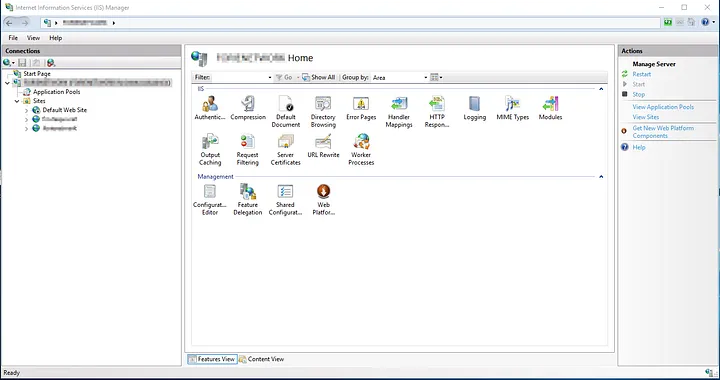
2.Open the “Internet Information Services (IIS) Manager” by typing “IIS” in the Start menu.

IIS 01
IIS 01

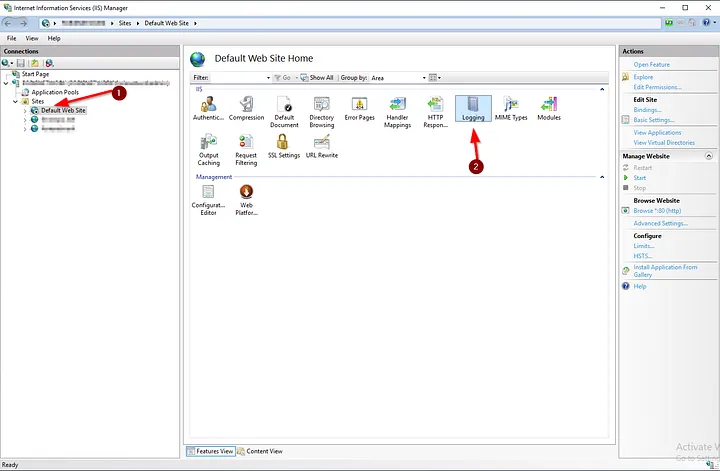
3.Expand the name of your server in the left-hand connection tree.

4.Under Sites, select the web site you want to clean up.

IIS 02
IIS 02

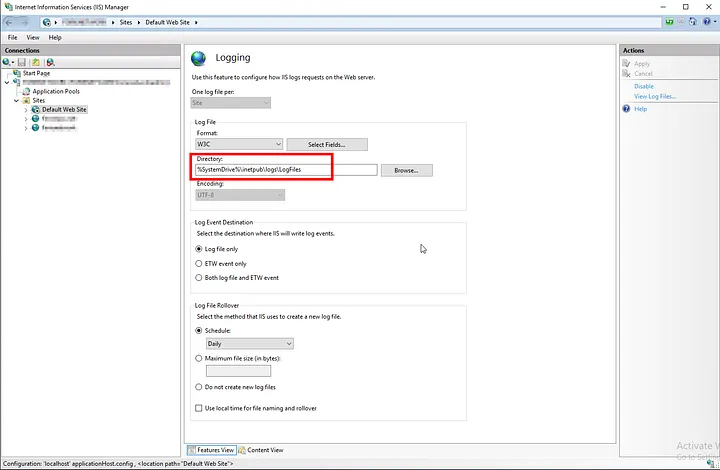
5.In the “IIS” section on the right side, find the “Logging” item. Here, you’ll see the directory where log files are stored. This is typically “C:\inetpub\logs\LogFiles” or a similar path.

IIS 03
IIS 03

Step 2: Cleaning Up Logs

1.Before deleting log files, you may want to back up their contents. You can copy the log files to another folder for this purpose.

2.Navigate to the “LogFiles” folder to clean up log files.

LogFiles
LogFiles

3.Here, you’ll see different folders named with date and time information (e.g., W3SVC1, W3SVC2, etc.). Choose the folder corresponding to the web site you’re interested in.

4.Select the log files within the folder, and press the Delete key to permanently remove the files.

Step 3: Creating a Scheduled Task (Optional)

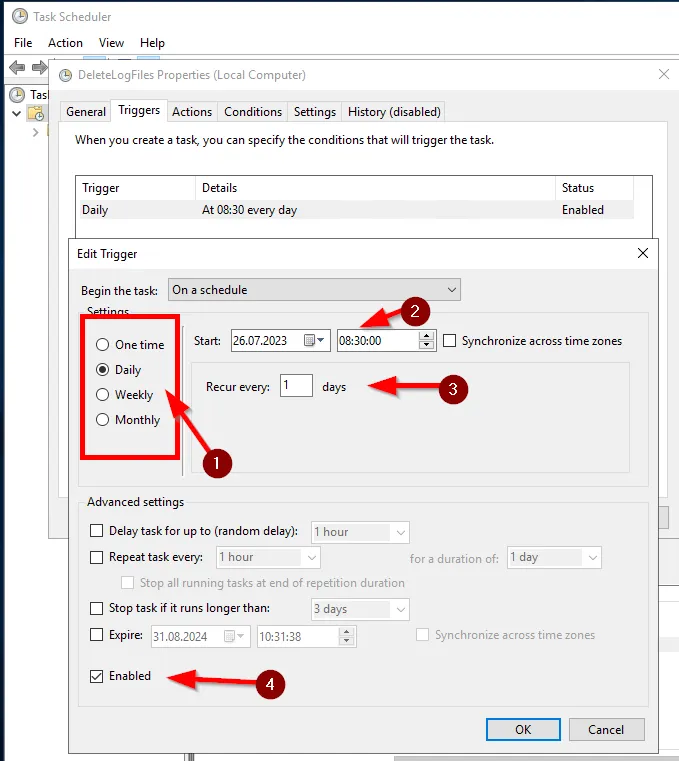
If you want to clean up IIS logs periodically, you can use the Windows Task Scheduler. This way, you can automatically clean up logs at specified intervals.

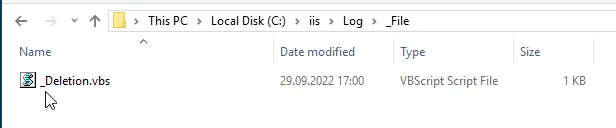
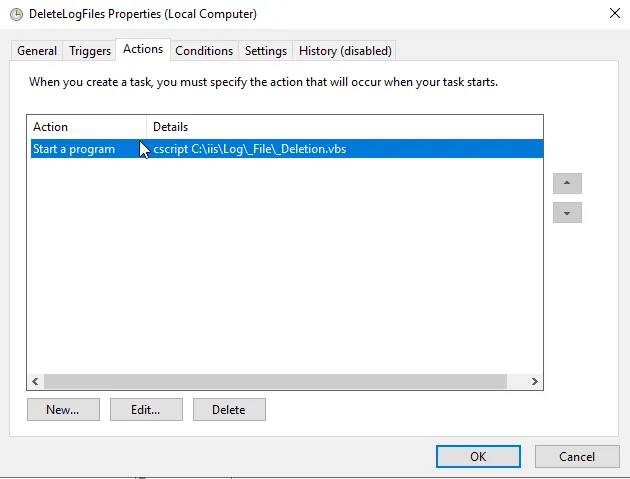
  1. We’ll continue using the script we prepared earlier. Copy the script to a text editor, give it a name, and save it as a .vbs file.
sLogFolder = "c:\inetpub\logs\LogFiles"
iMaxAge = 30   'in days

' FileSystemObject oluşturuluyor
Set objFSO = CreateObject("Scripting.FileSystemObject")

' Log dosyalarının bulunduğu klasörün alt klasörleri taranıyor
set colFolder = objFSO.GetFolder(sLogFolder)
For Each colSubfolder in colFolder.SubFolders
        ' Alt klasör içindeki dosyaları tarıyor
        Set objFolder = objFSO.GetFolder(colSubfolder.Path)
        Set colFiles = objFolder.Files
        For Each objFile in colFiles
                ' Dosyanın yaşını hesaplıyor
                iFileAge = now - objFile.DateCreated
                ' Belirlediğiniz gün sınırını aşıyorsa silme işlemi yapılıyor
                if iFileAge > (iMaxAge+1) then
                        objFSO.DeleteFile objFile, True ' Dosya siliniyor
                end if
        Next
Next
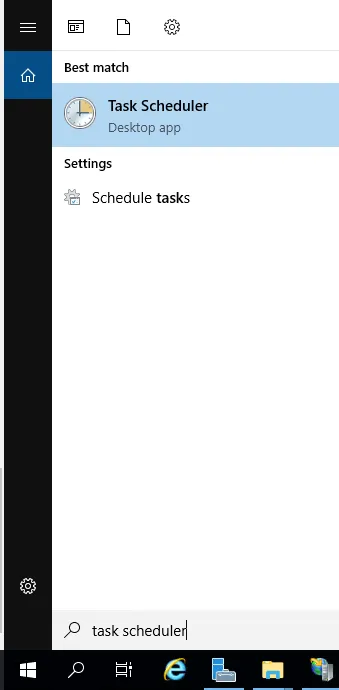
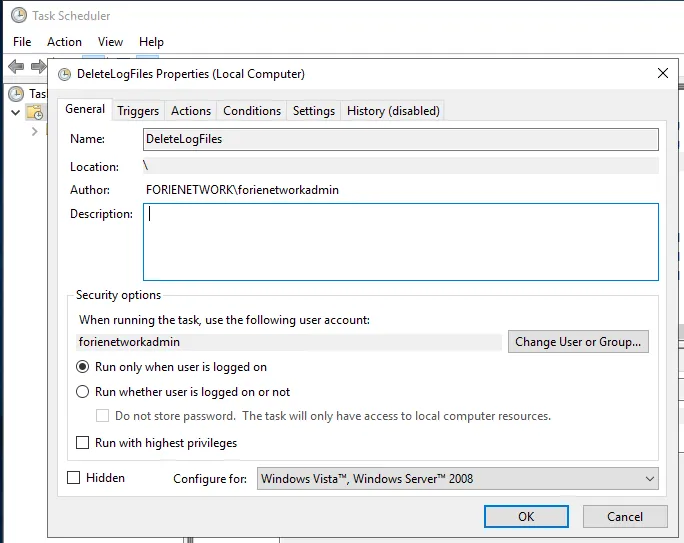
2.Next, open the “Task Scheduler” application from the Start menu.

3.Click on “Create Basic Task” to create a new scheduled task.

4.Görevinizi adlandırın ve açıklama ekleyin.

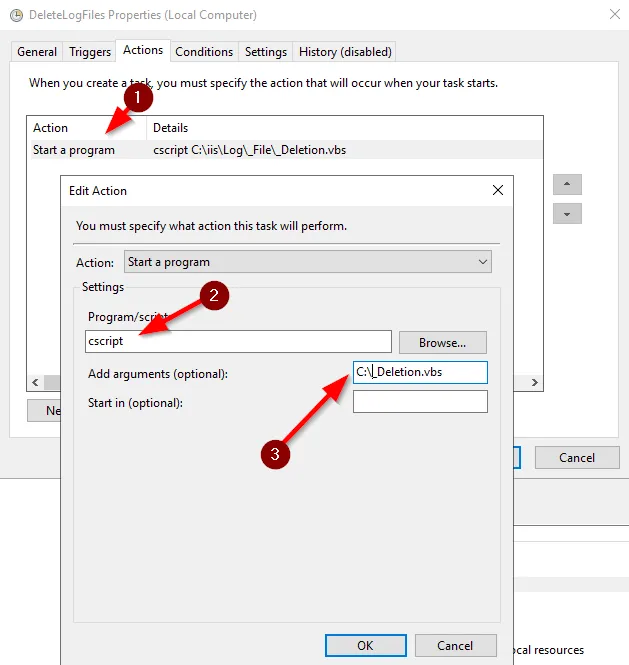
5.Choose “Start a Program” and specify a script or batch file to delete the logs.

6.You’ll see a summary of your task. Click “Finish” or “Create” to create the task.

By following these steps, you can clean up IIS logs at regular intervals on Windows Server. Be cautious when deleting logs and remember to create backups before deleting unnecessary files.


If you have any questions or details you would like to add, feel free to write me.