The Windows Server operating system provides various tools and commands for managing and monitoring servers’ administration and performance. Among these tools are the Diskperf -Y and Diskperf -N commands. In this article, we will explore the necessity and usage scenarios of the diskperf commands on Windows Server.
Diskperf -Y: Activation Command
The Diskperf -Y command is used to enable disk performance measurements. The applications and necessities of this command include:
1.Performance Monitoring and Analysis: Monitoring and analyzing server performance is crucial for maintaining efficient operations. The Diskperf -Y command activates performance measurements used to monitor disk usage levels, data transfer rates, and processing delays. System administrators can continually track server disk performance and promptly identify issues when needed.
2.Troubleshooting and Problem Resolution: Issues related to disks, such as performance degradation or excessive load, can adversely impact server efficiency. The Diskperf -Y command serves as an essential tool for detecting and swiftly resolving problems. System administrators can determine when disks are being excessively used or are insufficient in various situations.
Diskperf -N: Disable Command
The Diskperf -N command is used to disable disk performance measurements. The applications and necessities of this command include:
1.Data Privacy and Security: In certain situations, preventing the monitoring of disk performance data on servers becomes necessary. This is especially important when dealing with sensitive data or ensuring server security. The Diskperf -N command can be used to limit the monitoring of such sensitive data and safeguard data privacy.
2.Performance Optimization: The Diskperf -N command enables the temporary disabling of performance measurements based on measurement requirements. This can help optimize overall server performance by freeing up unnecessary system resources.
The Diskperf -Y and Diskperf -N commands provide the means to enable and disable disk performance measurements in the Windows Server operating system. Monitoring disk performance is vital for performance monitoring, troubleshooting, and ensuring data security on servers. When used correctly and purposefully, these commands empower system administrators and users with increased control over server management.
Enabling Diskperf -Y: How to Activate It
Disk performance measurements are crucial indicators for the health and efficiency of computer systems. Windows Server operating systems offer various tools and commands for managing and monitoring servers, and among these tools are the Diskperf -Y and Diskperf -N commands. In this article, we will explore the necessity and applications of the Diskperf -Y and Diskperf -N commands on Windows Server.
Diskperf -Y Command: Activation Process
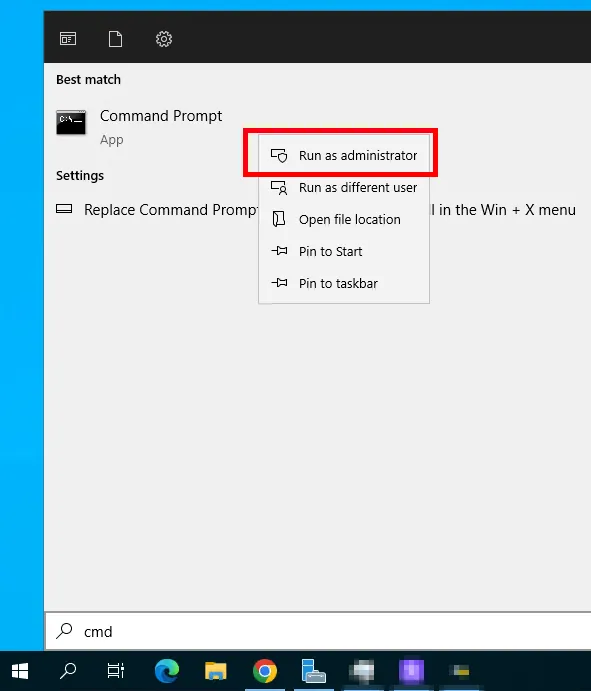
- Search for “Command Prompt” in the Start Menu: Navigate to the Start Menu and search for “Command Prompt.” Right-click on the “Command Prompt” application from the search results, and select “Run as administrator” to open it with administrative privileges.
2.Enter the Diskperf -Y Command: In the opened Command Prompt window, type the following command and press the Enter key:
diskperf -Y
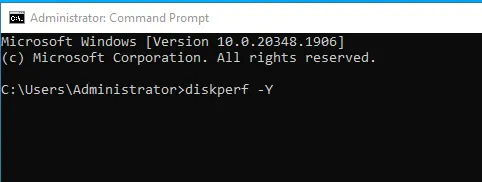
3.Check the Confirmation Message: After executing the command, the system should display a confirmation message such as “Disk performance counters were successfully enabled.” This indicates that disk performance measurements have been successfully activated.
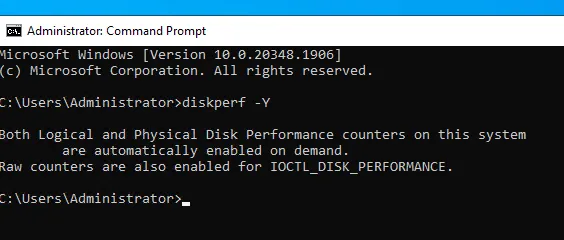
By now, you have successfully used the diskperf -Y command to enable disk performance measurements. This will allow you to monitor performance metrics such as disk activity, data transfer speed, and disk usage.
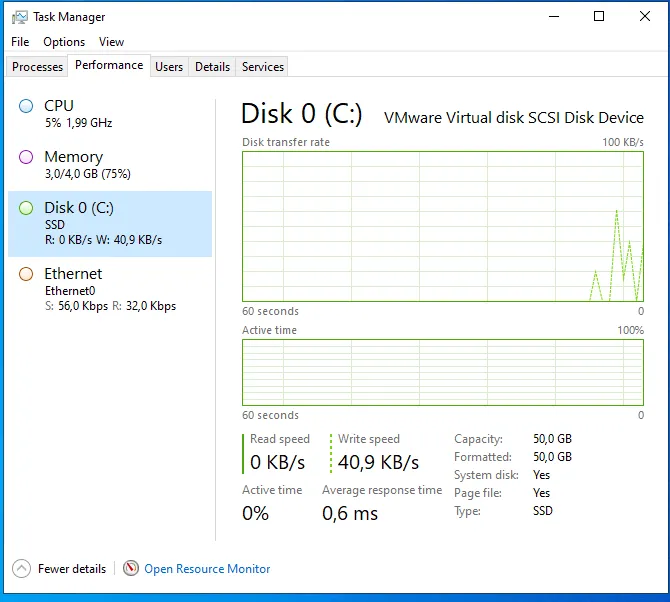
emember that performance measurements can be disabled using the “diskperf -N” command when necessary.
Monitoring disk performance using tools like Task Manager or Performance Monitoring is essential for optimizing the health and efficiency of servers or computers. Keeping track of disk activity and performance ensures a stable and responsive system.
Herhangi bir sorunuz veya eklemek istediğiniz detaylar varsa bana yazmaktan çekinmeyin.