Categories
Articles Windows Server

Obtaining an SSL Certificate on Windows IIS Server Using “Certify the Web”

One of the crucial steps towards securing data traffic on the internet is to use SSL/TLS certificates on your websites. These certificates ensure encrypted data transmission and enable users to interact with your site securely. For Windows-based IIS servers, you can utilize the free tool “Certify the Web” to acquire and manage SSL certificates. Here’s a step-by-step guide on how to obtain an SSL certificate using the Certify the Web tool:

Step 1: Downloading and Installing Certify the Web

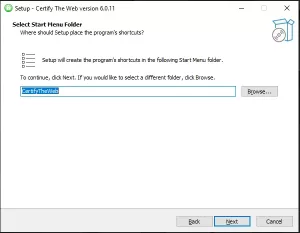
  1. Visit the official Certify the Web website and download the program. Proceed with the installation on your computer.
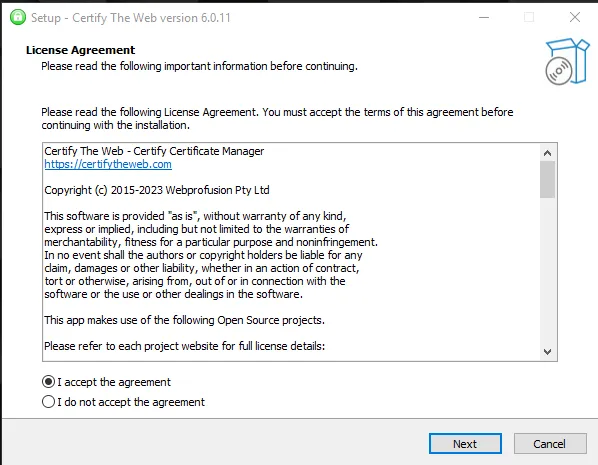
Certify the Web — 01
Certify the Web — 02
Certify the Web — 03
Certify the Web — 04

Step 2: Opening the Tool and Basic Configuration

1.Launch the Certify the Web application.

Certify the Web — 05

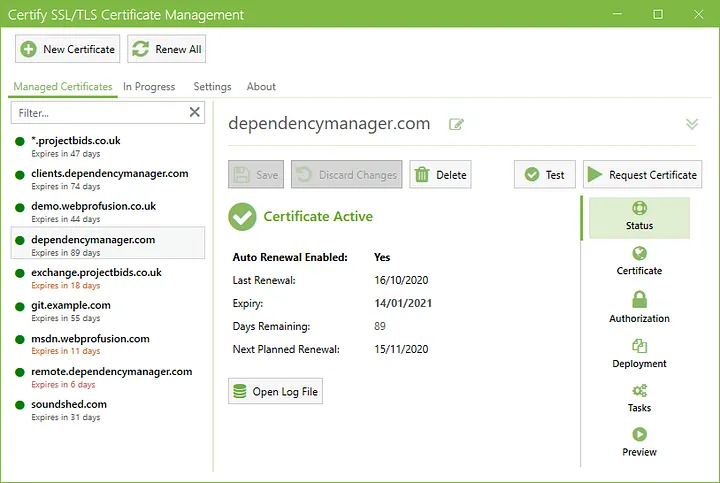
2. On the main screen, you’ll typically find an option like “New Certificate” or something similar. Click on this option to initiate the process of creating a new certificate.
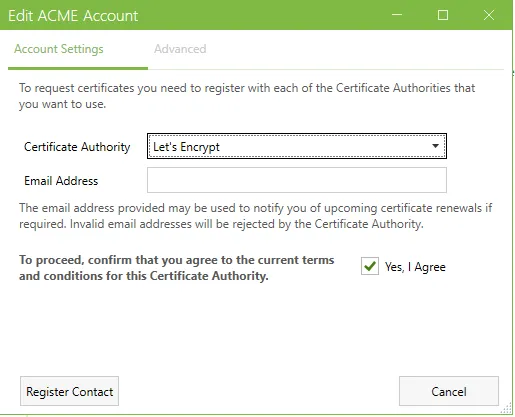
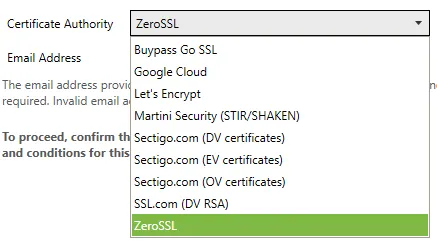
Certify the Web — 06
Certify the Web — 07

Step 3: Domain Selection and Verification Methods

1.During the certificate creation process, you should add the domain names you wish to protect (e.g., www.example.com).

Certify the Web — 08

2.Certify the Web offers various methods to verify the ownership of your domain. Choose one of these methods. Usually, you can opt for HTTP or DNS-based verification methods.
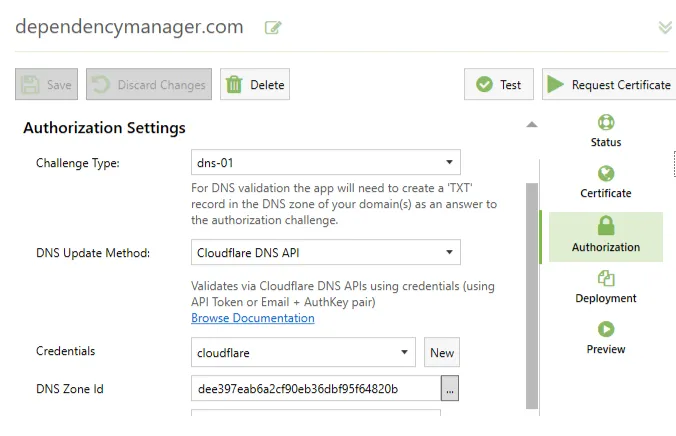
HTTP-Based Verification:

  1. When HTTP-based verification is selected, Certify the Web will automatically create a special file in a designated folder on your server. This file is used to verify that your domain is accessible.

DNS-Based Verification:

  1. If DNS-based verification is chosen, you might need to create a specific DNS record. This record assists the certificate provider in verifying the ownership of your domain.

Step 4: Certificate Issuance and Installation

1.Once the verification process is completed, Certify the Web will automatically obtain the SSL/TLS certificates.

2.To manage the generated certificates and install them on your IIS server when needed, you can use the “Certificates” or a similar tab or menu.

IIS Server
IIS Server
IIS Server / Server Certificates

Step 5: Using the Certificate on the IIS Server

1.While Certify the Web handles the certificate issuance, you need to activate these certificates on your IIS server.
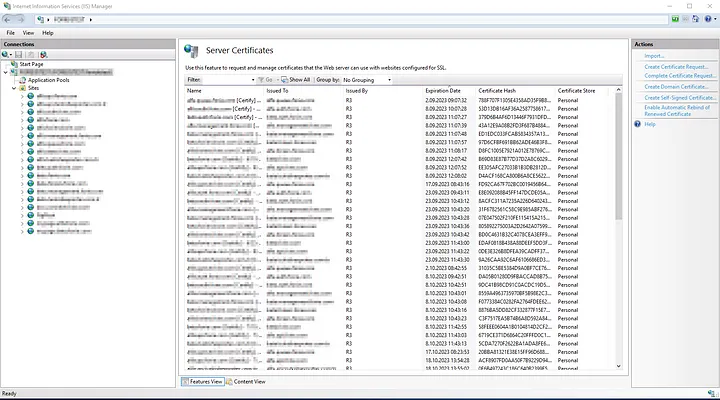
2.In the IIS management interface, navigate to the connection security settings of the relevant website.

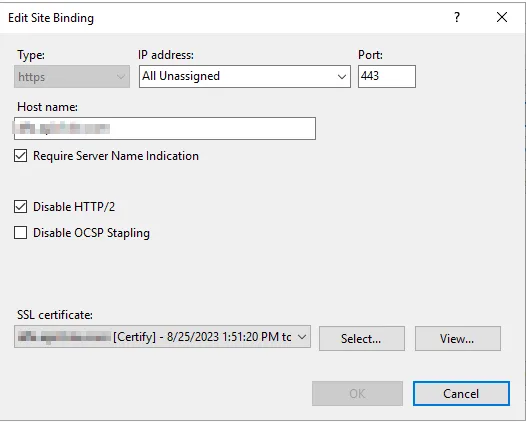
IIS Server — Binding

3.Select the newly acquired SSL/TLS certificate as the server certificate.
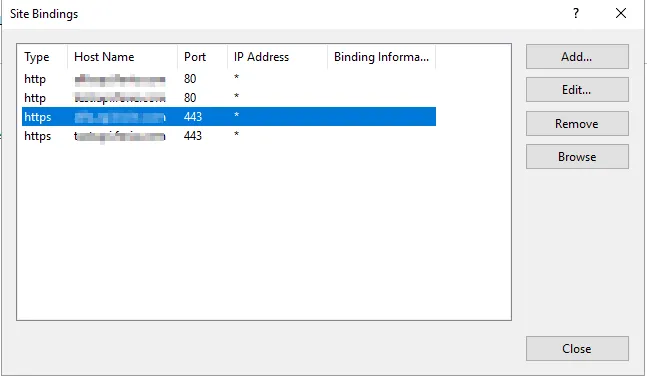
Site Binding
Site Binding
Edit Site Binding
Edit Site Binding

Data security is a paramount concern while managing your online presence. The Certify the Web tool simplifies the process of SSL certificate acquisition and management by making it easy and automated.


If you have any questions or details you would like to add, feel free to write me.
Categories
Articles Monitoring Windows Server

Part III — Monitoring Process for IIS Servers on Windows Server

Monitoring IIS Servers on Windows Server Using Prometheus, Grafana, and WMI Exporter: Step-by-Step Guide

  1. Prometheus Installation
  • Download Prometheus: Get the latest version of Prometheus from the official website (https://prometheus.io/download/).
  • Extract the downloaded archive and copy the files to a suitable directory.
  • Create a configuration file named prometheus.yml. This file will define the targets to be monitored, such as WMI Exporter.

2. WMI Exporter Installation

  • Download WMI Exporter: Download the WMI Exporter from the GitHub repository.
  • Use the installer found in the “Assets” section to install the exporter.
  • Install the exporter using the MSI installer.
  • The binary will be placed in the directory: C:\Program Files\windows_exporter.
C:\Program Files\windows_exporter
  • If there’s a running process/task named “windows_exporter,” terminate it, as we will need to manually start the exporter with additional flags.
  • To fetch IIS Server statistics, manually run the exporter using the following command:
"C:\Program Files\windows_exporter\windows_exporter.exe" --collectors.enabled="cpu,cs,iis,logical_disk,net,os,service,system,textfile"
  • Access http://localhost:9182/metrics in your browser to view the available metrics.
  • To make the changes persistent, add the following settings to the registry:
"C:\Program Files\windows_exporter\windows_exporter.exe" --collectors.enabled="cpu,cs,iis,logical_disk,net,os,service,system,textfile" --log.format logger:eventlog?name=windows_exporter

In our previous article, you can find information on how to perform monitoring on a Windows server


3. Configuring Prometheus with WMI Exporter

  • Open your prometheus.yml file and add WMI Exporter as a target like this:
scrape_configs:
- job_name: 'wmi'
  static_configs:
    - targets: ['localhost:9182'] # Varsayılan WMI Exporter portu

4. Grafana Installation and Configuration

  • Download Grafana: Get the latest version of Grafana from the official website (https://grafana.com/grafana/download).
  • Extract the downloaded archive and copy the files to a suitable directory.
  • Start Grafana: Launch Grafana using the command line (e.g., grafana-server.exe).
Grafana setup
Grafana setup

5. Creating a Dashboard on Grafana

  • Access the Grafana web interface by visiting http://localhost:3000 in your browser (default port 3000).
  • Log in with the default credentials (admin/admin).
  • Go to the “Configuration” menu, select “Data Sources,” and add a new data source. Choose “Prometheus” and provide the address of your Prometheus server (e.g., http://localhost:9090).

  • Click “Save & Test” to add the data source.
  • Navigate to the “Dashboard” section, click “New,” and select “Import.”

  • Search for a Dashboard ID starting with a specific number on grafana.com, or directly import a JSON file.

IIS Dashboard ID:14532

6. Observing the Dashboard

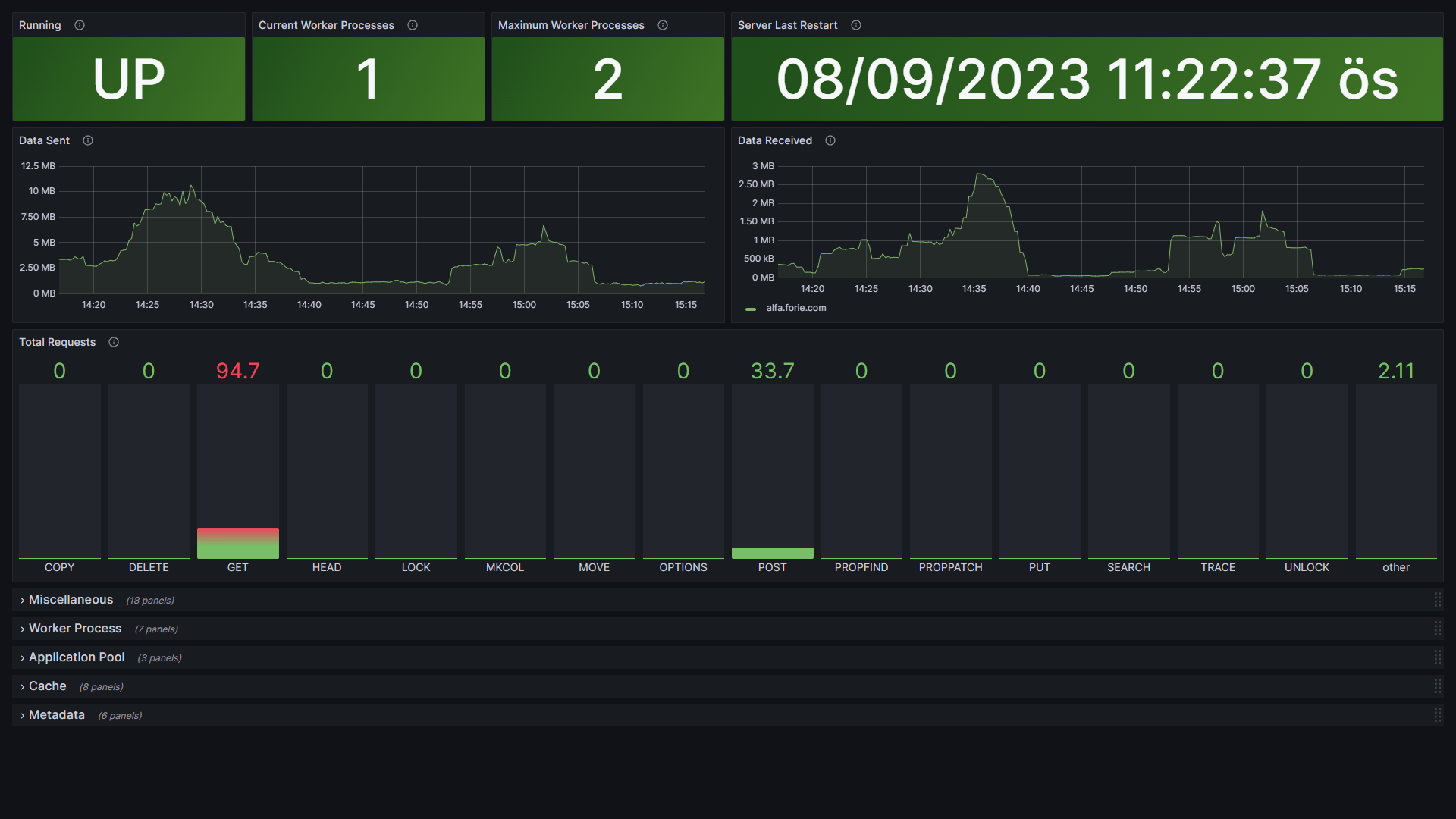
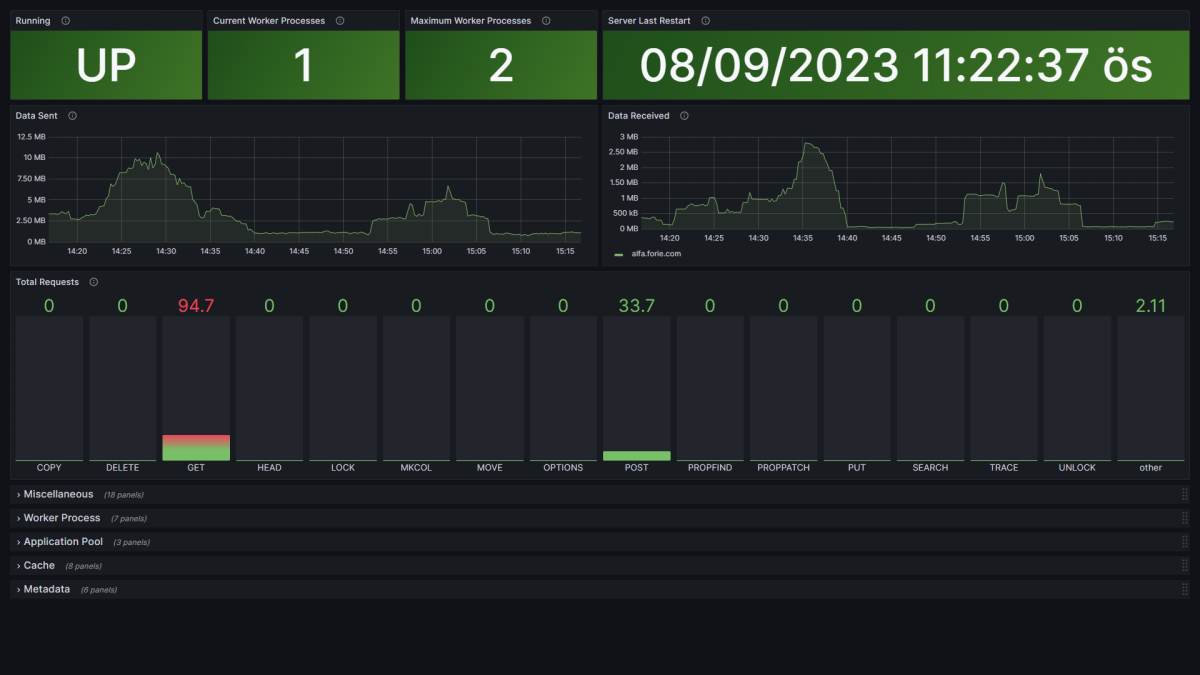
  • You can observe IIS server monitoring data on the created dashboard. Grafana will help visualize the metrics obtained from Prometheus.
IIS Monitoring
IIS Monitoring

If you have any questions or details you would like to add, feel free to write me.