

Categories
Articles Azure

Detailed Review of Azure ARM

Azure Resource Manager (ARM) is one of the cornerstones of Microsoft Azure and a powerful tool that simplifies infrastructure management. In this section, we will explore the functions, benefits and use cases of ARM in more detail.

Functions of ARM:

  • Resource Creation and Management: ARM can create and manage a variety of Azure resources such as virtual machines, storage accounts, networks and databases through a single template.
  • Repeatability: ARM templates enable consistent and repeatable infrastructure setup across multiple environments. This reduces the risk of error and simplifies the management process.
  • Automation: ARM can be integrated with tools such as Azure DevOps to automate infrastructure deployment and updates.
  • Cost Control: ARM helps optimize costs by providing detailed control over resource usage and billing.
  • Security: ARM protects Azure resources from unauthorized access using security features such as role-based access control (RBAC).

Benefits of ARM:

  • Consistency and Repeatability: ARM templates ensure error-free and consistent infrastructure deployment across different environments.
  • Efficiency and Automation: ARM automates manual processes, making infrastructure management faster and more efficient.
  • Cost Savings: ARM helps reduce costs through resource optimization and automation.
  • Scalability: ARM can be used to easily manage large and complex infrastructures.
  • Security and Compliance: ARM supports Azure’s security and compliance features.

ARM Use Cases:

  • Development and Test Environments: ARM is ideal for building and managing development and test environments quickly and easily.
  • Production Environments: ARM can be used to set up and manage production environments in a consistent and repeatable way.
  • Hybrid Cloud Environments: ARM enables managing Azure resources in hybrid cloud environments from a single platform.
  • Application Lifecycle Management: ARM can be integrated with tools such as Azure DevOps to provide infrastructure automation across the application lifecycle.

Examples:

  • Web Application Deployment: Using an ARM template, you can create the necessary Azure resources such as virtual machines, storage accounts and networking with a single command.
  • Create Database Infrastructure: Using an ARM template, you can automatically create infrastructure such as SQL database server, storage and networking.
  • Hybrid Cloud Synchronization: You can automatically synchronize data between Azure and on-premises infrastructure using an ARM template.

Conclusion:

Azure ARM is a powerful and flexible tool for managing Azure infrastructure. The benefits of ARM — consistency, repeatability, automation, and scalability — help you manage IT infrastructure faster, more securely, and at lower cost.
Categories
Articles Windows Server

Efficient Resource Management on IIS: Setting RAM Limits for Application Pools

Adding RAM limits to an application pool (App Pool) on an IIS (Internet Information Services) server is an important step to control and stabilize the server’s resources. IIS monitors and manages web applications through application pools. Here are the steps to add RAM limits to an application pool in IIS:

1.Open the IIS Administration Tool:

Open “Internet Information Services (IIS) Manager” from the Start menu, and find the “Application Pools” section from the context menu on the left.

2.Selecting an Application Pool:

Find the application pool and right-click on it and select “Edit”.

3.Open the Edit Window:

In the editing window that opens, locate the “Related Actions” tab.

4.Open Advanced Settings:

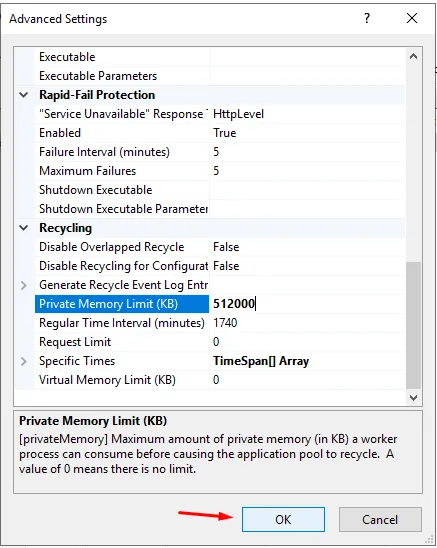
Click on “Advanced Settings…”. This allows you to see more configuration options of the application pool.

5.Private Memory Limit Setting:

In the advanced settings window, you will see a field titled “Private Memory Limit (KB)” or “Private Memory Limit (Bytes)”. This field sets the maximum amount of private memory to be allocated to the application pool.

Once a certain limit is reached, processes in the application pool can be stopped or restarted.

6.Setting Limits:

Set the desired maximum memory limits in the “Private Memory Limit” field. This value is usually in kilobytes, so for example 512000 KB would give the application pool a private memory limit of 512 MB.

7.Saving Changes:
After making the settings, click “OK” or “Apply” to save the changes.

8.Restarting the Application Pool:

After updating the settings, you may need to restart the application pool. Select the relevant application pool in the “Application Pools” section and right-click and select “Restart”.

By following these steps, you can add RAM limits to a specific application pool on your IIS server and manage resources more effectively.

Can we give a percentage limit to application pools?

Unfortunately, the process of setting RAM limits on application pools in IIS does not include the option to directly specify a percentage limit. However, the “Private Memory Limit” setting allows you to specify a certain amount of memory (in kilobytes). That is, instead of expressing this limit as a percentage, you specify it as a specific amount of memory.

For example, if a server has a total of 8 GB of RAM and you want to add a percentage limit to an application pool, you must calculate this manually. For example, if you want to allocate 10 percent of the total RAM to an application pool, this equals 8 GB * 0.10 = 800 MB. You then specify this value as the “Private Memory Limit” setting in the IIS administration tool.

Once you have specified the setting, the maximum amount of private memory available to the application pool will be limited to a specific value. This way, you can control problems caused by excessive memory consumption by the application pool.


If you have any questions or details you would like to add, feel free to write me