Categories
Articles Windows Server

Remove Server Header on IIS for Web Security

Today, web security has become more important than ever. The Server header, which explicitly specifies the operating system and version of a web server, can be a valuable source of information for potential attackers. Therefore, if you are using IIS (Internet Information Services), it is a good security practice to remove the Server header.

Step 1: Open IIS Manager
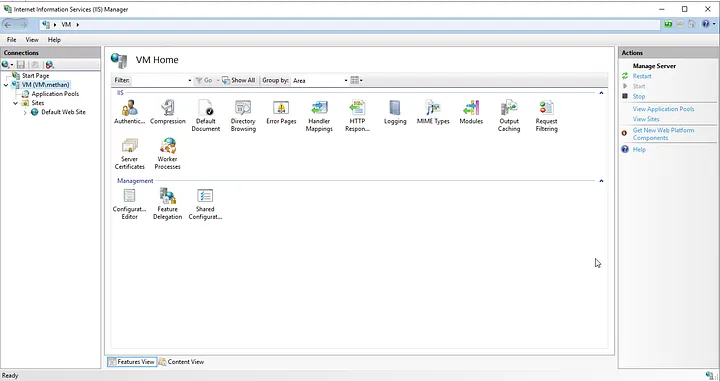
As a first step, open IIS Manager. You can easily access it by typing “IIS Manager” from the Start menu.

Step 2: Web Server and Site Selection
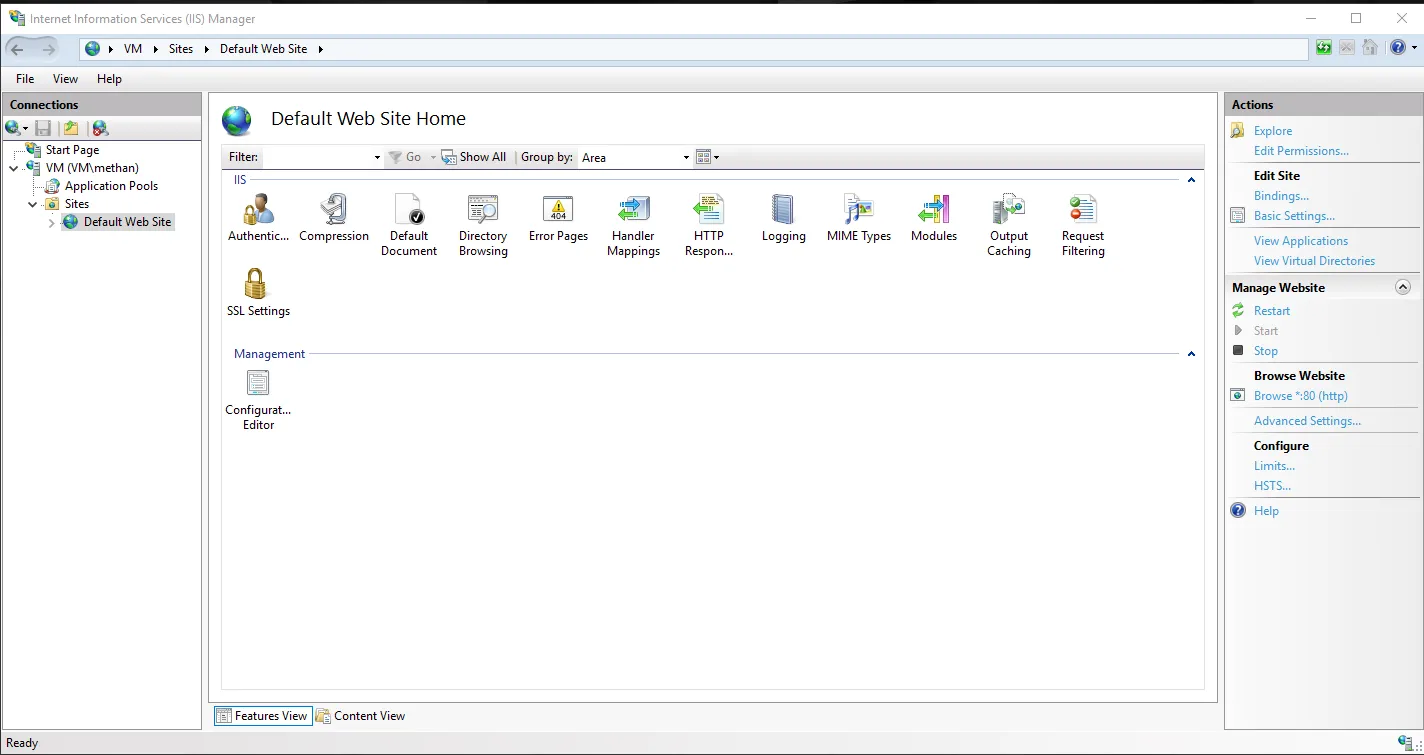
Select your server and the website you are running on from the menu on the left.
Step 3: HTTP Response Headers
On the right side, locate and click on “HTTP Response Headers”.

Step 4: Edit Server Header
Find the “Server” heading, right-click on it and use “Remove” or “Edit Feature Settings” to clear or customize the value.

Step 5: Save Changes
Use the “Apply” option from the “Actions” menu in the upper right corner to apply the changes made..

Step 6: Restart IIS
If necessary, restart IIS so that the changes take effect.
Alternative Step With Web.config File
You can also remove the Server header by directly intervening in your web.config file. You can perform this setting using the following example:

<configuration>
<system.webServer>
<httpProtocol>
<customHeaders>
<remove name="Server" />
</customHeaders>
</httpProtocol>
</system.webServer>
</configuration>

You can remove the Server header by adding this XML block into the<configuration> element of your web.config file.

By following these simple steps, you can improve the security of your web server and minimize the information available to potential attackers. Remember that it is always good practice to take a backup before implementing these changes. Never underestimate the importance of protecting your web applications by prioritizing your security.


If you have any questions or details you would like to add, feel free to write me.
Categories
Articles Windows Server

Efficient Resource Management on IIS: Setting RAM Limits for Application Pools

Adding RAM limits to an application pool (App Pool) on an IIS (Internet Information Services) server is an important step to control and stabilize the server’s resources. IIS monitors and manages web applications through application pools. Here are the steps to add RAM limits to an application pool in IIS:

1.Open the IIS Administration Tool:

Open “Internet Information Services (IIS) Manager” from the Start menu, and find the “Application Pools” section from the context menu on the left.

2.Selecting an Application Pool:

Find the application pool and right-click on it and select “Edit”.

3.Open the Edit Window:

In the editing window that opens, locate the “Related Actions” tab.

4.Open Advanced Settings:

Click on “Advanced Settings…”. This allows you to see more configuration options of the application pool.

5.Private Memory Limit Setting:

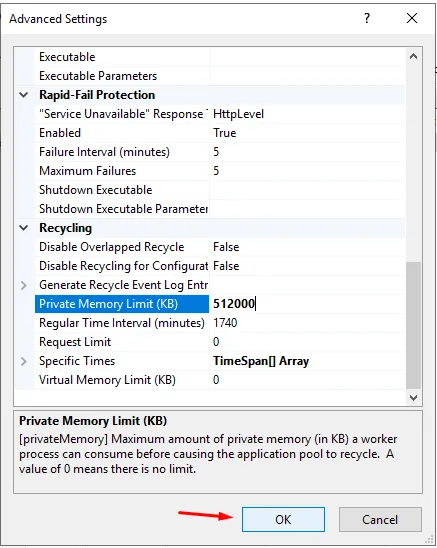
In the advanced settings window, you will see a field titled “Private Memory Limit (KB)” or “Private Memory Limit (Bytes)”. This field sets the maximum amount of private memory to be allocated to the application pool.

Once a certain limit is reached, processes in the application pool can be stopped or restarted.

6.Setting Limits:

Set the desired maximum memory limits in the “Private Memory Limit” field. This value is usually in kilobytes, so for example 512000 KB would give the application pool a private memory limit of 512 MB.

7.Saving Changes:
After making the settings, click “OK” or “Apply” to save the changes.

8.Restarting the Application Pool:

After updating the settings, you may need to restart the application pool. Select the relevant application pool in the “Application Pools” section and right-click and select “Restart”.

By following these steps, you can add RAM limits to a specific application pool on your IIS server and manage resources more effectively.

Can we give a percentage limit to application pools?

Unfortunately, the process of setting RAM limits on application pools in IIS does not include the option to directly specify a percentage limit. However, the “Private Memory Limit” setting allows you to specify a certain amount of memory (in kilobytes). That is, instead of expressing this limit as a percentage, you specify it as a specific amount of memory.

For example, if a server has a total of 8 GB of RAM and you want to add a percentage limit to an application pool, you must calculate this manually. For example, if you want to allocate 10 percent of the total RAM to an application pool, this equals 8 GB * 0.10 = 800 MB. You then specify this value as the “Private Memory Limit” setting in the IIS administration tool.

Once you have specified the setting, the maximum amount of private memory available to the application pool will be limited to a specific value. This way, you can control problems caused by excessive memory consumption by the application pool.


If you have any questions or details you would like to add, feel free to write me

Categories
Articles Windows Server

Installing IIS on Windows Server

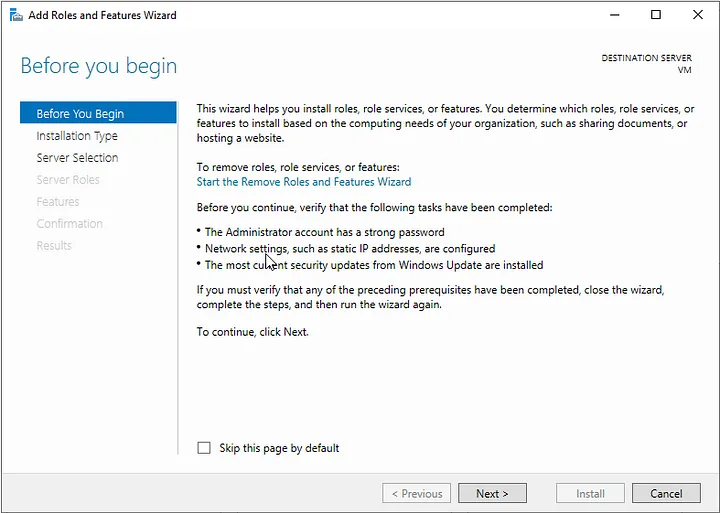
You can install IIS (Internet Information Services) on Windows Server using Server Manager by following the steps below:

1. Server Preparation:
— Make sure you have Administrator privileges on your server if you are using a Windows Server operating system.

2. Opening Server Manager:
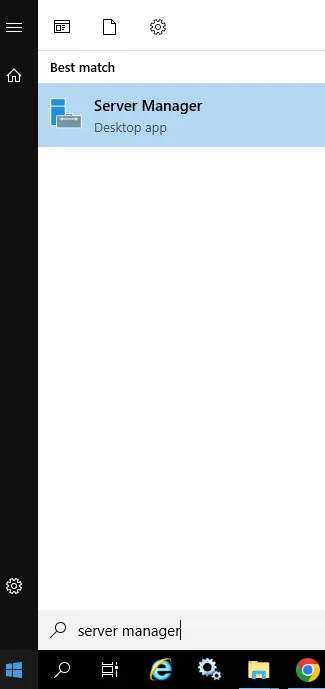
— Click on the Start button.

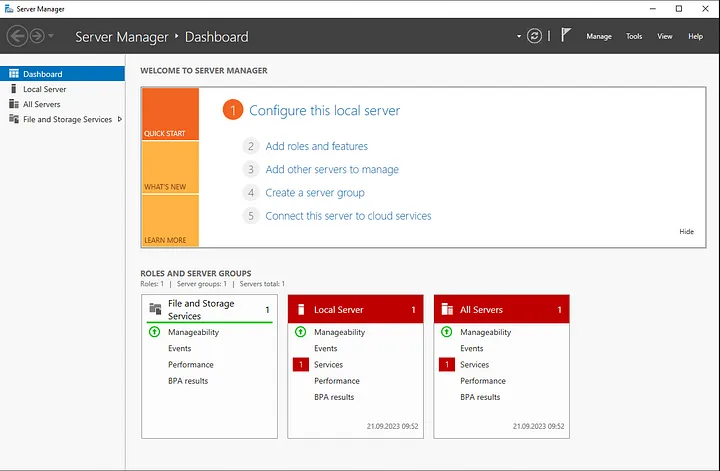
— Search for “Server Manager” and open it.

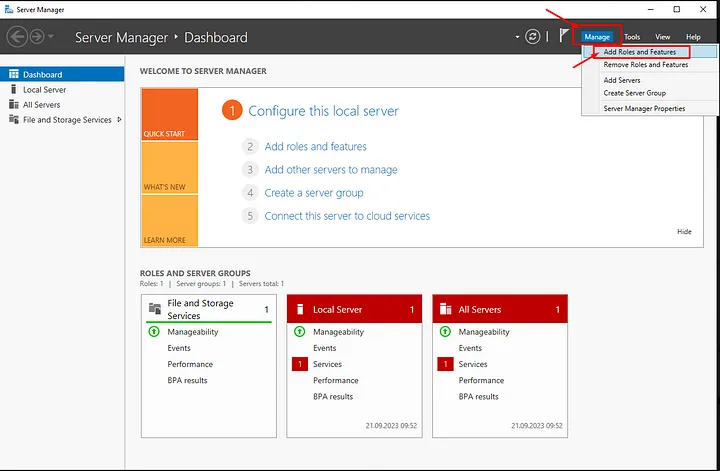
3. Select “Add Roles and Features” from the Left Menu:
— In the Server Manager main window, locate “Upper Banners” and select “Add Roles and Features.”

4. Launch the “Add Roles and Features Wizard”:
— The “Add Roles and Features Wizard” window will open. This wizard helps you add roles and features to your server.

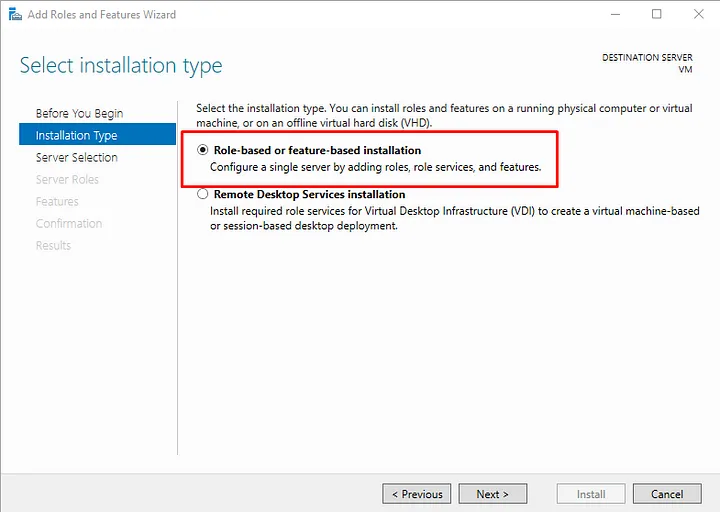
5. Select Features:
— In the first step of the wizard, choose the “Installation Type.” Typically, select “Role-based or feature-based installation,” and proceed.

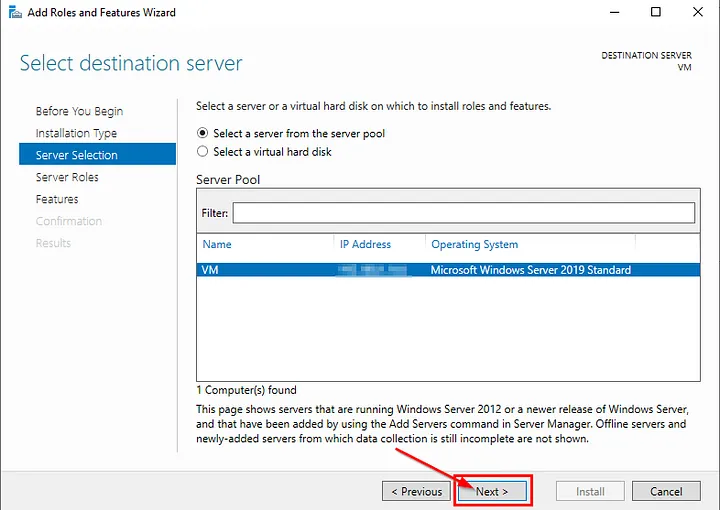
6. Choose the Target Server:
— Select your server or specify the target server, then click “Next.”

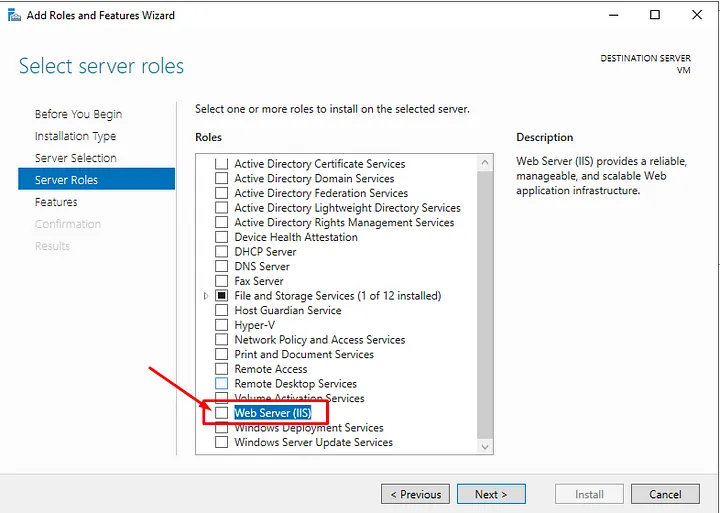
7. Select Roles:
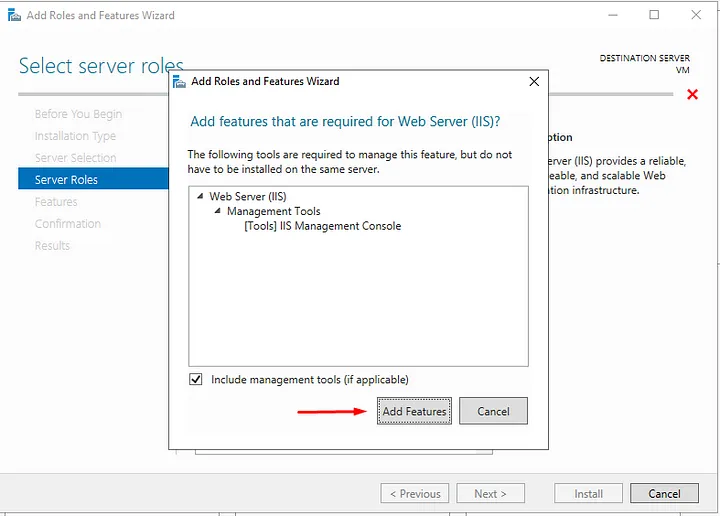
— In the “Roles” section, find “Web Server (IIS)” and check the box. You can also select additional components if needed.

8. Review Accessibility Information:
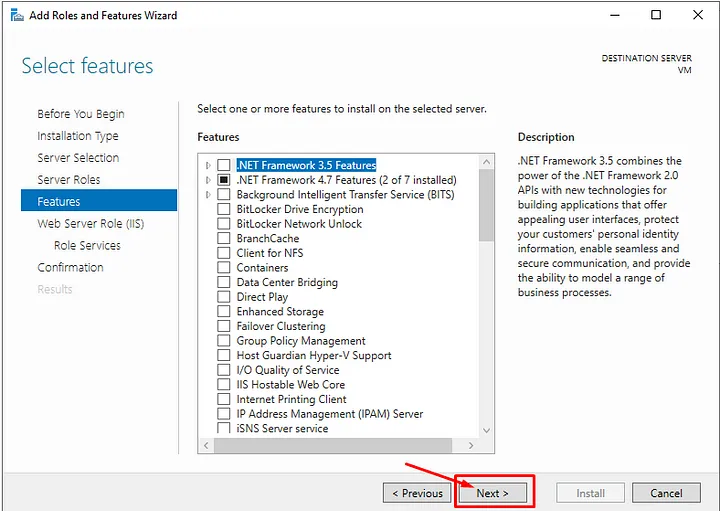
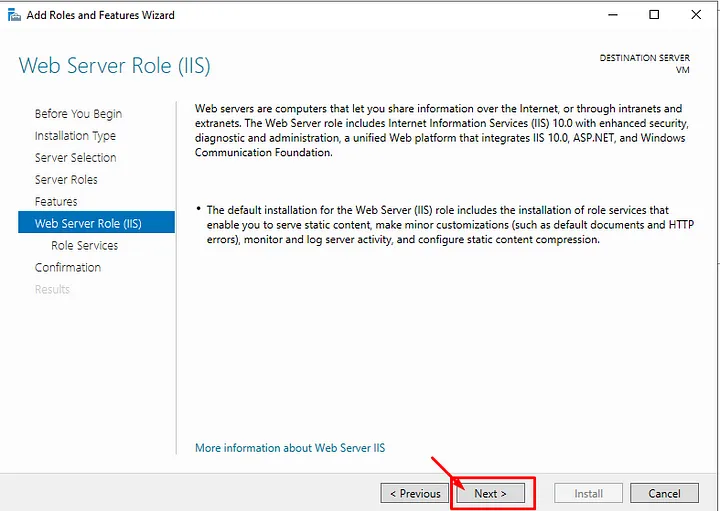
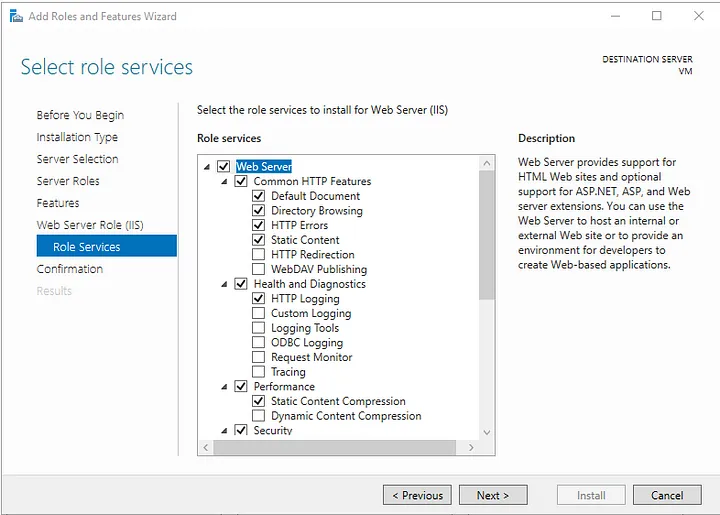
— Follow the wizard’s progression and configure necessary options when prompted.

9. Initiate the Installation:
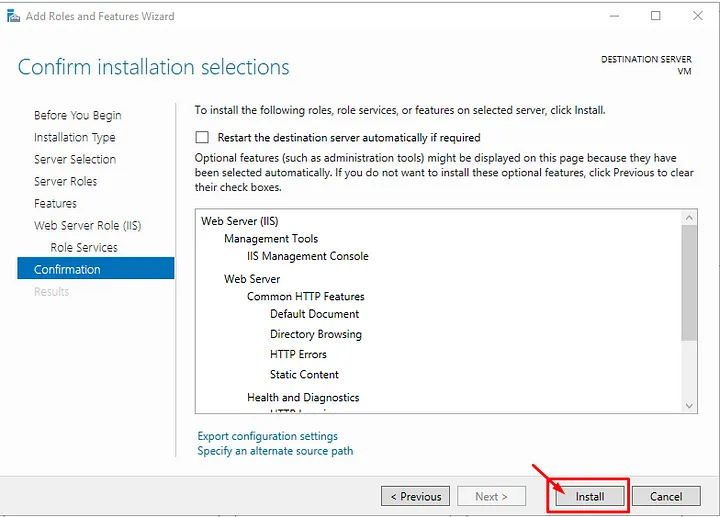
— Start the IIS installation by clicking the “Install” button.

10. Completion of Installation:
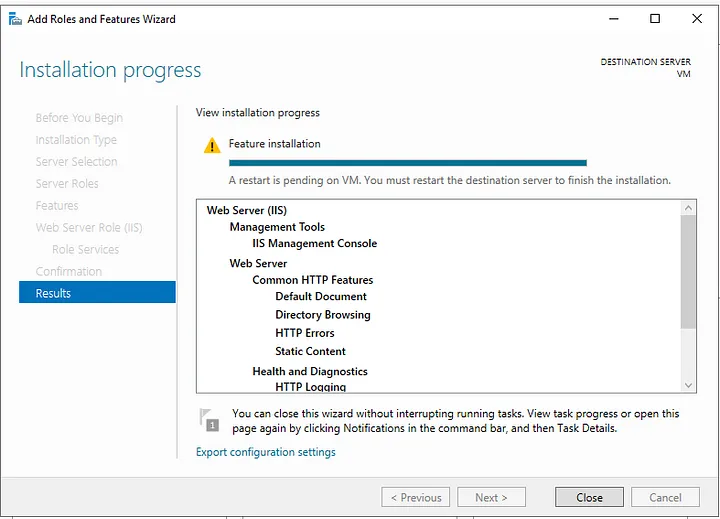
— Once the installation is complete, you will receive a confirmation message indicating successful installation.You will then be prompted for a reboot.

You can successfully install IIS by following these steps. Afterward, you can configure your websites and applications using the IIS Management Console.


If you have any questions or details you would like to add, feel free to write me.

Categories
Articles Windows Server

Obtaining an SSL Certificate on Windows IIS Server Using “Certify the Web”

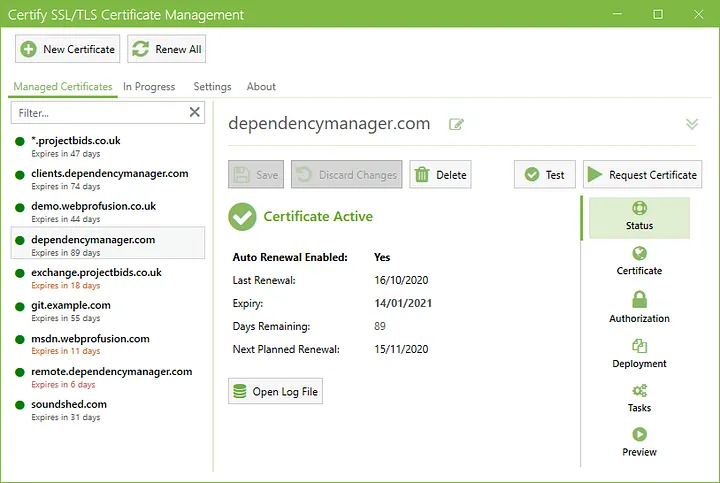
One of the crucial steps towards securing data traffic on the internet is to use SSL/TLS certificates on your websites. These certificates ensure encrypted data transmission and enable users to interact with your site securely. For Windows-based IIS servers, you can utilize the free tool “Certify the Web” to acquire and manage SSL certificates. Here’s a step-by-step guide on how to obtain an SSL certificate using the Certify the Web tool:

Step 1: Downloading and Installing Certify the Web

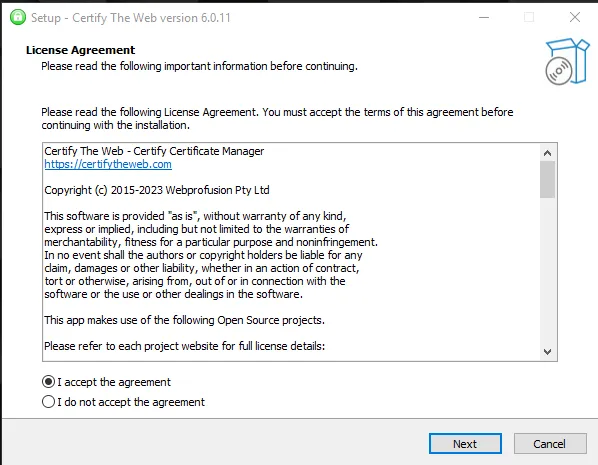
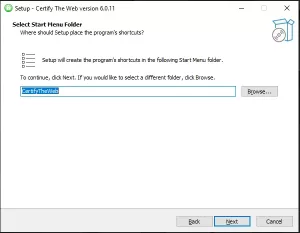
  1. Visit the official Certify the Web website and download the program. Proceed with the installation on your computer.
Certify the Web — 01
Certify the Web — 02
Certify the Web — 03
Certify the Web — 04

Step 2: Opening the Tool and Basic Configuration

1.Launch the Certify the Web application.

Certify the Web — 05

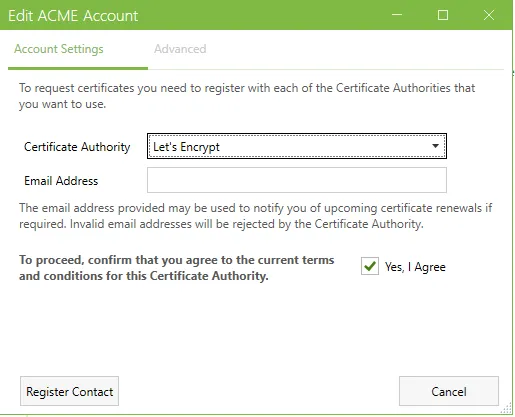
2. On the main screen, you’ll typically find an option like “New Certificate” or something similar. Click on this option to initiate the process of creating a new certificate.

Certify the Web — 06
Certify the Web — 07

Step 3: Domain Selection and Verification Methods

1.During the certificate creation process, you should add the domain names you wish to protect (e.g., www.example.com).

Certify the Web — 08

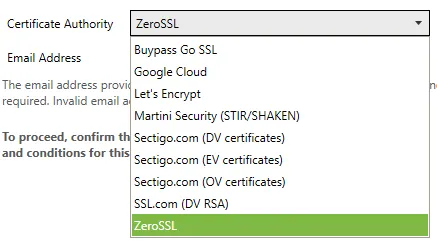
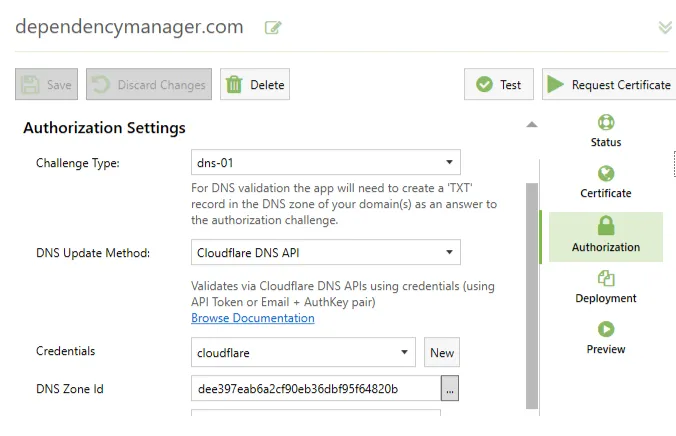
2.Certify the Web offers various methods to verify the ownership of your domain. Choose one of these methods. Usually, you can opt for HTTP or DNS-based verification methods.

HTTP-Based Verification:

  1. When HTTP-based verification is selected, Certify the Web will automatically create a special file in a designated folder on your server. This file is used to verify that your domain is accessible.

DNS-Based Verification:

  1. If DNS-based verification is chosen, you might need to create a specific DNS record. This record assists the certificate provider in verifying the ownership of your domain.

Step 4: Certificate Issuance and Installation

1.Once the verification process is completed, Certify the Web will automatically obtain the SSL/TLS certificates.

2.To manage the generated certificates and install them on your IIS server when needed, you can use the “Certificates” or a similar tab or menu.

IIS Server
IIS Server
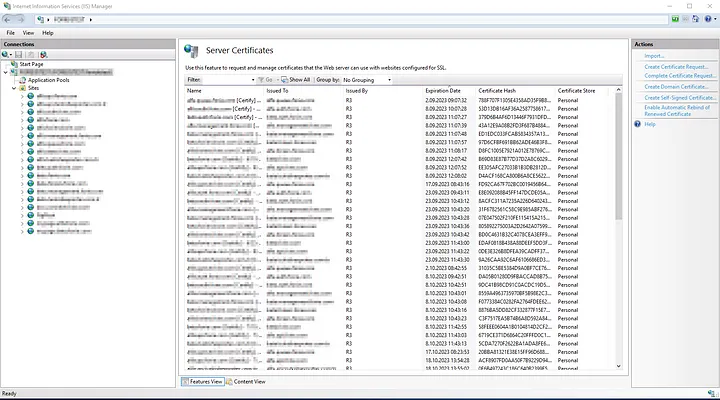
IIS Server / Server Certificates

Step 5: Using the Certificate on the IIS Server

1.While Certify the Web handles the certificate issuance, you need to activate these certificates on your IIS server.

2.In the IIS management interface, navigate to the connection security settings of the relevant website.

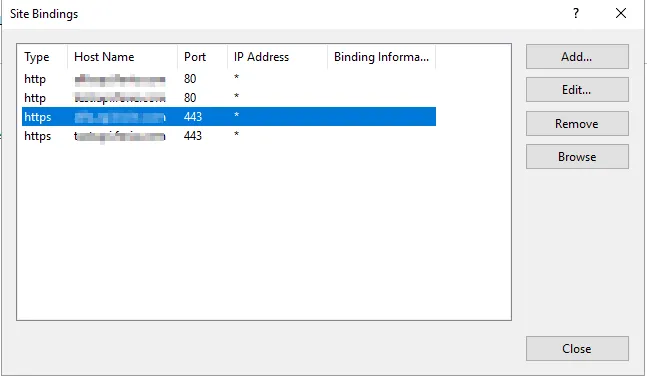
IIS Server — Binding

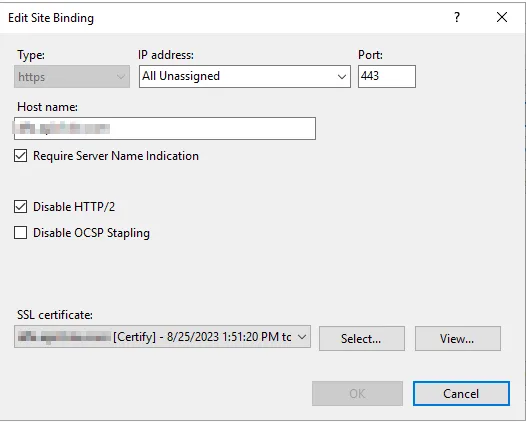
3.Select the newly acquired SSL/TLS certificate as the server certificate.

Site Binding
Site Binding
Edit Site Binding
Edit Site Binding

Data security is a paramount concern while managing your online presence. The Certify the Web tool simplifies the process of SSL certificate acquisition and management by making it easy and automated.


If you have any questions or details you would like to add, feel free to write me.

Categories
Articles Monitoring Windows Server

Part III — Monitoring Process for IIS Servers on Windows Server

Monitoring IIS Servers on Windows Server Using Prometheus, Grafana, and WMI Exporter: Step-by-Step Guide

  1. Prometheus Installation
  • Download Prometheus: Get the latest version of Prometheus from the official website (https://prometheus.io/download/).
  • Extract the downloaded archive and copy the files to a suitable directory.
  • Create a configuration file named prometheus.yml. This file will define the targets to be monitored, such as WMI Exporter.

2. WMI Exporter Installation

  • Download WMI Exporter: Download the WMI Exporter from the GitHub repository.
  • Use the installer found in the “Assets” section to install the exporter.
  • Install the exporter using the MSI installer.
  • The binary will be placed in the directory: C:\Program Files\windows_exporter.
C:\Program Files\windows_exporter
  • If there’s a running process/task named “windows_exporter,” terminate it, as we will need to manually start the exporter with additional flags.
  • To fetch IIS Server statistics, manually run the exporter using the following command:
"C:\Program Files\windows_exporter\windows_exporter.exe" --collectors.enabled="cpu,cs,iis,logical_disk,net,os,service,system,textfile"
  • Access http://localhost:9182/metrics in your browser to view the available metrics.
  • To make the changes persistent, add the following settings to the registry:
"C:\Program Files\windows_exporter\windows_exporter.exe" --collectors.enabled="cpu,cs,iis,logical_disk,net,os,service,system,textfile" --log.format logger:eventlog?name=windows_exporter

In our previous article, you can find information on how to perform monitoring on a Windows server


3. Configuring Prometheus with WMI Exporter

  • Open your prometheus.yml file and add WMI Exporter as a target like this:
scrape_configs:
- job_name: 'wmi'
  static_configs:
    - targets: ['localhost:9182'] # Varsayılan WMI Exporter portu

4. Grafana Installation and Configuration

  • Download Grafana: Get the latest version of Grafana from the official website (https://grafana.com/grafana/download).
  • Extract the downloaded archive and copy the files to a suitable directory.
  • Start Grafana: Launch Grafana using the command line (e.g., grafana-server.exe).
Grafana setup
Grafana setup

5. Creating a Dashboard on Grafana

  • Access the Grafana web interface by visiting http://localhost:3000 in your browser (default port 3000).
  • Log in with the default credentials (admin/admin).
  • Go to the “Configuration” menu, select “Data Sources,” and add a new data source. Choose “Prometheus” and provide the address of your Prometheus server (e.g., http://localhost:9090).
  • Click “Save & Test” to add the data source.
  • Navigate to the “Dashboard” section, click “New,” and select “Import.”

  • Search for a Dashboard ID starting with a specific number on grafana.com, or directly import a JSON file.

IIS Dashboard ID:14532

6. Observing the Dashboard

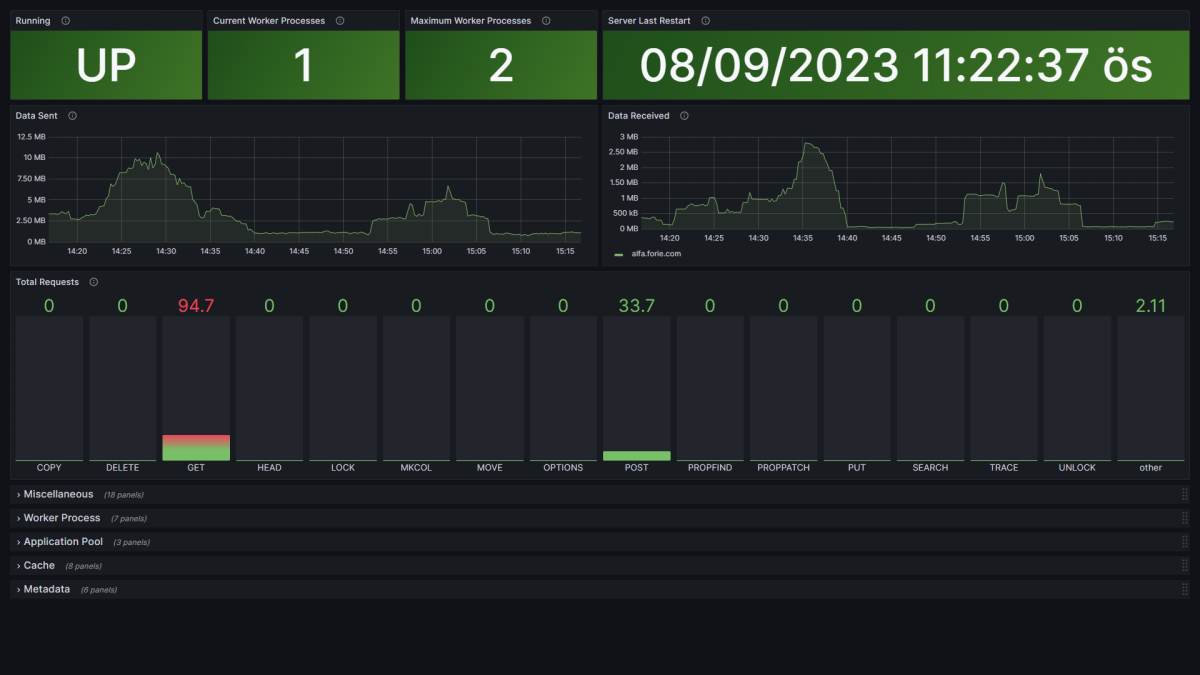
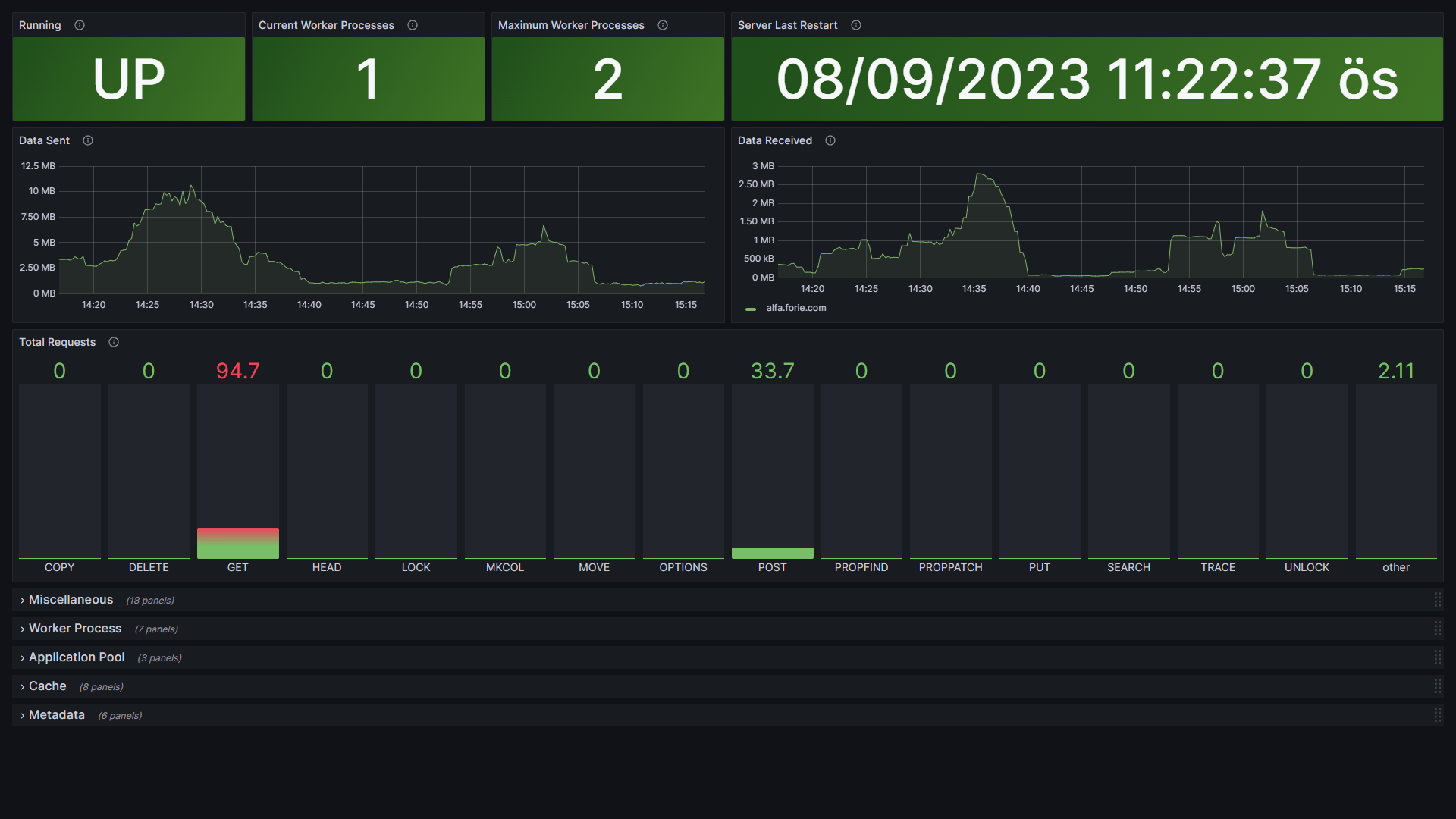
  • You can observe IIS server monitoring data on the created dashboard. Grafana will help visualize the metrics obtained from Prometheus.
IIS Monitoring
IIS Monitoring

If you have any questions or details you would like to add, feel free to write me.