
Categories
Articles Windows Server

Installation of ELK Stack (Elasticsearch, Logstash, and Kibana) on Windows Server

ELK Stack (Elasticsearch, Logstash, Kibana Stack) is a data analysis and visualization platform where ElasticsearchLogstash, and Kibana are brought together. These three open-source components are used collectively to gather, process, analyze, and visualize unstructured data. ELK Stack offers a powerful toolkit for organizations aiming to effectively work with large datasets.

Here are the fundamental components of ELK Stack:

Elastics
Elastics

1. Elasticsearch: Elasticsearch is a search and analytics engine that provides rapid search, querying, and indexing capabilities for unstructured data. By swiftly indexing and storing data, it facilitates easy access to information. Elasticsearch is used to handle various types of unstructured data such as text documents, log files, time series data, and other non-structured data.

Logstash
Logstash

2. Logstash: Logstash collects data from various sources, processes and transforms it, and then directs it to Elasticsearch or other destinations. Logstash plays a significant role in data collection, processing, and transformation stages. With Logstash, it is possible to organize, filter, enrich, and convert data into different formats.

Kibana
Kibana

3. Kibana: Kibana is used to visualize, analyze, and share data from Elasticsearch. Through Kibana, users can discover data, create diverse visual elements, and build dashboards to effectively present information.

When these three components come together, organizations can collect, process, analyze, and visualize their data. ELK Stack can be employed for handling various data types such as application logs, network logs, text documents, performance metrics, and more. Moreover, the flexible nature of ELK Stack enables the creation of customized solutions and addressing unique data analysis needs.


Installation and Configuration of ELK Stack (Elasticsearch, Logstash, Kibana) on Windows Server can be achieved through the following steps:

1: Java Installation:
Java is required to run Elasticsearch and Logstash. I recommend using OpenJDK instead of the official Oracle JDK. Follow the steps to download and install OpenJDK.

2: Elasticsearch Download and Installation:
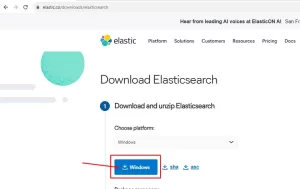
2.1. Download the suitable version of Elasticsearch for Windows from the official Elasticsearch website: https://www.elastic.co/downloads/elasticsearch
elasticsearch
elasticsearch
  • Extract the downloaded compressed file to a folder.

2.2. Configuration File (elasticsearch.yml):

  • The configuration file for Elasticsearch is located in the “config” folder.
  • Open the “elasticsearch.yml” file with a text editor.
  • Make the necessary configurations.

2.3. Starting Elasticsearch as a Service:

  • To run Elasticsearch as a Windows service, locate the “elasticsearch-service.bat” file in the “bin” folder.

  • Open the command prompt as an administrator (right-click and select “Run as administrator”) and navigate to the relevant directory.

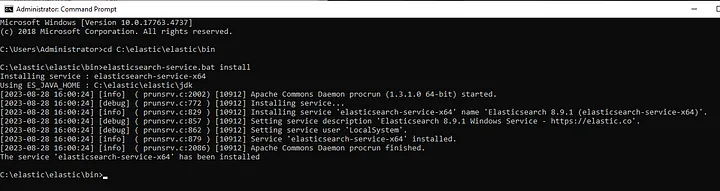
  • Use the command elasticsearch-service.bat install to register Elasticsearch as a service.
  • Then, start the Elasticsearch service using the command elasticsearch-service.bat start.

  • You can stop or manage the service using the command elasticsearch-service.bat manager.
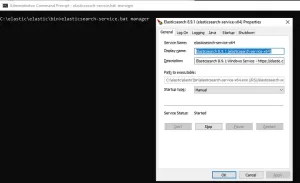
2.4. After these steps, check whether the Elasticsearch service is installed and running:

  • Go to Start > Run > services.msc, and verify that the Elasticsearch service is installed and running.

Services / elasticsearch

3. Installation of Logstash:

3.1. Download Logstash: Obtain the appropriate Logstash file for Windows from the official Logstash download page: https://www.elastic.co/downloads/logstash
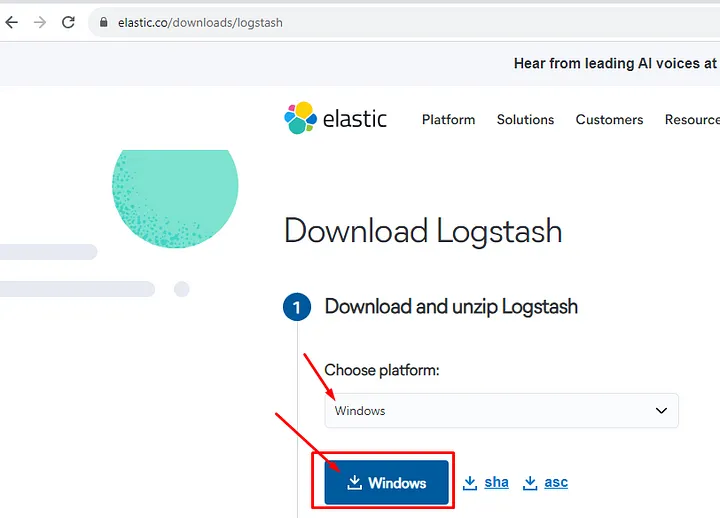
3.2. Extract the downloaded compressed file to a folder.

3.3. Configuring Logstash via logstash.yml:
Logstash is configured through the “logstash.yml” file, typically located in the “config” subdirectory within the Logstash installation directory. In the configuration file, you can set up input, filter, and output settings. Additionally, you define the pipeline processing logic here.

3.4. Running Logstash:
To run Logstash, open the command prompt, navigate to the Logstash installation directory, and use the following command to start Logstash:

bin\logstash -f logstash.conf
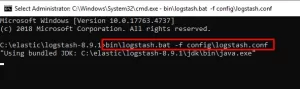
logstash
logstash

4. Installation of Kibana:

4.1. Download Kibana: Download the suitable Kibana file for Windows from the official Kibana download page: https://www.elastic.co/downloads/kibana
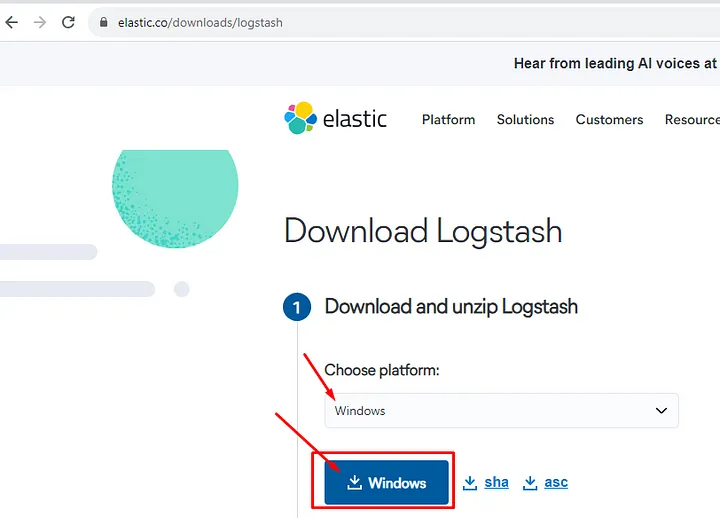
Kibana
Kibana

4.2. Extract the downloaded compressed file to a folder.

4.3. Configure Kibana: Edit the Kibana configuration file (kibana.yml) to make your configurations (e.g., Elasticsearch connection settings, etc.).

4.4. Running Kibana: Open the command prompt, navigate to the Kibana installation directory, and use the following command to start the service:

bin\kibana
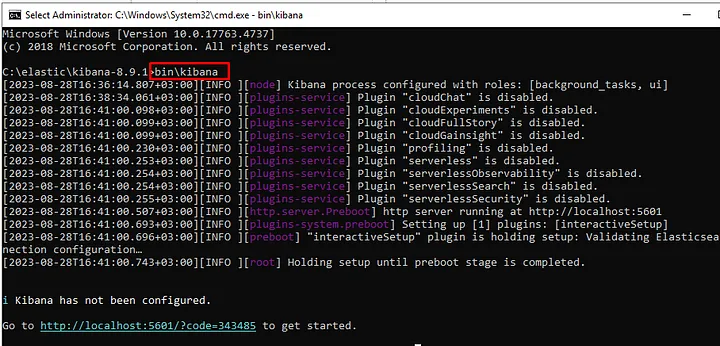

Installation is complete, now we move on to configuration settings:

Elasticsearch’s security features can vary depending on the version of Elasticsearch you are using. Starting from version 6.8.0, basic security features (Security) are enabled by default in Elasticsearch. These features include user authentication, role-based access control, and encryption.

In Elasticsearch 7.0.0 and later versions, there is a built-in “elastic” user with a default password. This user can be used for administrative tasks. The credentials for the default “elastic” user are as follows: Username: elastic, Password: A randomly generated password in these versions, printed to the console when Elasticsearch is started.

However, for security reasons, it’s highly recommended to promptly change this default password. It’s advised to replace the randomly generated password with a secure one as soon as Elasticsearch is started.

For the most up-to-date information about Elasticsearch versions and security features, you can refer to the official Elasticsearch documentation or other reliable sources. Security features can evolve over time, so checking the official Elasticsearch documentation is advisable for staying informed.

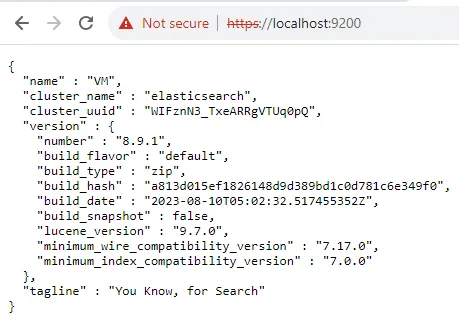
https://localhost:9200/
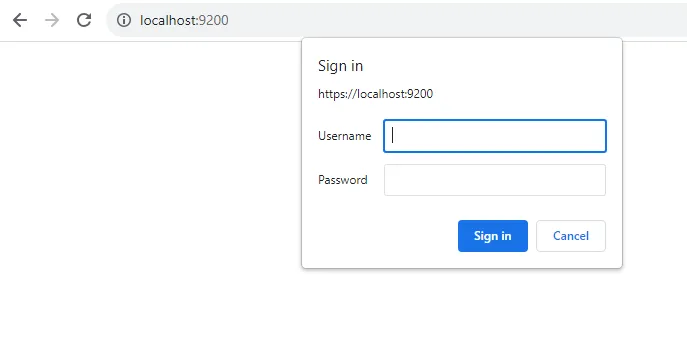
Username: elastic

Password: Enter the password that was generated during the initial installation, found in the “log” folder within the Elasticsearch directory.

  • Open your web browser and navigate tohttp://localhost:5601 . This address is the default location where Kibana operates.
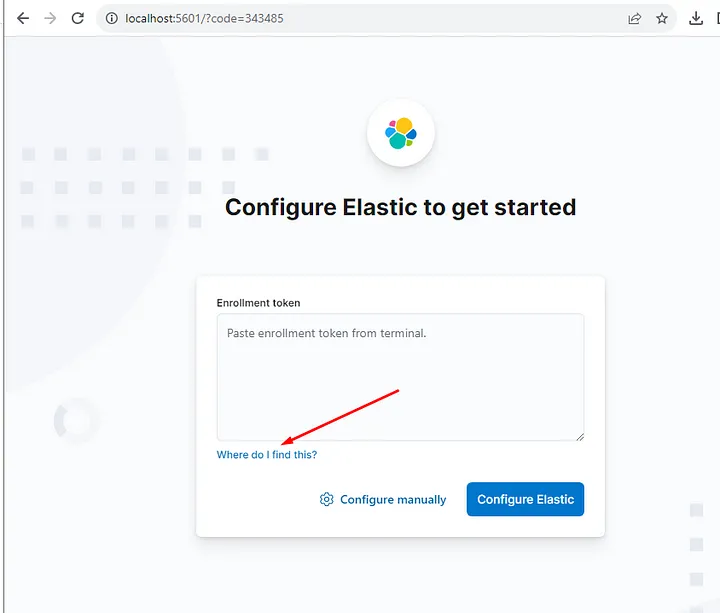
  • At this step, it requires you to generate a token.

  • To generate the token, you need to run the relevant command in the command prompt.
bin\elasticsearch-create-enrollment-token.bat
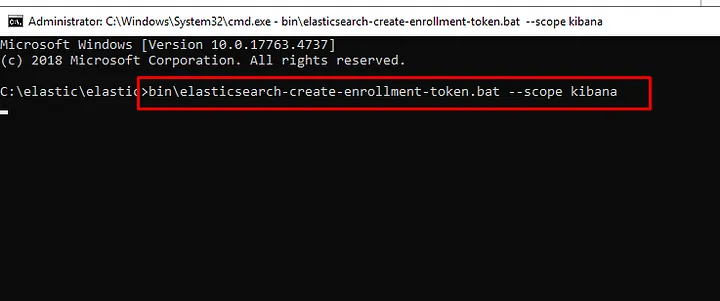
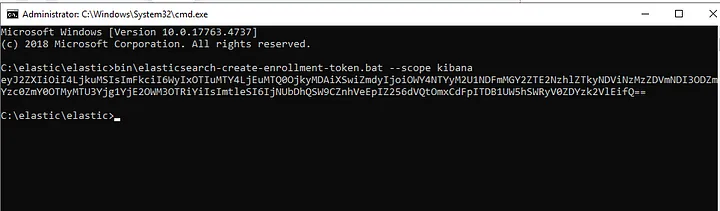
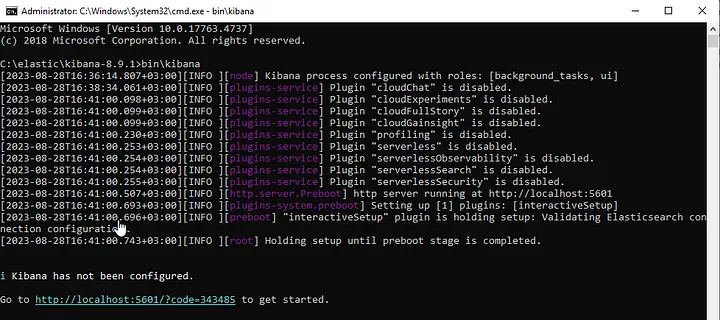
binelastlcsearch-create-enrollment-token.bat
bin\elasticsearch-create-enrollment-token.bat

  • You add the code you generated to the Kibana panel.
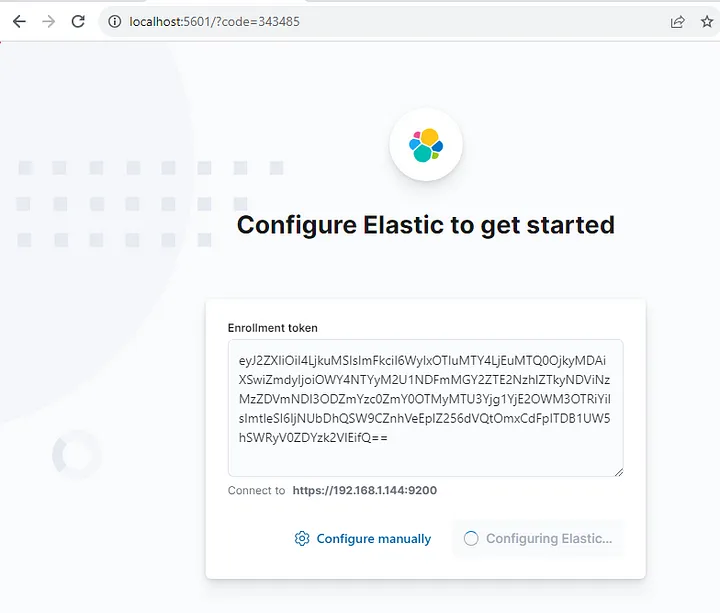
Kibana Panel
Kibana Panel
  • You establish the connection with the Elastic panel.

The configuration process for connecting Kibana with Elasticsearch is complete. Now, your ELK Stack connections are ready.

Since data security is crucial in our lives, remember to change the “default” password from the Kibana panel.

  • Select the “Edit Profile” option from the top right corner.
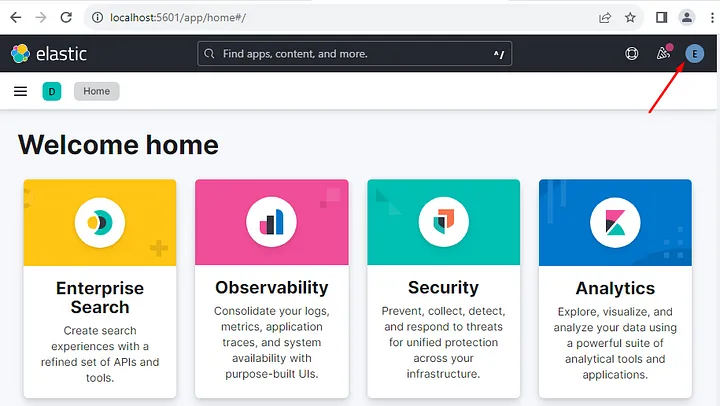
Edit Profile
Edit Profile
  • From the “Profile” section, select the “Change password” option.
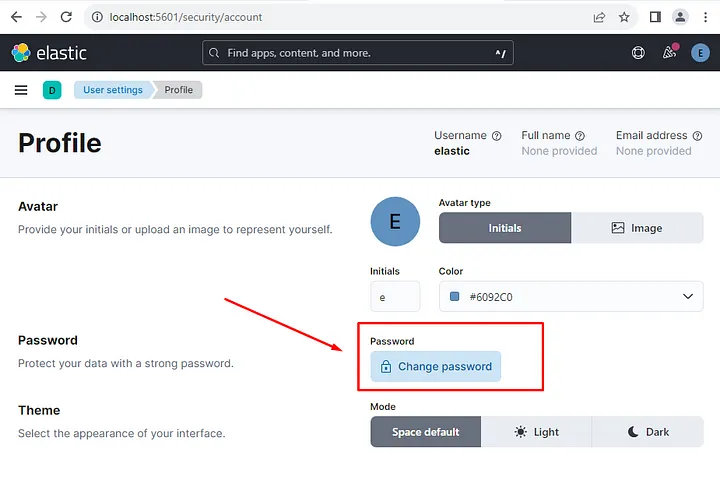
  • Complete the process of changing the password by filling in the relevant fields.
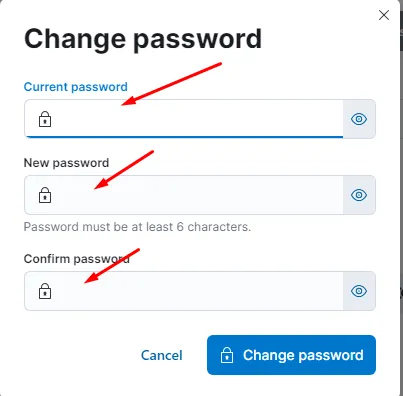
By following these steps, you should have completed the installation and configuration of ELK Stack (Elasticsearch, Logstash, Kibana) on a Windows Server. Now, you can begin utilizing this powerful toolset for data analysis and visualization. ELK Stack will assist you in the processes of data collection, processing, analysis, and creating meaningful visuals.

Data security is of utmost importance, so remember to change the default passwords in Elasticsearch and Kibana to strong and unique passwords. This step will ensure the safety of your data.

If you encounter any challenges along the way, it’s a good idea to refer to the official documentation of Elasticsearch and Kibana or seek help from community support forums. Best of luck, and I wish you a successful journey filled with data insights!


If you have any questions or details you would like to add, feel free to write me.
Categories
Articles Windows Server

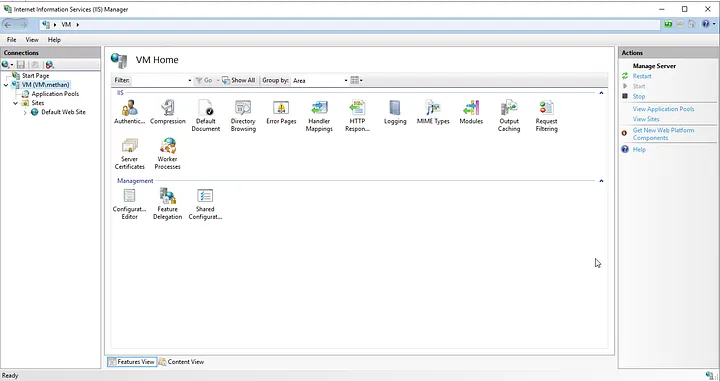
Installing IIS on Windows Server

You can install IIS (Internet Information Services) on Windows Server using Server Manager by following the steps below:

1. Server Preparation:
— Make sure you have Administrator privileges on your server if you are using a Windows Server operating system.

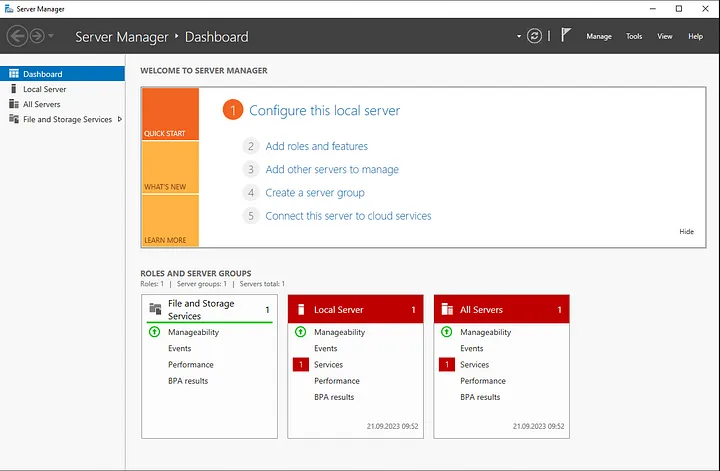
2. Opening Server Manager:
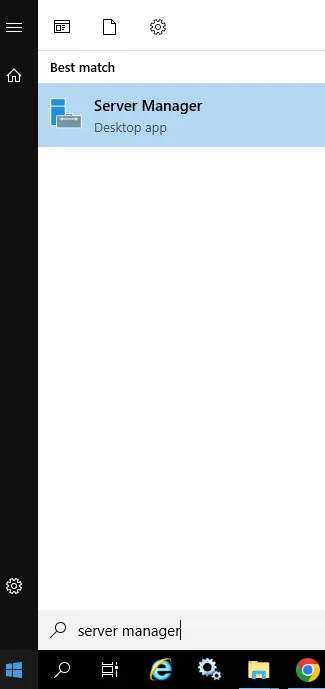
— Click on the Start button.

— Search for “Server Manager” and open it.

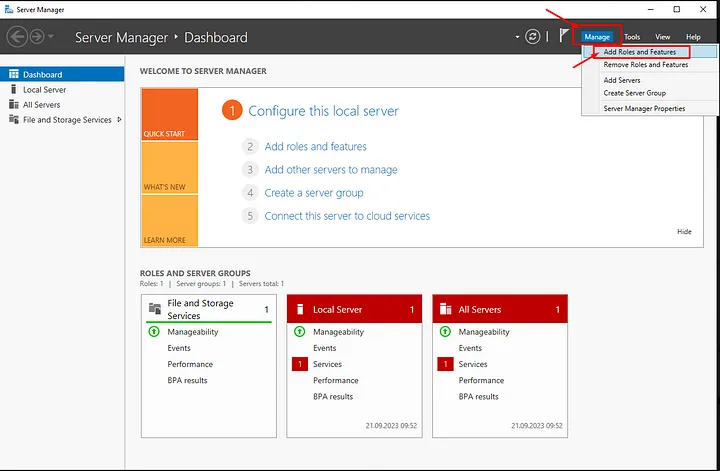
3. Select “Add Roles and Features” from the Left Menu:
— In the Server Manager main window, locate “Upper Banners” and select “Add Roles and Features.”

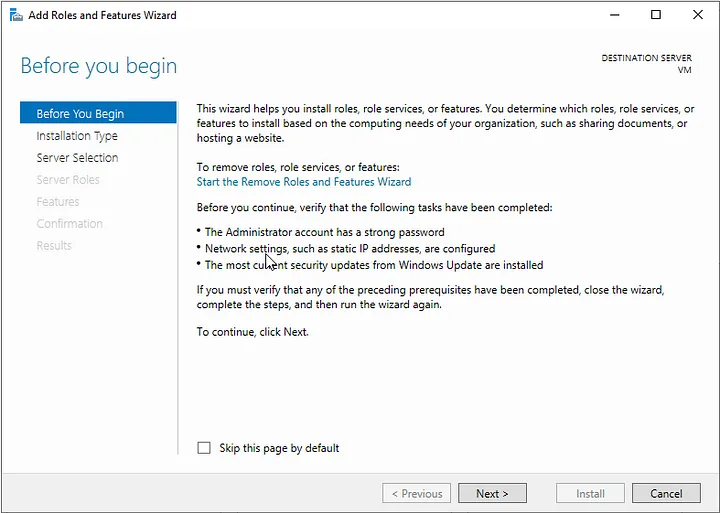
4. Launch the “Add Roles and Features Wizard”:
— The “Add Roles and Features Wizard” window will open. This wizard helps you add roles and features to your server.

5. Select Features:
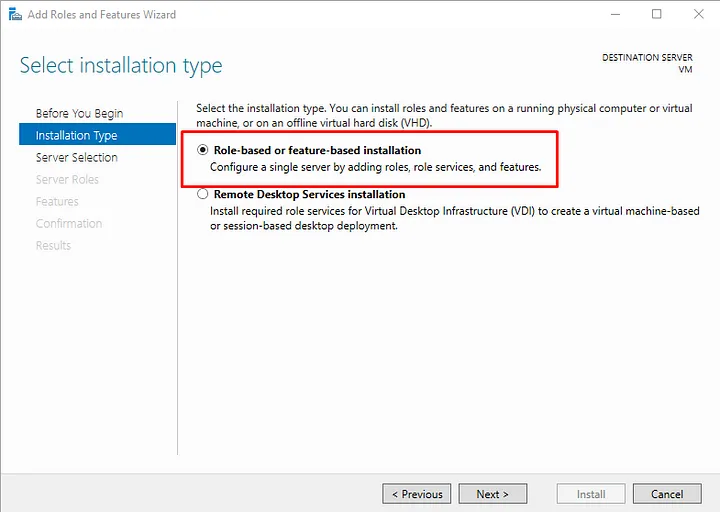
— In the first step of the wizard, choose the “Installation Type.” Typically, select “Role-based or feature-based installation,” and proceed.

6. Choose the Target Server:
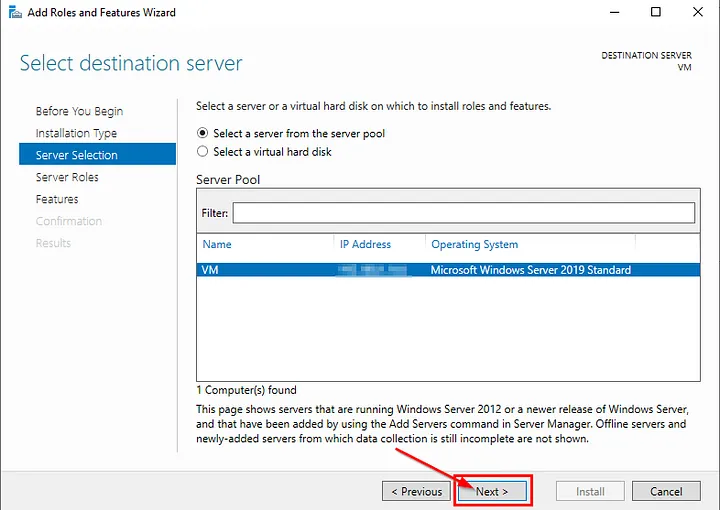
— Select your server or specify the target server, then click “Next.”

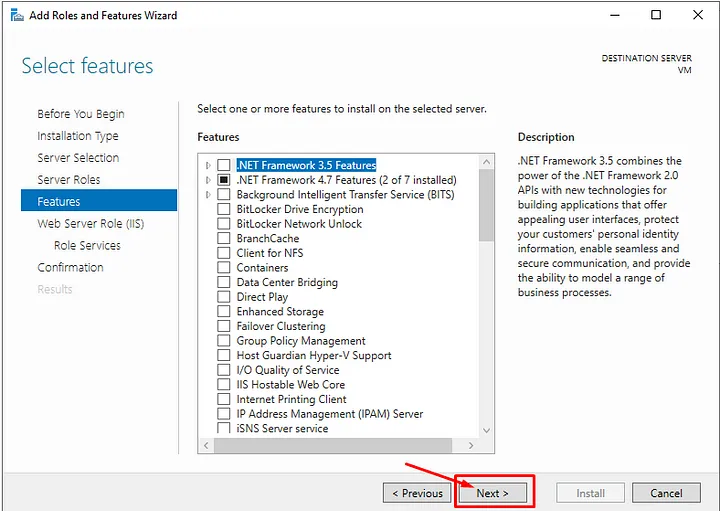
7. Select Roles:
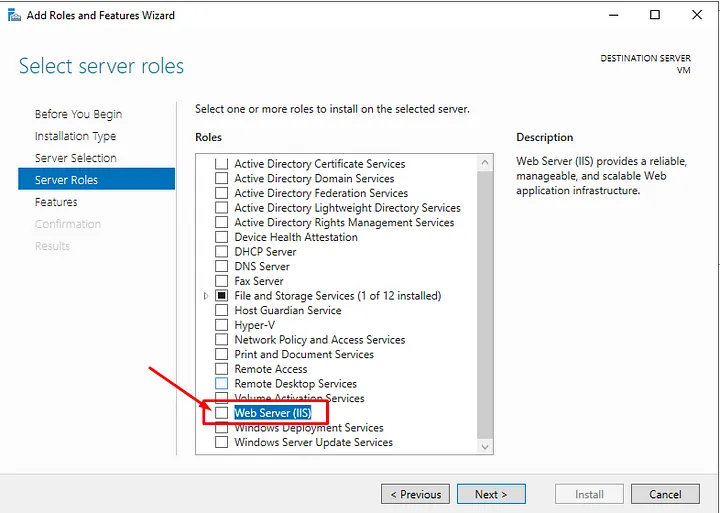
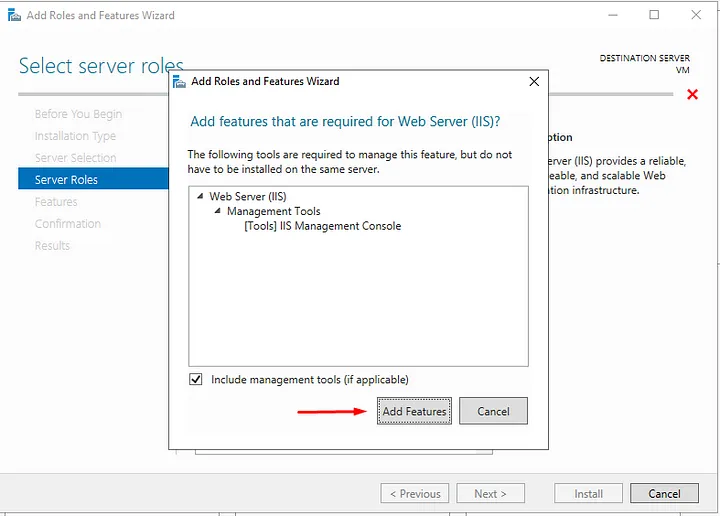
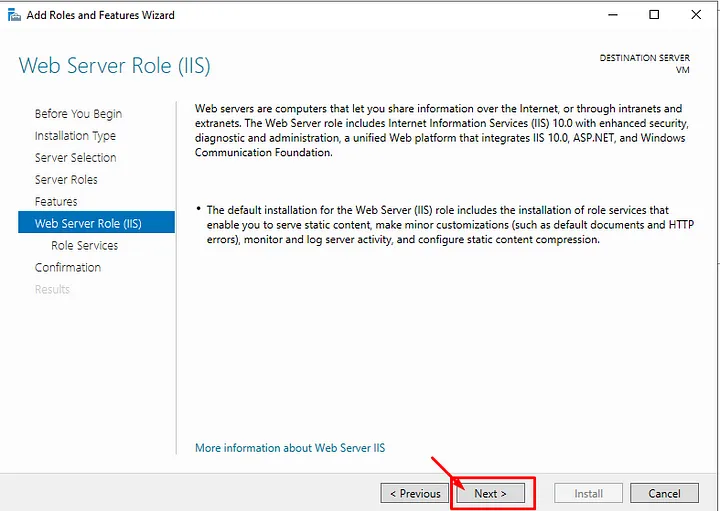
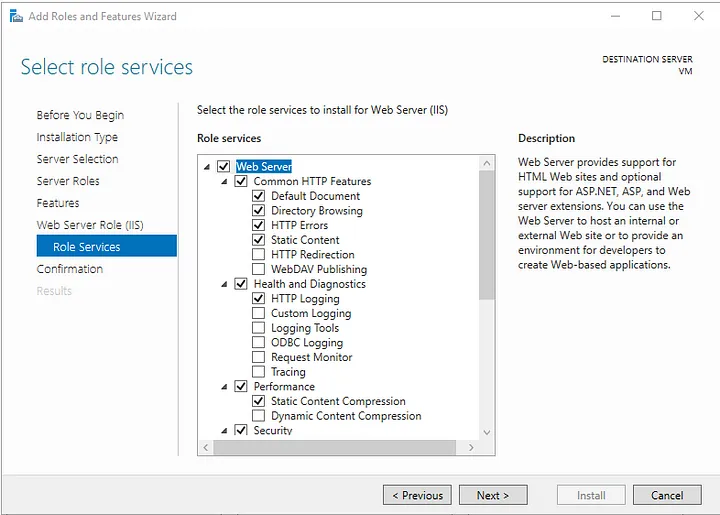
— In the “Roles” section, find “Web Server (IIS)” and check the box. You can also select additional components if needed.

8. Review Accessibility Information:
— Follow the wizard’s progression and configure necessary options when prompted.

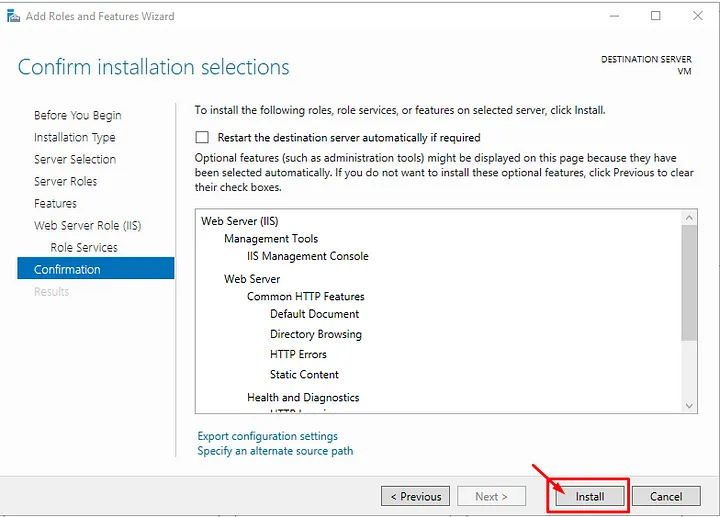
9. Initiate the Installation:
— Start the IIS installation by clicking the “Install” button.

10. Completion of Installation:
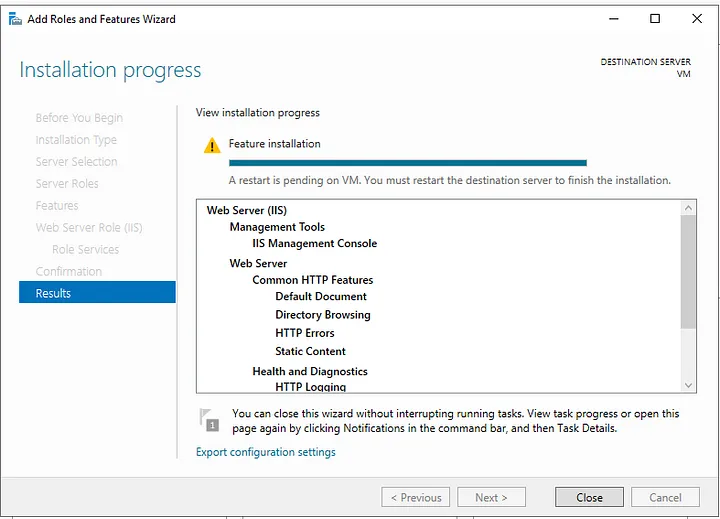
— Once the installation is complete, you will receive a confirmation message indicating successful installation.You will then be prompted for a reboot.

You can successfully install IIS by following these steps. Afterward, you can configure your websites and applications using the IIS Management Console.


If you have any questions or details you would like to add, feel free to write me.
Categories
Articles SQL

What is SQL Server Management Studio (SSMS) and How to Install it?

SQL Server Management Studio (SSMS) is the official tool used for Microsoft SQL Server database management and query operations. SSMS enables you to create, edit, back up, and execute data queries within databases. Additionally, you can configure security settings and monitor database performance in SQL Server.

The core functions of SSMS include:
1.Database Management: SSMS allows you to create, delete, rename, and edit SQL Server databases. It provides graphical interfaces and commands for managing your databases.

2.Query Operations: You can write SQL queries and execute them on SQL Server using SSMS. You can view and process the results, which is used for accessing and manipulating data within your database.

3.Backup and Restore: You can take backups of your databases and restore them when needed. This is essential for preventing data loss and safeguarding your database operations.

4.Security Settings: You can configure security settings for your databases and manage access control. You can define users and roles.

5.Performance Monitoring: It provides tools and reports to monitor the performance of SQL Server. This helps you optimize your database performance.

SQL Server Management Studio is a versatile tool for managing and developing with SQL Server, and it serves as a fundamental component for many database applications that work with SQL Server. By installing SSMS on your computer, you can access the necessary tools to start working with SQL Server. You can easily install SSMS by following the instructions below.


SQL Server Management Studio (SSMS) installation:

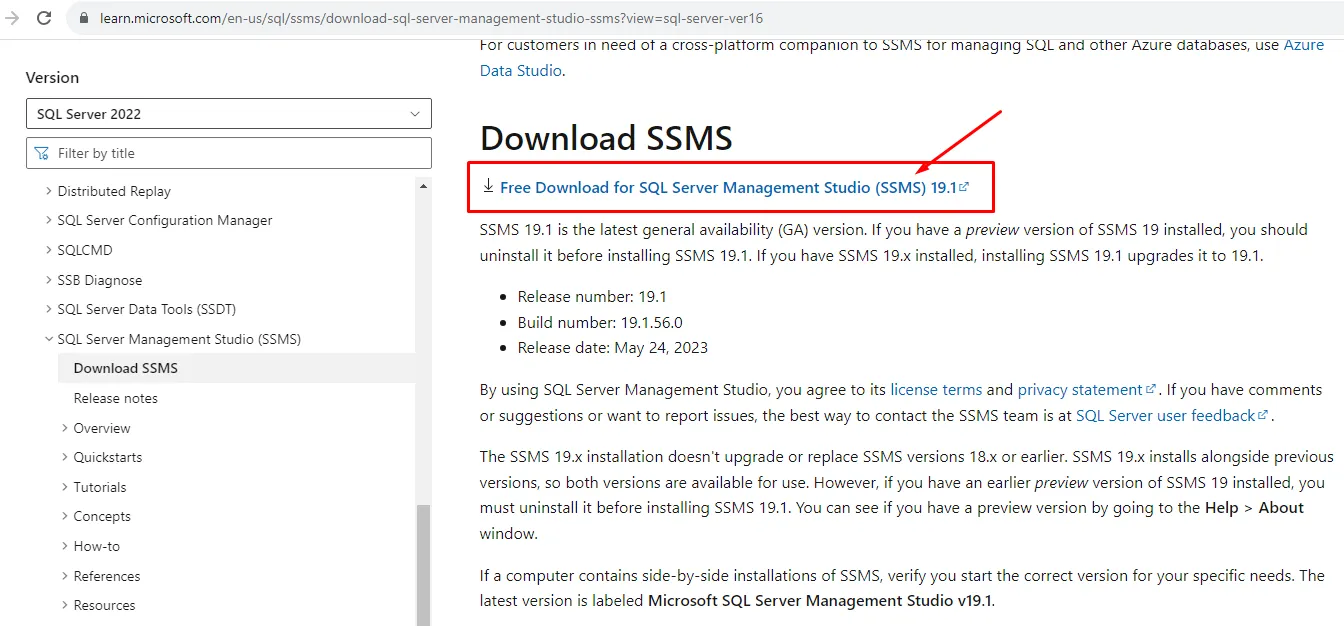
1.Downloading SQL Server Management Studio: The first step is to download the latest version of SSMS. You can do this by visiting the official Microsoft website. The download link is as follows:

SQL Server Management Studio Download

SSMS indir
SSMS indir

2.Running the Downloaded File: Double-click the downloaded installation file to run it. If a User Account Control (UAC) window appears, select “Yes” or “Continue” to grant permission.

3.Accepting the License Agreement: Read the license agreement carefully, and if you agree, check the “I accept the license terms” option and click the “Next” button.

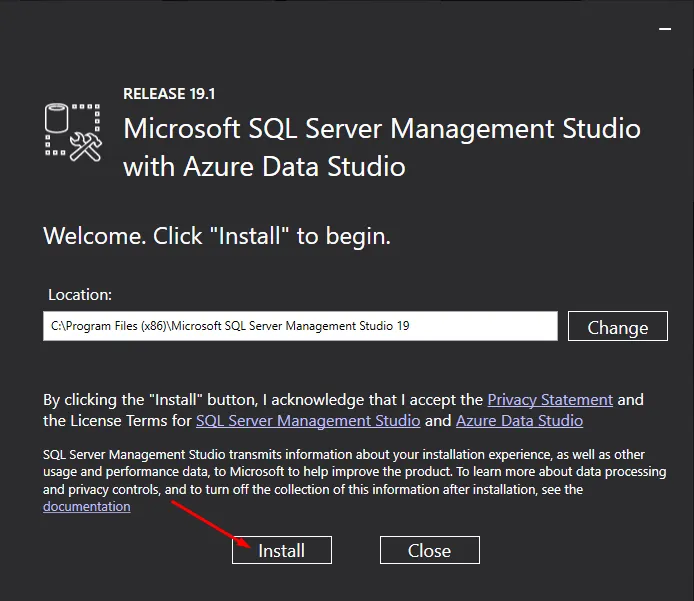
4.Installation Path Selection: If you choose the “Custom” installation type, you can select a path in this step to determine where SQL Server Management Studio will be installed. If you prefer to use the default settings, you can click the “Install” button.

install
install
install
install

5.Custom Installation Options: If you have chosen the “Custom” installation option, you can customize which components will be installed in this step. Select the components according to your needs and click the “Next” button.

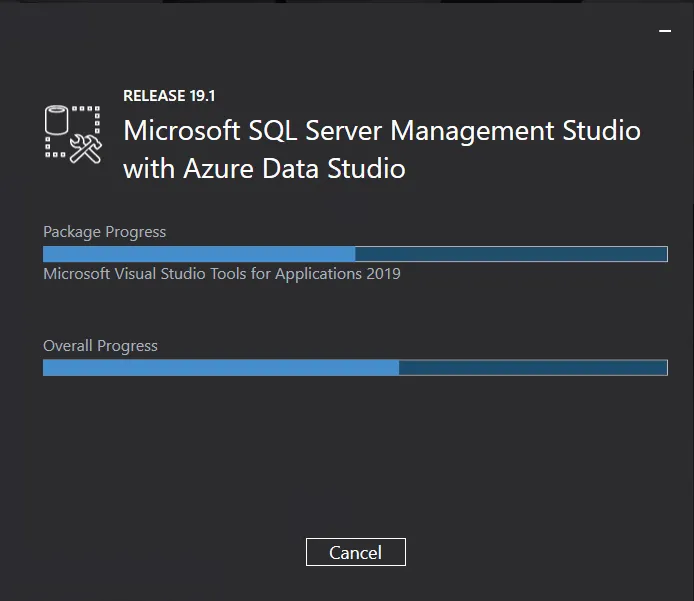
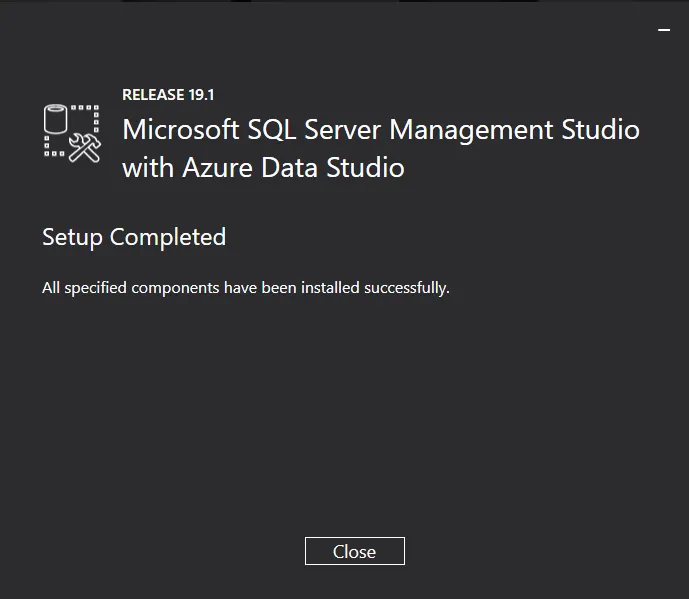
6.Completion of Installation: The installation process may take some time. Once it’s finished, click the “Close” button to complete the installation.

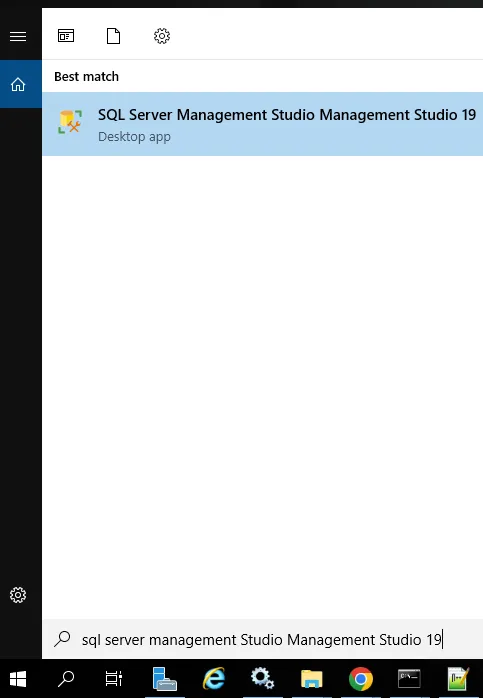
7.Launching SSMS: When the installation is complete, you can launch the SQL Server Management Studio program using the shortcut on your desktop or from the Start Menu. Start the program, and you can begin managing your SQL Server databases.

You should have successfully installed SSMS on your computer by now. You can use this tool to manage your databases and run queries.


How to Perform Database Management and Performance Monitoring Using SQL Server Management Studio (SSMS):

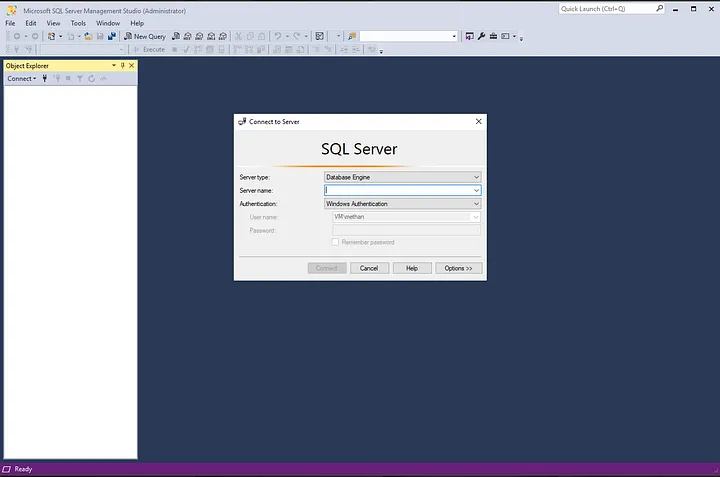
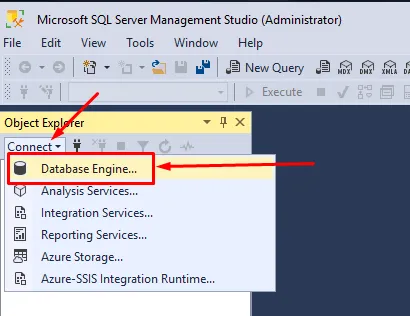
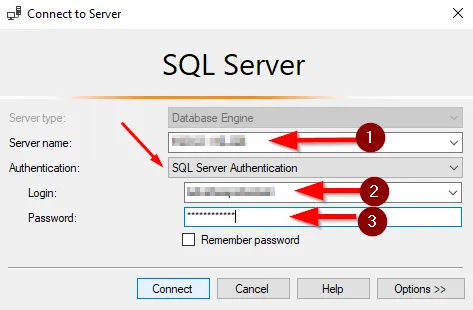
  1. Connecting to a Server: When SSMS starts, you will need to connect to a server. The “Connect to Server” window will open. This window allows you to choose how to connect to SQL Server.

  • Server Type: Choose the server type. Typically, the “Database Engine” option is used.
  • Server Name: Enter the name or IP address of the SQL Server.
  • Authentication: Choose one of the options, either “Windows Authentication” or “SQL Server Authentication,” to connect to SQL Server.

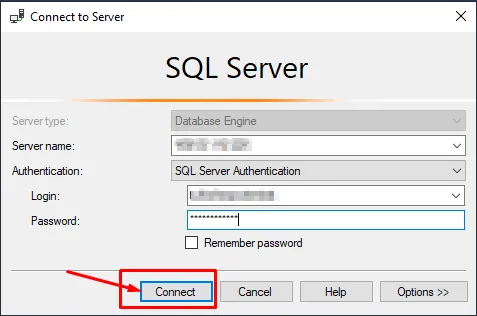
2.Connecting to the Server: After entering the necessary information, click the “Connect” button. When SSMS successfully connects to the server, it will close the connection window.

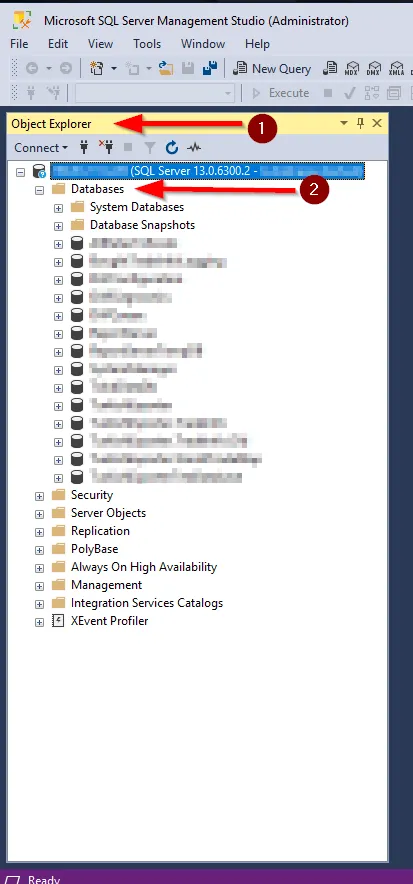
3.Viewing Databases: In the “Object Explorer” window on the left side, you can view your existing databases by clicking on the “Databases” button located under the connected server. Here, you will see all the databases, including system databases.

Object Explorer
Object Explorer

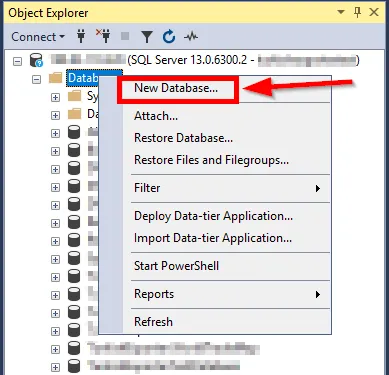
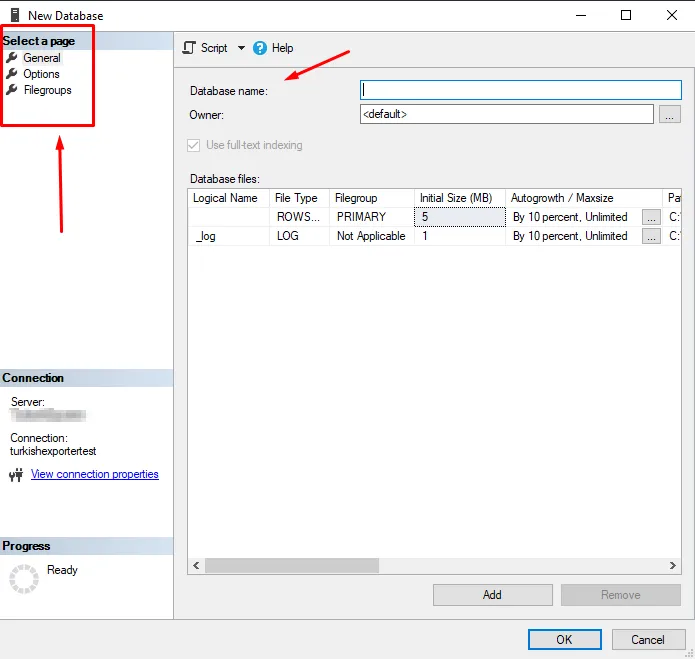
4.Creating a New Database: To create a new database, right-click on “Databases” and select “New Database.” In the opened window, you can configure the database’s name, filegroups, and other settings.

New Database
New Database

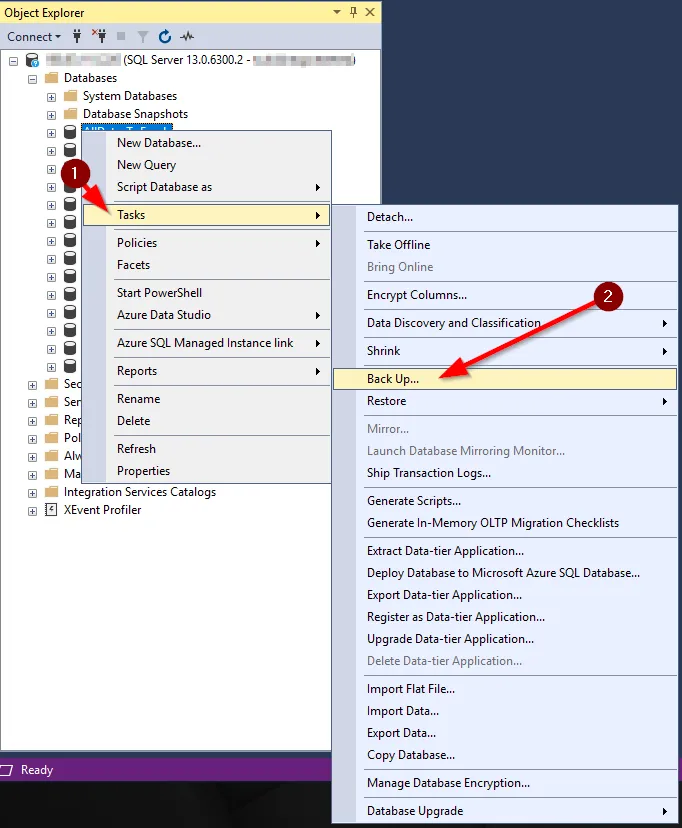
5.Database Backup and Restore: To back up or restore databases, right-click on “Tasks” and use the “Back Up” or “Restore” options to perform these operations.

Tasks
Tasks

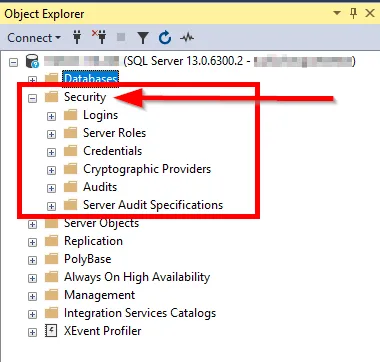
6.Security Settings: To configure the security settings for your databases, go to the “Security” section. Settings related to users, roles, and permissions are managed here.

Security
Security

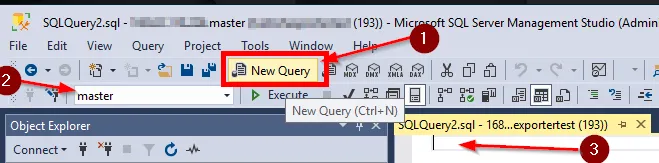
7.Running Queries: To execute SQL queries, you can open a new query window. You can write and execute SQL queries using the “New Query” option.

New Query
New Query

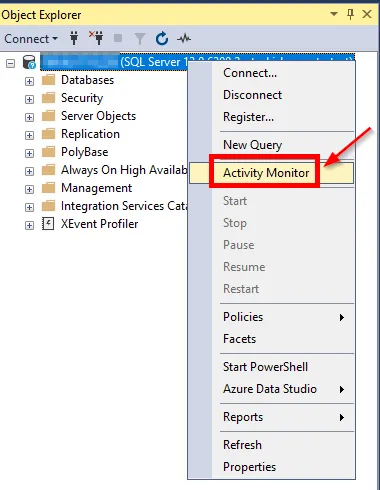
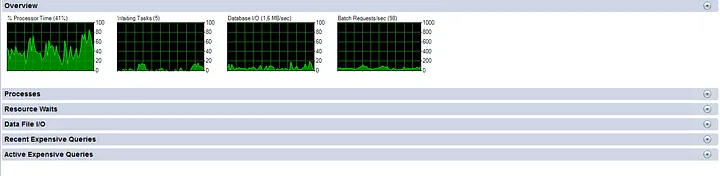
8.Performance Monitoring: SSMS provides tools and reports for monitoring the performance of SQL Server. This helps you optimize your database’s performance.

Performans Monitor
Performans Monitor

If you have any questions or details you would like to add, feel free to write me.