Categories
Articles Monitoring Windows Server

Part IV — RabbitMQ Monitoring Guide on Windows Server: Using Prometheus, Grafana

RabbitMQ is message queuing software that plays a significant role in distributed systems. You can access the article where I explain the RabbitMQ installation from here. You can use tools like Prometheus, Grafana, and WMI Exporter to monitor and analyze the performance of RabbitMQ servers in a Windows Server environment. Here is a step-by-step guide:

Step 1: Enabling the Built-in Plugin for RabbitMQ with Prometheus Support

RabbitMQ comes with built-in Prometheus and Grafana support.

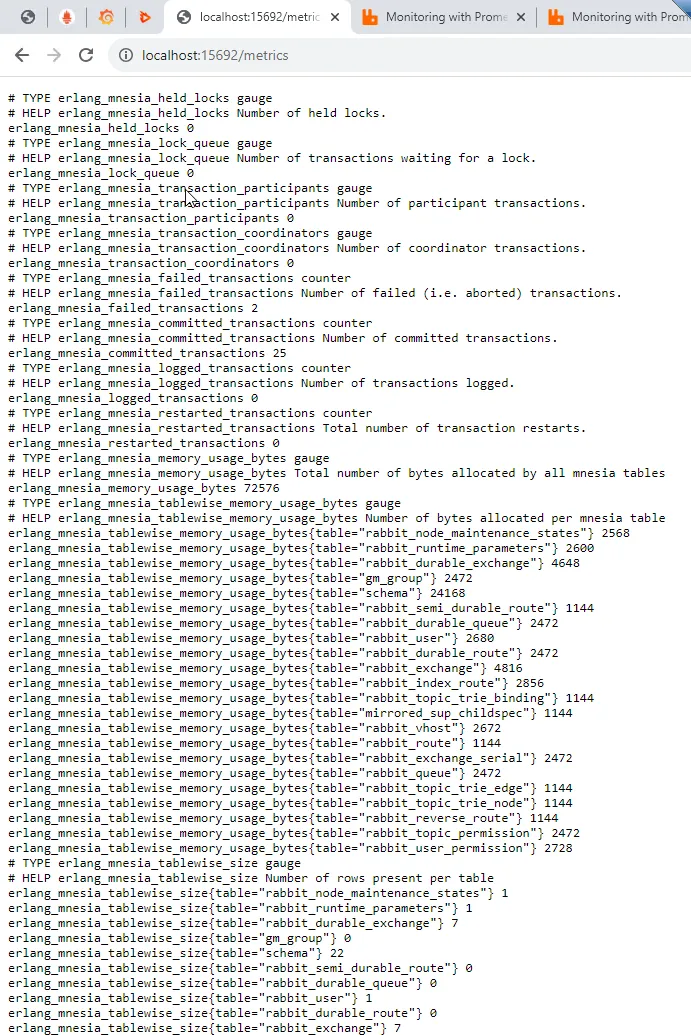
The rabbitmq_prometheus plugin provides Prometheus metric collector support. It exposes all RabbitMQ metrics in Prometheus text format on a specific TCP port.

  • If the plugin is not already installed, navigate to the rabbitmq directory on your system and check the plugins folder for the rabbitmq_prometheus plugin.

If it’s not there, you can find the plugin in the official RabbitMQ plugin repository.


In our previous article, you can find information on how to perform monitoring on a Windows server



  • Open the RabbitMQ Command-Line Client.
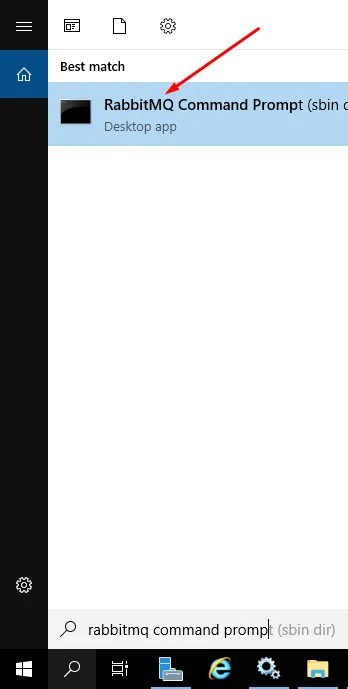
  • Enable the plugin by entering the following command:
rabbitmq-plugins enable rabbitmq_prometheus
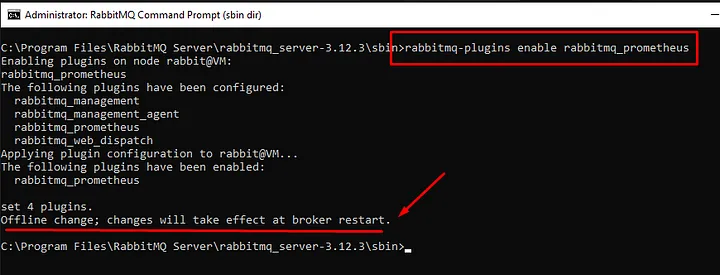
  • After enabling the plugin, you might need to restart the RabbitMQ server to activate it. To restart the server, access the service management, select RabbitMQ, and click on the restart button.
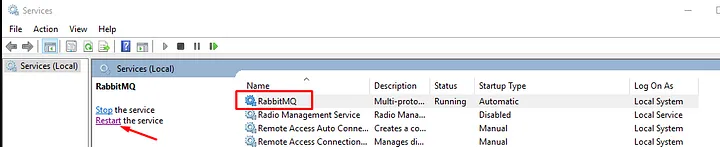
RabbitMQ restart
RabbitMQ restart
  • Finally, check the metrics by going to the address localhost:15962/metrics
Step 2: Installation and Configuration of Prometheus

  • Download and install Prometheus on your Windows Server.
  • Create a configuration file named prometheus.yml.
  • In the prometheus.yml configuration file, add a scrape “job” to monitor RabbitMQ:
scrape_configs:
  - job_name: 'rabbitmq'
    static_configs:
      - targets: ['rabbitmq-sunucu:15672'] # RabbitMQ Yönetim Arayüzü adresi
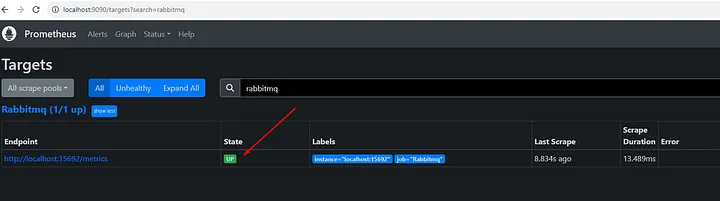
  • Verify the RabbitMQ connection added in the Prometheus web interface at localhost:9090. Check the Status/Targets section to ensure the RabbitMQ scrape target is present.
Step 3: Installation and Configuration of Grafana

  1. Download and install Grafana on your computer.
  2. Access the Grafana interface.
  3. Add Prometheus as a data source:
    • Open the side menu by clicking on the gear icon or pressing “Ctrl + Shift + ,”.
    • Go to “Data Sources”.
    • Click on the “Add data source” button.
    • Choose “Prometheus” from the list of available data sources.
    • Configure the Prometheus connection details and save the data source.

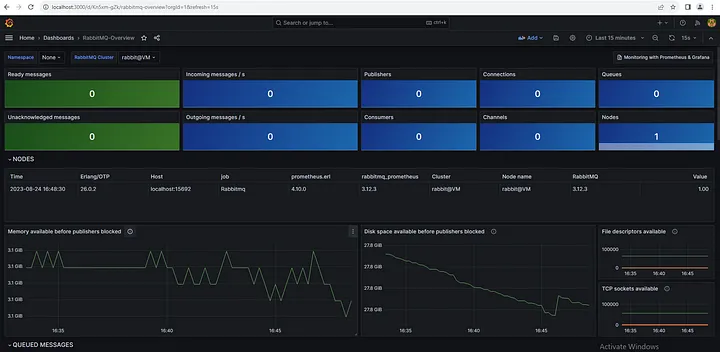
Step 4: Creating and Visualizing Grafana Dashboard (ID 10991)

  • Access the Grafana dashboard at localhost:3000 in your web browser.

  • Click on the “Home” icon in the left sidebar to access the home dashboard.
  • Click on the “Import” button in the top menu.
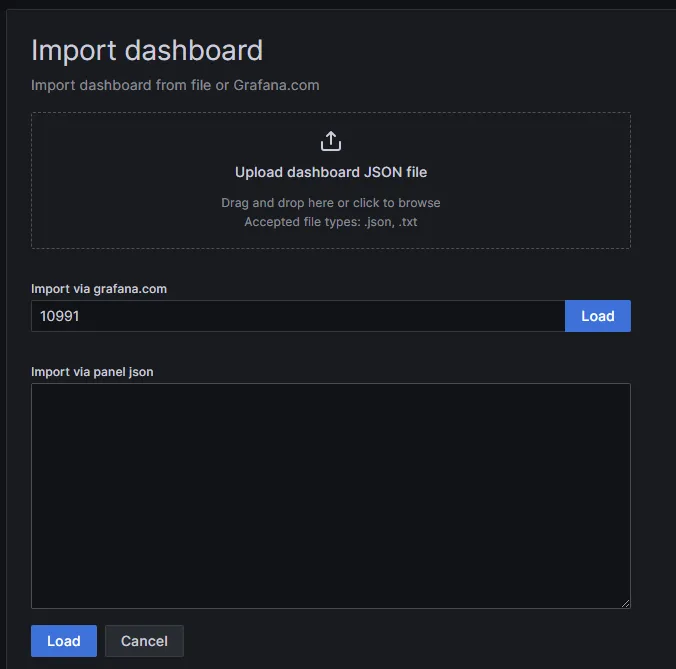
  • Select the option “Import via grafana.com”.
  • Enter the ID 10991 in the appropriate field.

Note: We are installing the theme that RabbitMQ has officially published on its site.
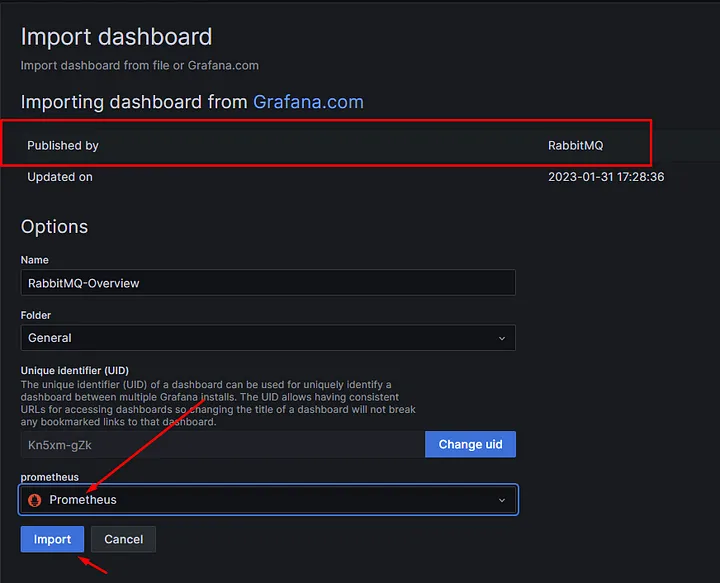
 

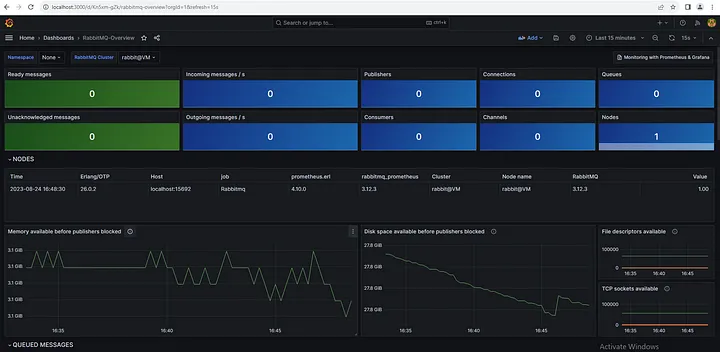
  • The RabbitMQ monitoring dashboard example will be imported.
  • Once imported, you’ll be able to view and interact with the RabbitMQ metrics visualization.

Your questions and feedback are important to me. Every question and feedback you provide helps me improve my service. I’m here to provide you with the best support and address your needs. Thank you…
If you have any questions or details you would like to add, feel free to write me.
Categories
Articles Monitoring Windows Server

Part III — Monitoring Process for IIS Servers on Windows Server

Monitoring IIS Servers on Windows Server Using Prometheus, Grafana, and WMI Exporter: Step-by-Step Guide

  1. Prometheus Installation
  • Download Prometheus: Get the latest version of Prometheus from the official website (https://prometheus.io/download/).
  • Extract the downloaded archive and copy the files to a suitable directory.
  • Create a configuration file named prometheus.yml. This file will define the targets to be monitored, such as WMI Exporter.

2. WMI Exporter Installation

  • Download WMI Exporter: Download the WMI Exporter from the GitHub repository.
  • Use the installer found in the “Assets” section to install the exporter.
  • Install the exporter using the MSI installer.
  • The binary will be placed in the directory: C:\Program Files\windows_exporter.
C:\Program Files\windows_exporter
  • If there’s a running process/task named “windows_exporter,” terminate it, as we will need to manually start the exporter with additional flags.
  • To fetch IIS Server statistics, manually run the exporter using the following command:
"C:\Program Files\windows_exporter\windows_exporter.exe" --collectors.enabled="cpu,cs,iis,logical_disk,net,os,service,system,textfile"
  • Access http://localhost:9182/metrics in your browser to view the available metrics.
  • To make the changes persistent, add the following settings to the registry:
"C:\Program Files\windows_exporter\windows_exporter.exe" --collectors.enabled="cpu,cs,iis,logical_disk,net,os,service,system,textfile" --log.format logger:eventlog?name=windows_exporter

In our previous article, you can find information on how to perform monitoring on a Windows server


3. Configuring Prometheus with WMI Exporter

  • Open your prometheus.yml file and add WMI Exporter as a target like this:
scrape_configs:
- job_name: 'wmi'
  static_configs:
    - targets: ['localhost:9182'] # Varsayılan WMI Exporter portu

4. Grafana Installation and Configuration

  • Download Grafana: Get the latest version of Grafana from the official website (https://grafana.com/grafana/download).
  • Extract the downloaded archive and copy the files to a suitable directory.
  • Start Grafana: Launch Grafana using the command line (e.g., grafana-server.exe).
Grafana setup
Grafana setup

5. Creating a Dashboard on Grafana

  • Access the Grafana web interface by visiting http://localhost:3000 in your browser (default port 3000).
  • Log in with the default credentials (admin/admin).
  • Go to the “Configuration” menu, select “Data Sources,” and add a new data source. Choose “Prometheus” and provide the address of your Prometheus server (e.g., http://localhost:9090).

  • Click “Save & Test” to add the data source.
  • Navigate to the “Dashboard” section, click “New,” and select “Import.”

  • Search for a Dashboard ID starting with a specific number on grafana.com, or directly import a JSON file.

IIS Dashboard ID:14532

6. Observing the Dashboard

  • You can observe IIS server monitoring data on the created dashboard. Grafana will help visualize the metrics obtained from Prometheus.
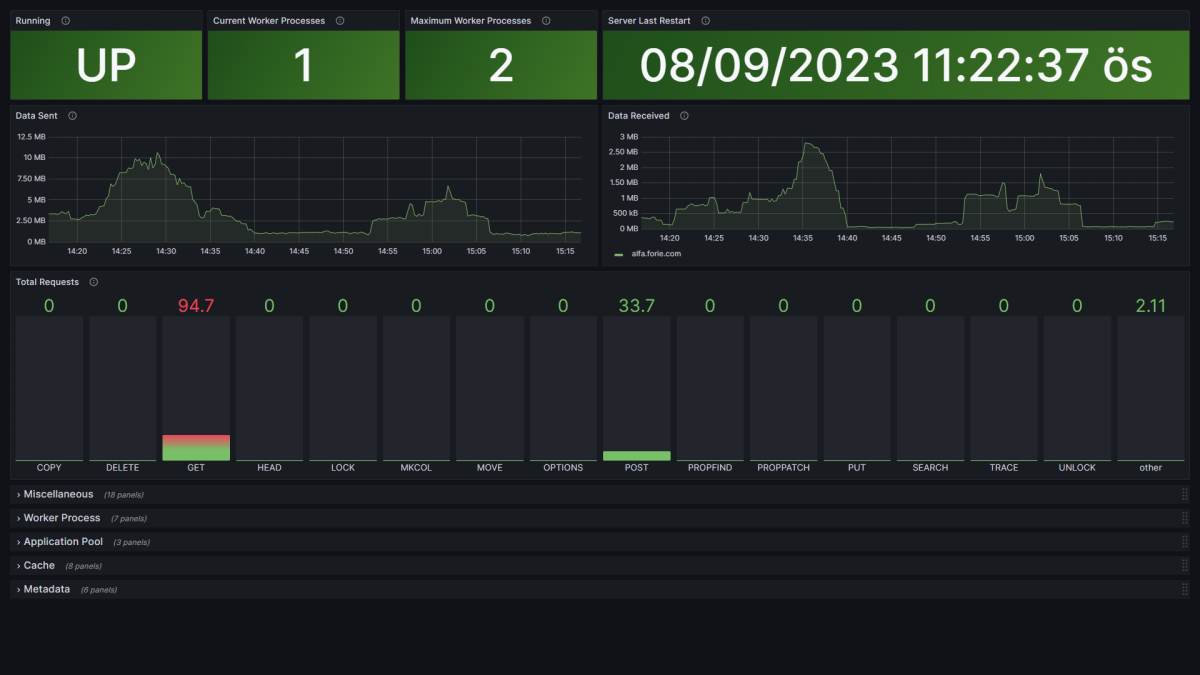
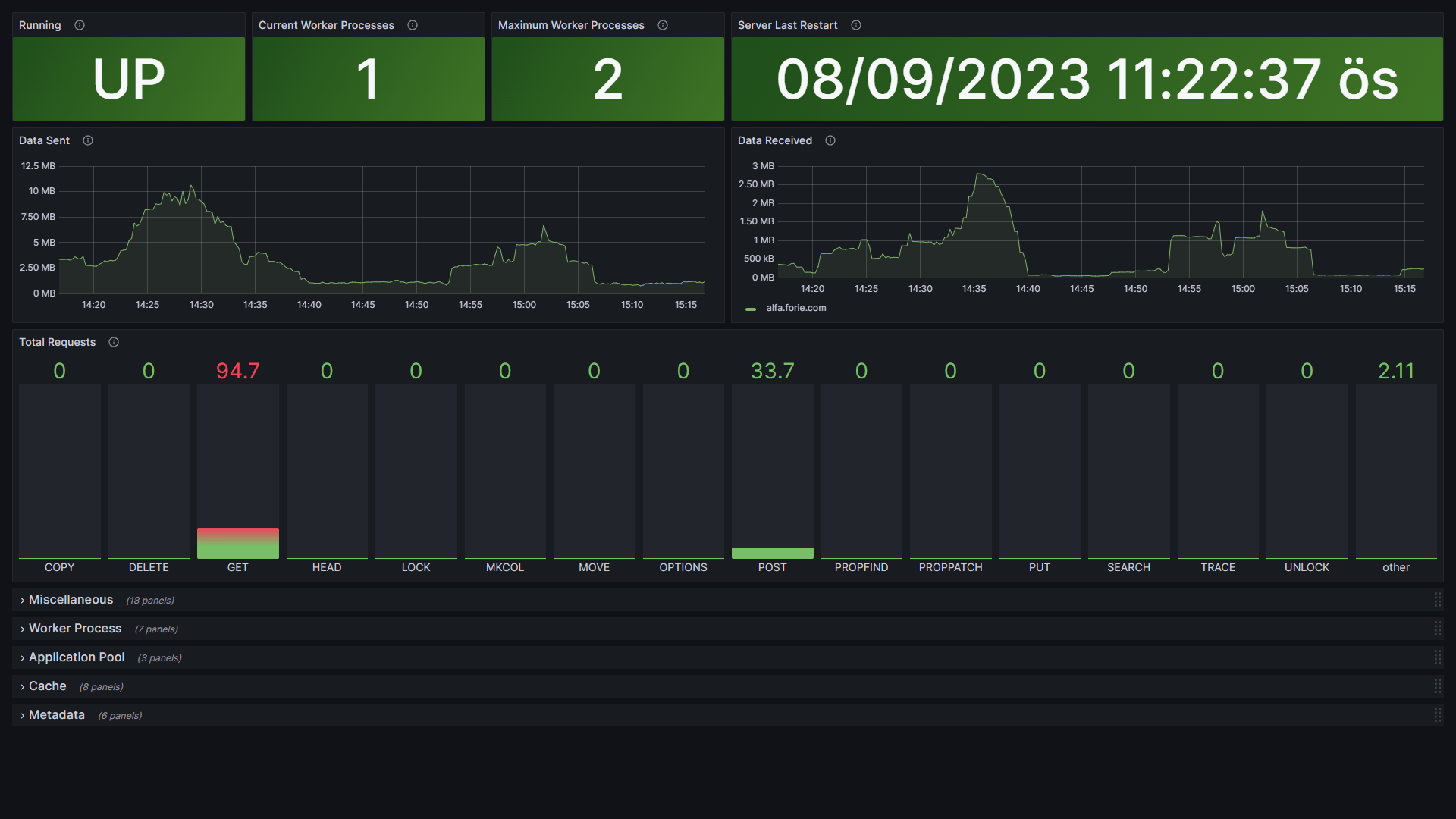
IIS Monitoring
IIS Monitoring

If you have any questions or details you would like to add, feel free to write me.