
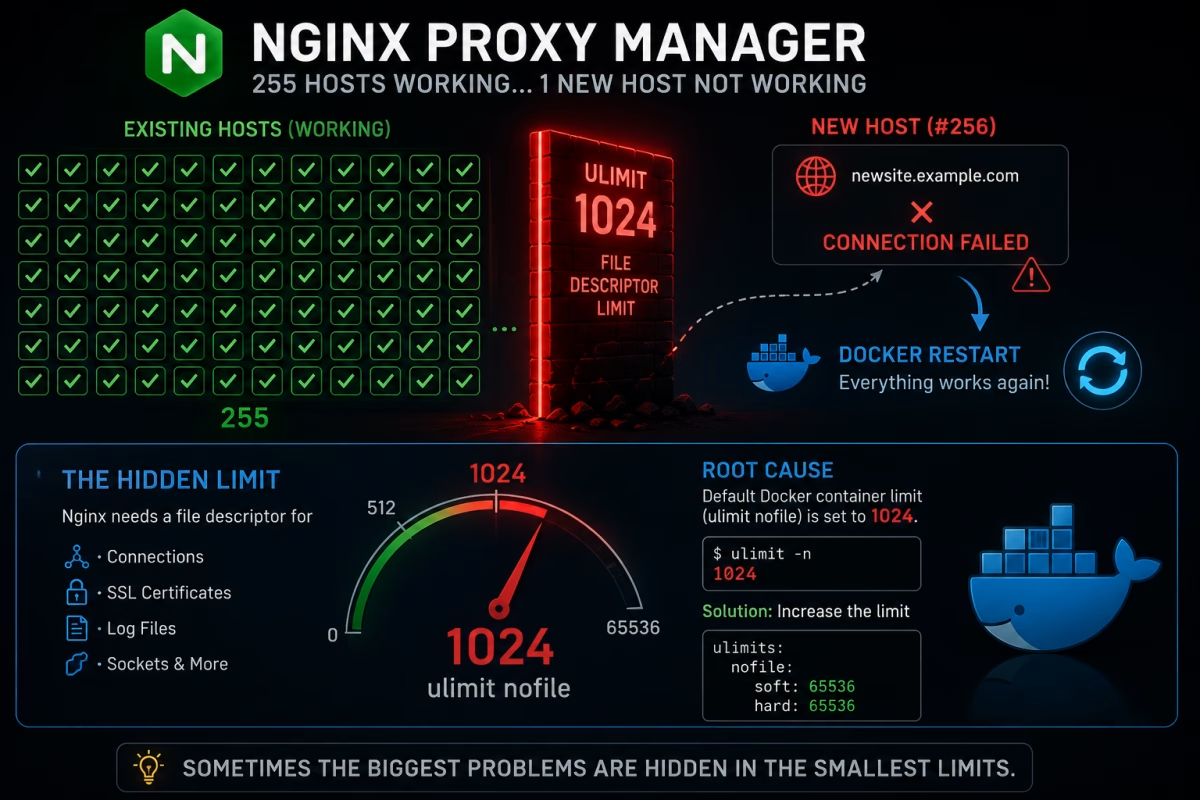
A few days ago, I ran into a strange issue while managing my Nginx Proxy Manager instance. At first, I was convinced the problem was related to Cloudflare, DNS, or even Plesk. It turned out that the real culprit was Docker’s default ulimit setting.
My server was hosting around 255 Proxy Hosts. When I added a new one, it simply wouldn’t work. Even more confusing, changes to existing hosts were no longer being applied.
Symptoms
Here’s what I experienced:
- Newly created Proxy Hosts were unreachable.
- Disabling and re-enabling an existing host had no effect.
- SSL and routing changes were not applied.
- Restarting the Docker container immediately fixed everything.
Naturally, I started troubleshooting the usual suspects:
- DNS records
- Cloudflare
- Plesk
- SSL certificates
- Nginx Proxy Manager configuration
- Docker networking
Everything looked perfectly fine.
Why Did a Docker Restart Fix the Problem?
This was the most confusing part.
Every time I added a new host or modified an existing one, restarting the Docker container made everything work again.
That suggested Nginx Proxy Manager wasn’t failing to read the configuration. Instead, it seemed unable to apply new changes under certain conditions.
So I started looking at the container’s resource limits.
The Real Problem: ulimit nofile
Checking the container revealed that the default nofile limit was set to 1024.
ulimit -n

1024
As a test, I increased the limit to 65536.
services:
  npm:
    image: jc21/nginx-proxy-manager:latest

    ulimits:
      nofile:
        soft: 65536
        hard: 65536
After recreating the container, the issue disappeared completely.
- New Proxy Hosts started working immediately.
- Enable/Disable operations were applied correctly.
- Configuration changes took effect without restarting Docker.
Why Does This Happen?
On Linux systems, every open file and network connection consumes a File Descriptor.
Nginx uses File Descriptors for many different tasks:
- Listening sockets
- Proxy connections
- SSL certificates
- Log files
- Internal sockets
- Configuration files
As the number of Proxy Hosts and active connections grows, the number of required File Descriptors increases as well.
When the container is limited to only 1024 descriptors, Nginx may eventually run out of available resources. Interestingly, it doesn’t always crash.
Instead, you may see subtle and confusing symptoms:
- New Proxy Hosts don’t work.
- Configuration changes are ignored.
- Enable/Disable operations fail silently.
- Some websites stop responding.
- Restarting the Docker container temporarily fixes the issue.
In my environment, this behavior started with approximately 255 Proxy Hosts.
The Fix
Increasing the nofile limit for the Docker container solved the problem.
ulimits:
  nofile:
    soft: 65536
    hard: 65536
Then recreate the container:
docker compose down
docker compose up -d
Conclusion
If you’re running Nginx Proxy Manager and notice that:
- New Proxy Hosts don’t work,
- Enable/Disable operations have no effect,
- Configuration changes aren’t applied,
- Everything starts working again after a Docker restart,
don’t spend hours debugging Cloudflare, DNS, or Plesk.
Take a look at your Docker container’s ulimit nofile setting first.
In my case, the problem wasn’t Nginx Proxy Manager, Cloudflare, or Plesk at all. The root cause was Docker’s default File Descriptor limit of 1024.
Sometimes the most frustrating infrastructure problems are caused by a default setting that nobody thinks about until they hit the limit.