Categories
Articles Windows

Automated File Cleanup in Windows: Boost Efficiency with Task Scheduler

Automated File Cleaning in Windows

In today’s digital age, our computer storage can quickly become filled with unnecessary files over time. These files not only occupy space but can also impact system performance. Fortunately, Windows operating system provides a solution through the Task Scheduler, allowing you to automatically clean up such files, ensuring a faster and more organized computer experience.

In this guide, you’ll learn how to use the Windows Task Scheduler to automatically delete files in a specific folder at regular intervals. By minimizing the need for manual file cleaning, you can save time and utilize your computer more effectively. By following step-by-step instructions, you’ll discover how to set up this automated file cleaning process.

Understanding Task Scheduler

Let’s first take a look at the command we’ll be using: I can provide information about using the forfiles command to delete files older than a specified date. The “forfiles command is used on the Windows operating system to select files within a specific directory and perform actions on them. It’s commonly used to delete files older than a certain date.

forfiles /p "C:\dosya" /s /m *.* /D -6 /C "cmd /c del @path"

Here’s the breakdown of this command:

  • /p "D:\folder": Specifies the directory to operate on.
  • /s: Searches through subdirectories as well.
  • /m *.*: Selects all file types.
  • /D -6: Filters files based on their modification date. -6 selects files that are 6 days old or older.
  • /C "cmd /c del @path": Executes the specified command for each selected file. In this case, del @path deletes the file.

lease exercise caution when using this command! Accidentally deleting important files is possible. If you’re unsure, consider testing the command to observe how it works.


Creating a .bat File

Now, let’s create an example content for a .bat file:

@echo off
forfiles /p "D:\dosya" /s /m *.* /D -6 /C "cmd /c del @path"

You can open a text editor, paste the code above, and save it with a desired name and .bat extension, such as file_cleanup.bat. Running this file will delete files older than the specified date in the designated folder. Caution is advised, as this operation irreversibly deletes files.



Using Task Scheduler

Using Task Scheduler to regularly execute the .bat file is straightforward. Here’s how:

  1. Open the Start menu and search for “Task Scheduler,” then select it from the results.

2.In the Task Scheduler window, click “Create Basic Task” on the right.

3.Follow these steps in the window that appears:

  • Name and Description: Provide a name and optional description for the task.
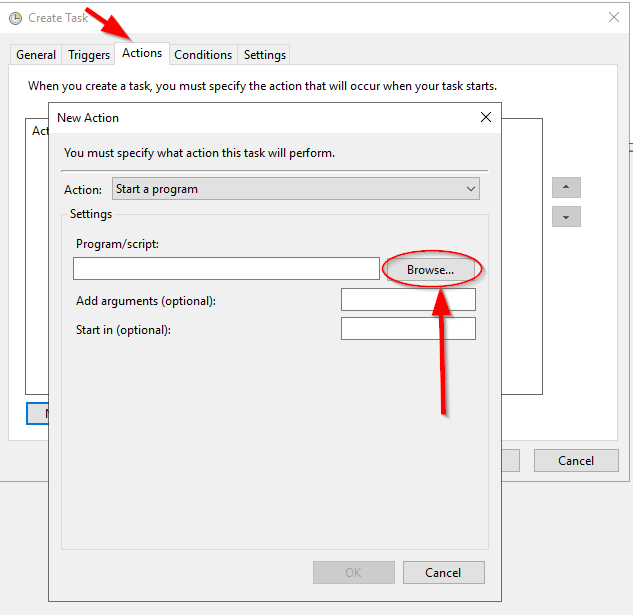
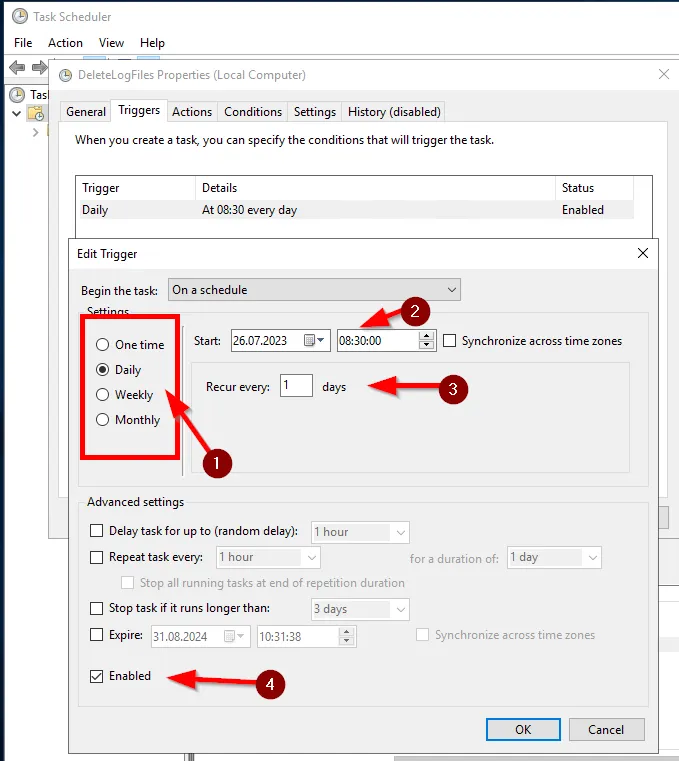
  • Trigger: Choose when you want the task to start. For instance, select “When the task starts” and set the date and time.

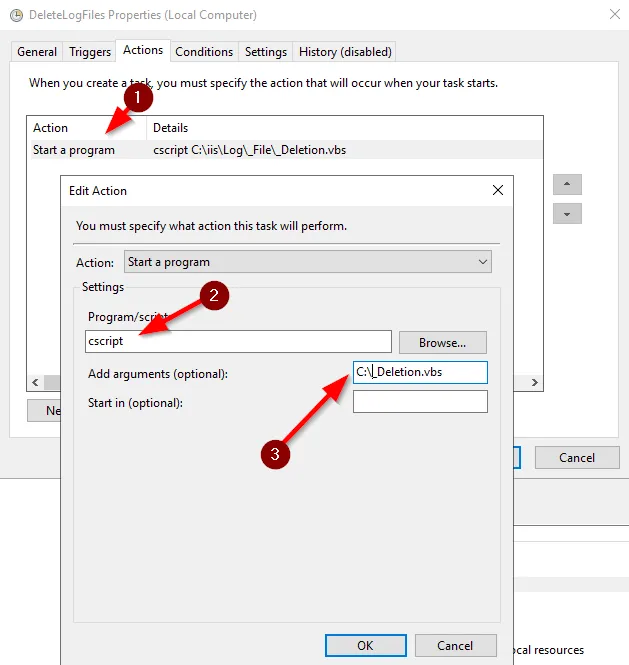
  • Action: Choose “Start a program,” then browse to select the .bat file you created.
  • Finish: Review your settings and click “Finish” to create the task.

The task will now run the .bat file automatically at the specified times. The flexibility of Task Scheduler allows you to easily customize when and how the file runs.



Remember, the information here is meant to guide you through the process of setting up automated file cleaning using the Windows Task Scheduler. Always exercise caution when deleting files, especially with automated processes.


If you have any questions or details you would like to add, feel free to write me.

Categories
Articles Windows Windows Server

Clearing IIS Logs at Regular Intervals on Windows Server

Internet Information Services (IIS) is a component that provides web server services on Windows Server. IIS records log files to monitor website performance and detect issues. However, over time, these log files can unnecessarily consume disk space. In this guide, we’ll look at how to clean up IIS logs on Windows Server.

Step 1: Determine the Location of IIS Logs

1.Log in to the Windows Server.

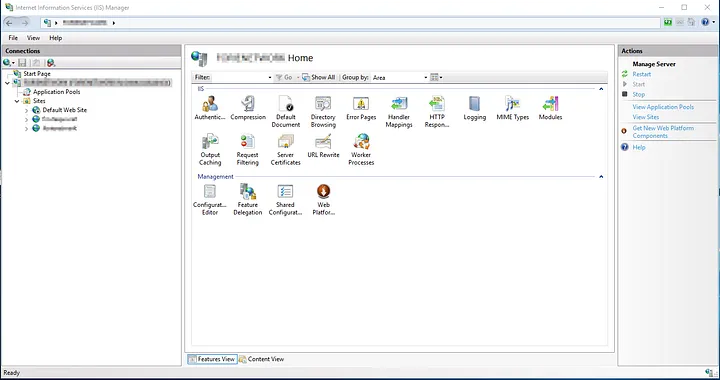
2.Open the “Internet Information Services (IIS) Manager” by typing “IIS” in the Start menu.

IIS 01
IIS 01

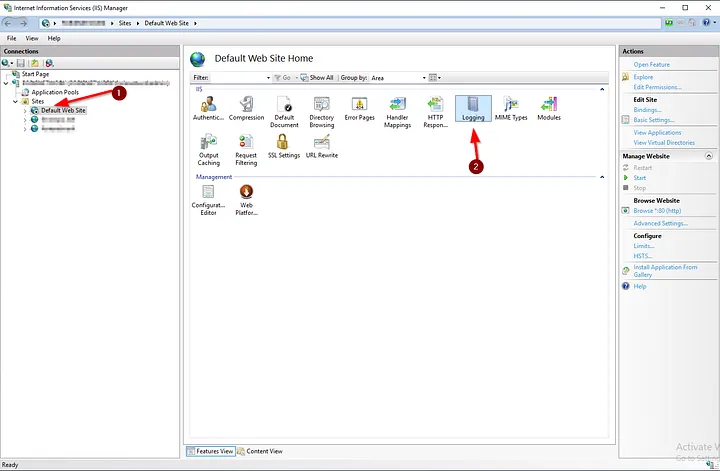
3.Expand the name of your server in the left-hand connection tree.

4.Under Sites, select the web site you want to clean up.

IIS 02
IIS 02

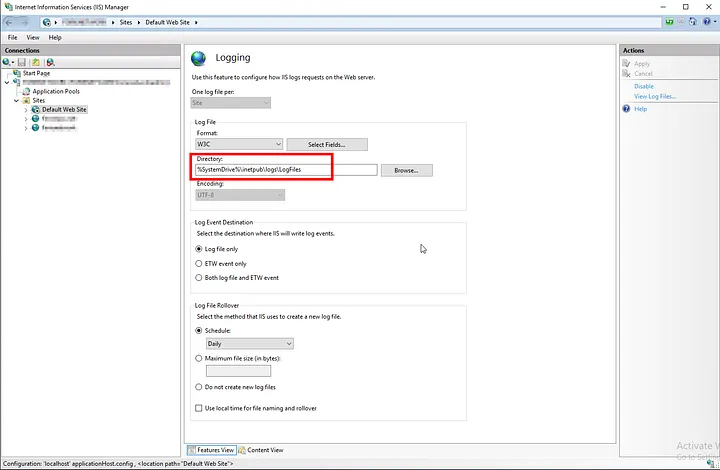
5.In the “IIS” section on the right side, find the “Logging” item. Here, you’ll see the directory where log files are stored. This is typically “C:\inetpub\logs\LogFiles” or a similar path.

IIS 03
IIS 03

Step 2: Cleaning Up Logs

1.Before deleting log files, you may want to back up their contents. You can copy the log files to another folder for this purpose.

2.Navigate to the “LogFiles” folder to clean up log files.

LogFiles
LogFiles

3.Here, you’ll see different folders named with date and time information (e.g., W3SVC1, W3SVC2, etc.). Choose the folder corresponding to the web site you’re interested in.

4.Select the log files within the folder, and press the Delete key to permanently remove the files.

Step 3: Creating a Scheduled Task (Optional)

If you want to clean up IIS logs periodically, you can use the Windows Task Scheduler. This way, you can automatically clean up logs at specified intervals.

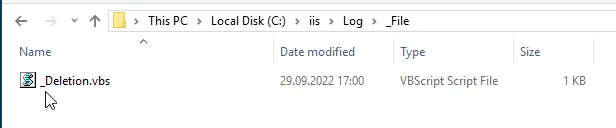
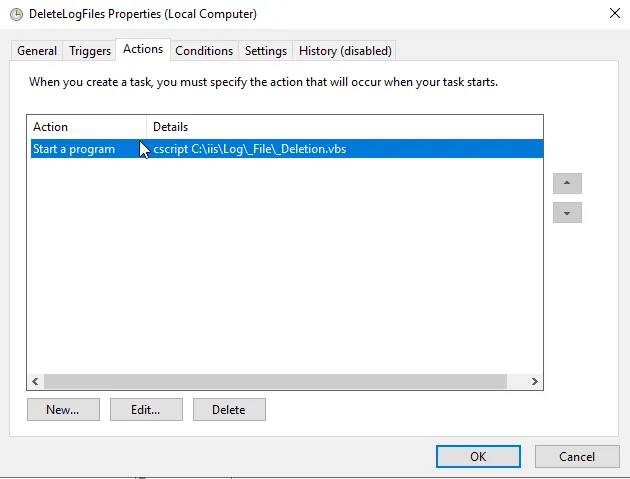
  1. We’ll continue using the script we prepared earlier. Copy the script to a text editor, give it a name, and save it as a .vbs file.
sLogFolder = "c:\inetpub\logs\LogFiles"
iMaxAge = 30   'in days

' FileSystemObject oluşturuluyor
Set objFSO = CreateObject("Scripting.FileSystemObject")

' Log dosyalarının bulunduğu klasörün alt klasörleri taranıyor
set colFolder = objFSO.GetFolder(sLogFolder)
For Each colSubfolder in colFolder.SubFolders
        ' Alt klasör içindeki dosyaları tarıyor
        Set objFolder = objFSO.GetFolder(colSubfolder.Path)
        Set colFiles = objFolder.Files
        For Each objFile in colFiles
                ' Dosyanın yaşını hesaplıyor
                iFileAge = now - objFile.DateCreated
                ' Belirlediğiniz gün sınırını aşıyorsa silme işlemi yapılıyor
                if iFileAge > (iMaxAge+1) then
                        objFSO.DeleteFile objFile, True ' Dosya siliniyor
                end if
        Next
Next
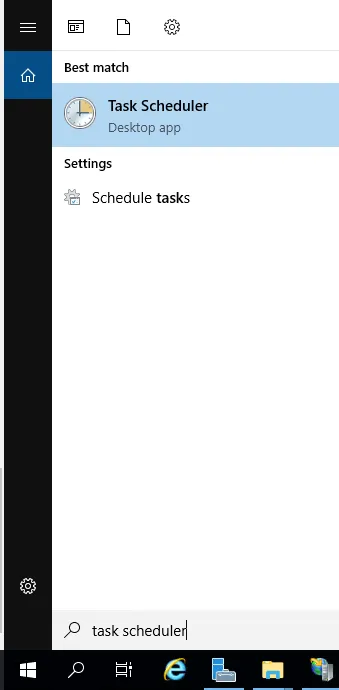
2.Next, open the “Task Scheduler” application from the Start menu.

3.Click on “Create Basic Task” to create a new scheduled task.

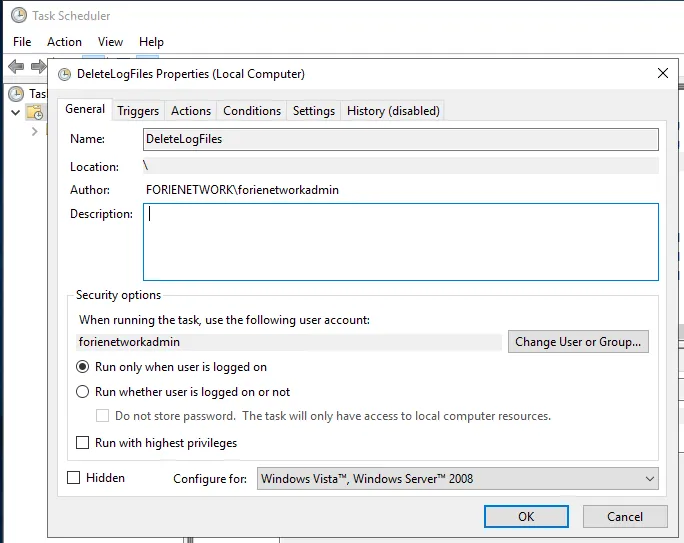
4.Görevinizi adlandırın ve açıklama ekleyin.

5.Choose “Start a Program” and specify a script or batch file to delete the logs.

6.You’ll see a summary of your task. Click “Finish” or “Create” to create the task.

By following these steps, you can clean up IIS logs at regular intervals on Windows Server. Be cautious when deleting logs and remember to create backups before deleting unnecessary files.


If you have any questions or details you would like to add, feel free to write me.
Categories
Articles SQL Windows

Azure Data Studio or SSMS — which should I use?

Azure Data Studio (ADS) and SQL Server Management Studio (SSMS) are both database management tools used for different purposes, and which tool to use depends on your needs and preferences.

Azure Data Studio (ADS):

Azure Data Studio (ADS):
  • ADS offers cross-platform support, meaning it can be used on Windows, macOS, and Linux. This can be essential for collaboration among team members using different operating systems.
  • It is primarily designed for database development and query creation. It is used for editing queries, visualizing query results, and managing databases at a high level.
  • It comes with an integrated query editor with advanced development features such as syntax highlighting, auto-completion, and code hints.
  • ADS can work with multiple database systems (SQL Server, PostgreSQL, MySQL, MongoDB, etc.) and allows you to create different connection profiles.
  • You can extend its functionality using extensions and plugins, enabling you to customize your workflow by installing or developing specific extensions.

SQL Server Management Studio (SSMS):

SQL Server Management Studio (SSMS):
  • SSMS only runs on the Windows operating system and is specifically designed for managing SQL Server. Therefore, it is recommended for those working primarily with SQL Server databases.
  • SSMS allows you to create, edit, manage, and back up database objects. It provides tools for tasks like database backup, security configuration, and performance monitoring.
  • It offers specialized reports and performance monitoring tools for professional SQL Server administration.
  • SSMS provides specialized tools and design surfaces for tasks like creating databases, writing stored procedures, and designing workflows.
  • It offers advanced monitoring and security features for database administrators.

In conclusion, the choice between Azure Data Studio (ADS) and SQL Server Management Studio (SSMS) depends on your project requirements, team member preferences, and the database system you are working with. If you have general database development and query-writing needs across various platforms, ADS might be a better fit. However, if you are primarily working with SQL Server and handling administrative tasks, SSMS is the more suitable choice. To make the best decision for your needs, consider trying out both tools and assessing which one aligns better with your workflow.


If you have any questions or details you would like to add, feel free to write me.