Categories
Windows

Office LTSC (2016, 2019, 2021) Installation Guide (No Login Required)

Office LTSC (2016, 2019, 2021) Installation Guide (No Login Required)

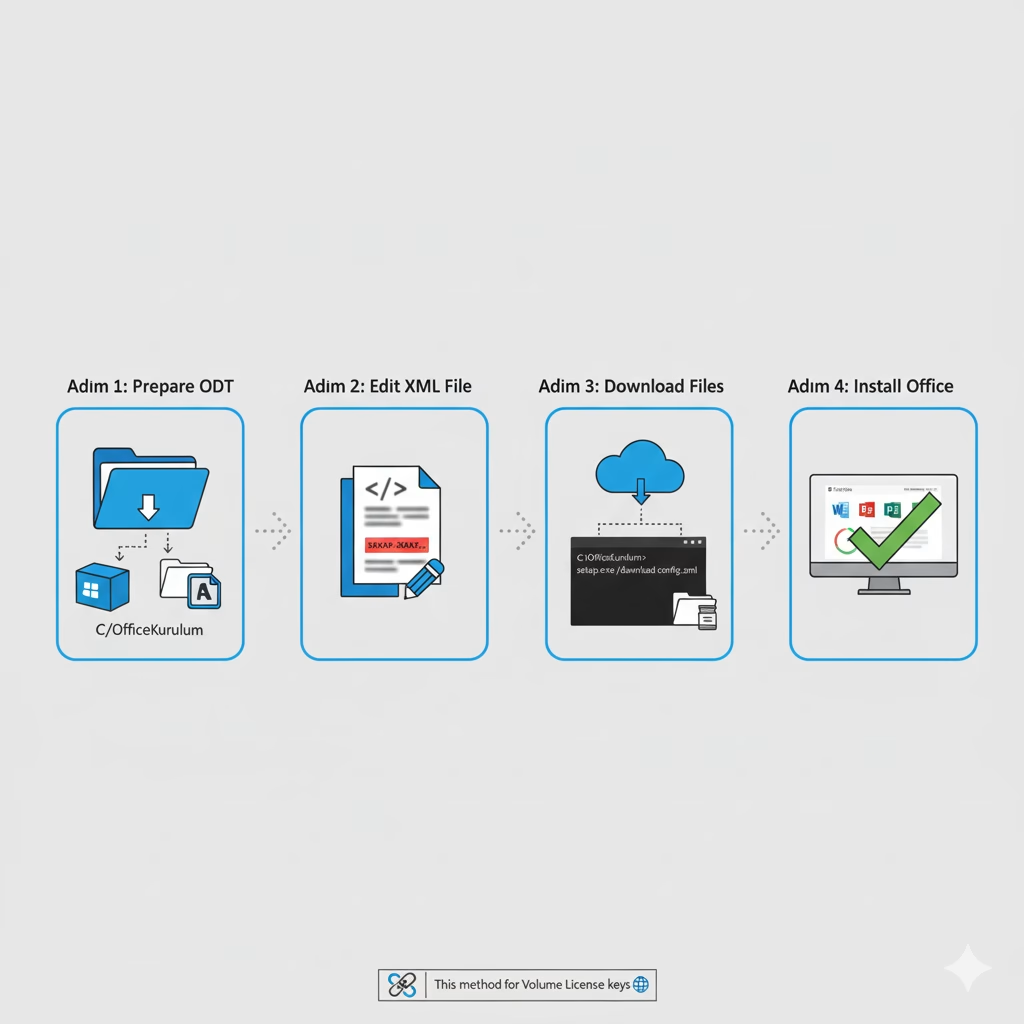
This guide will help you install Office LTSC 2016, 2019, and 2021 versions without needing to sign in, using the Office Deployment Tool (ODT). This method is specifically for Volume License keys.


Step 1: Prepare the Office Deployment Tool (ODT)


  1. Download: Download the Office Deployment Tool from the official Microsoft site.
  2. Create Folder: Create an easily accessible folder on your computer (e.g., C:\OfficeKurulum).
  3. Extract Files: Run the officedeploymenttool.exe file you downloaded. When it asks where to extract the files, select the C:\OfficeKurulum folder you created.
  4. This folder should now contain the setup.exe file and your configuration-Office365-x64.xml file (or the file you are about to create).


Step 2: Edit the configuration-Office365-x64.xml File


This is the most critical step as it defines which version of Office you will install. Open your configuration-Office365-x64.xml file (located in C:\OfficeKurulum) with a text editor like Notepad.

Delete all existing content inside the file and paste one of the following code blocks, depending on the version you want to install.

IMPORTANT: You MUST replace PIDKEY="XXXXX-XXXXX-XXXXX-XXXXX-XXXXX" with your own 25-character product key for the specific version you are installing.


📦 Version 1: XML Code for Office LTSC Professional Plus 2021


XML

<Configuration>
  <Add OfficeClientEdition="64" Channel="PerpetualVL2021">
    <Product ID="ProPlus2021Volume" PIDKEY="XXXXX-XXXXX-XXXXX-XXXXX-XXXXX">
      <Language ID="en-us" />
    </Product>
  </Add>
  <RemoveMSI />
  <Display Level="Full" AcceptEULA="TRUE" />
  <Property Name="AUTOACTIVATE" Value="1" />
</Configuration>

(Note: This installs 64-bit, US-English LTSC 2021 Pro Plus.)


📦 Version 2: XML Code for Office Professional Plus 2019


XML

<Configuration>
  <Add OfficeClientEdition="64" Channel="PerpetualVL2019">
    <Product ID="ProPlus2019Volume" PIDKEY="XXXXX-XXXXX-XXXXX-XXXXX-XXXXX">
      <Language ID="en-us" />
    </Product>
  </Add>
  <RemoveMSI />
  <Display Level="Full" AcceptEULA="TRUE" />
  <Property Name="AUTOACTIVATE" Value="1" />
</Configuration>

(Note: This installs 64-bit, US-English Office 2019 Pro Plus.)


📦 Version 3: XML Code for Office Professional Plus 2016


XML

<Configuration>
  <Add OfficeClientEdition="64" Channel="PerpetualVL2016">
    <Product ID="ProPlus2016Volume" PIDKEY="XXXXX-XXXXX-XXXXX-XXXXX-XXXXX">
      <Language ID="en-us" />
    </Product>
  </Add>
  <RemoveMSI />
  <Display Level="Full" AcceptEULA="TRUE" />
  <Property Name="AUTOACTIVATE" Value="1" />
</Configuration>

(Note: This installs 64-bit, US-English Office 2016 Pro Plus.)


Don’t forget to save and close the XML file.


Step 3: Download Installation Files


  1. Open Command Prompt (CMD) as Administrator:
    • Click the Start menu and type cmd.
    • Right-click on “Command Prompt” and select “Run as administrator”.
  2. Navigate to Folder: In the black-and-white window that opens, navigate to your C:\OfficeKurulum folder. Type the following command and press Enter:
    cd C:\OfficeKurulum
    
  3. Start the Download: Now, tell the ODT to download the files based on your XML file. Type the following command and press Enter:
    setup.exe /download configuration-Office365-x64.xml
    
  4. Wait: The command prompt will move to the next line and blink. It may look like nothing is happening, but the files are downloading in the background. This can take 5-15 minutes depending on your internet speed. You will see a new folder named “Office” appear inside your C:\OfficeKurulum directory. The process is finished when the command prompt returns to the C:\OfficeKurulum> prompt.


Step 4: Install Office


  1. Once the files are downloaded, make sure you are still in the Administrator Command Prompt window.
  2. Type the following command and press Enter:
    setup.exe /configure configuration-Office365-x64.xml
    
  3. That’s it! An Office installation window will appear and begin the installation. When it’s finished, you can open an application like Word or Excel. It will not ask you to sign in, and if you entered your product key correctly in the XML file, Office should already be activated.
Categories
Articles Firewall

Samba Installation and User Authorization on Ubuntu 24.04

Samba Installation and User Authorization on Ubuntu 24.04

This document provides a step-by-step guide for installing and configuring the Samba service on an Ubuntu 24.04 server, including granting a user access to a specific shared directory (e.g., for storing 5651 logs).

1. System Update and Required Packages

sudo apt update && sudo apt upgrade -y
sudo apt install samba -y

2. Create the Shared Directory

sudo mkdir -p /srv/samba/share5651
sudo chown root:root /srv/samba/share5651
sudo chmod 755 /srv/samba/share5651

3. Create the Samba User

sudo adduser berqlog
sudo smbpasswd -a berqlog

Note: Ensure the password is set for both the system and Samba.

4. Edit Samba Configuration File

Edit /etc/samba/smb.conf with the following content:

[global]
    workgroup = WORKGROUP
    netbios name = COMPANY_SMB
    server string = Company Log Server
    security = user
    map to guest = Bad User
    dns proxy = no
    server min protocol = NT1
    ntlm auth = yes
    log file = /var/log/samba/log.%m
    max log size = 1000
    logging = file
    panic action = /usr/share/samba/panic-action %d
    server role = standalone server
    obey pam restrictions = yes
    unix password sync = yes
    passwd program = /usr/bin/passwd %u
    passwd chat = *Enter\snew\s*\spassword:* %n\n *Retype\snew\s*\spassword:* %n\n *password\supdated\ssuccessfully* .
    pam password change = yes
    usershare allow guests = no
    idmap config * : backend = tdb

[share5651]
    path = /srv/samba/share5651
    read only = no
    valid users = berqlog
    create mask = 0644
    directory mask = 0755
    browseable = yes
    guest ok = no

5. Test the Configuration

testparm

Make sure there are no syntax errors.

6. Restart Samba Service

sudo systemctl restart smbd
sudo systemctl enable smbd

7. Firewall Configuration (If Enabled)

sudo ufw allow 'Samba'

8. Access the Share

From a Windows machine:

\\<ubuntu_ip_address>\share5651

Username: berqlog, Password: the one set during setup.

9. Logs and Troubleshooting

Samba logs are located at:

/var/log/samba/log.smbd
/var/log/samba/log.nmbd
/var/log/samba/log.<client_ip_or_name>

Additional Notes:

  • The ntlm auth = yes setting allows compatibility with legacy Windows clients.
  • The server min protocol = NT1 is for compatibility with old systems. For better security, consider using SMB2 or higher.

This setup covers basic file sharing and user authorization. For advanced needs, consider configuring ACLs, audit modules, or integrating with a domain.

Categories
Articles Azure

What is Azure Identity and Access Management (AIM)?

Image by creativearton Freepik

With the proliferation of cloud computing, organizations need robust and secure solutions for identity and access management (IAM). Azure Identity and Access Management (AIM) is a platform that enables you to manage access and identities to your Azure resources. AIM unifies various Azure IAM services such as Azure RBAC, Azure AD, and Azure MFA into a single platform.Key Features of AIM:

  • Centralized identity management: AIM provides a single identity store for all your Azure resources.
  • Easy access management: AIM lets you easily manage access to Azure resources with Azure RBAC.
  • Enhanced security: AIM helps you protect your Azure resources from unauthorized access with Azure AD and Azure MFA.
  • Compliance: AIM helps you control access controls and meet compliance requirements.

AIM Use Cases:

  • Manage access to Azure resources: AIM enables you to easily manage access to Azure resources with Azure RBAC.
  • Manage identities: AIM provides a single identity store for all your Azure resources with Azure AD.
  • Enhance security: AIM helps you protect your Azure resources from unauthorized access with Azure AD and Azure MFA.
  • Ensure compliance: AIM helps you control access controls and meet compliance requirements.

Benefits of AIM:

  • Simplified IAM management: AIM simplifies IAM management by consolidating Azure IAM services into a single platform.
  • Increased security: AIM helps you protect your Azure resources from unauthorized access with Azure AD and Azure MFA.
  • Improved compliance: AIM helps you control access controls and meet compliance requirements.

Technical Details:

  • Azure RBAC: Azure RBAC is an authorization system that lets you manage access to Azure resources. Roles are predefined permissions with specific sets of permissions. The scope can be a subscription, a resource group, or a single resource.
  • Azure AD: Azure AD is an identity service that enables you to manage users and groups in your organization. Azure AD offers features such as user authentication, single sign-on, and multi-factor authentication.
  • Azure MFA: Azure MFA is a security service that lets you add an additional authentication factor to verify a user’s identity. Azure MFA offers a variety of authentication methods, such as SMS, password app codes, or phone calls.

Create a Secure and Compliant IAM Environment with AIM:

AIM is a powerful tool to protect your Azure resources and meet compliance requirements. Using AIM, you can do the following:

  • Use strong authentication and authorization: Provide user authentication and authorization with Azure AD and Azure MFA.
  • Minimize access: Give users only the access they need.
  • Ensure compliance: Control access controls and meet compliance requirements.

The result:

AIM provides a comprehensive IAM solution for your Azure resources. With AIM, you get a powerful tool to protect your Azure resources, simplify IAM management, and meet compliance requirements.


If you have any questions or details you would like to add, feel free to write me.

Categories
Articles

On Writing: Pen and Computer in the Shadow of Technology

Image by Freepik

“Söz uçar, yazı kalır.” This proverb is a piece of wisdom that emphasizes the importance and permanence of writing. As technology rapidly evolves and digitalization becomes increasingly prevalent in our lives, the role and function of writing are also undergoing transformation. So, what is the relationship between pen and computer in the shadow of this change?

Advantages of the Computer:

The computer offers many tools that facilitate and accelerate the writing process. Features such as spell checkers, grammar and word suggestions, and text editing options make writing more practical. Additionally, access to information is facilitated by internet connection, making research less time-consuming.

The Power of the Pen:

Despite all the advantages offered by the computer, the pen has its own unique power and impact. Writing by hand helps to organize thoughts more clearly and increases the emotional impact of words. In handwritten texts, the emotions and thoughts of the writer are felt in a more concrete and sincere way.

The Alliance of Technology and Writing:

The advancement of technology has allowed writing to go beyond just paper and become widespread on digital platforms. New media such as blogs, social media platforms, and e-books offer writers the opportunity to reach a wider audience.

Image by Freepik

The Enduring Power of Writing:

No matter how much computers and digital tools develop, the real power and value of writing lies in its permanence. Written texts are one of the most important tools for transmitting knowledge and experiences from the past, sharing ideas and thoughts.

Conclusion:

In the shadow of technology, pen and computer represent different aspects of the writing act. The computer offers practicality and speed, while the pen stands out as a tool of emotion and sincerity. The important thing is to use the possibilities offered by both tools consciously to preserve the power and permanence of writing.

The Future of Writing:

With the advancement of technology and the emergence of new tools, the forms and functions of writing will continue to change. The important thing is to keep up with these changes without losing sight of the core values ​​and the main purpose of writing. Writing is not only important for transmitting information or sharing ideas, but also for expressing ourselves and understanding the world.

Categories
Articles Azure

Azure VM: Resolving the c0000034 Fatal Error

Azure VM: Resolving the c0000034 Fatal Error

One of the critical issues you may encounter when working with Azure Virtual Machines (VMs) is the “c0000034” fatal error. This error typically occurs in Windows operating systems and is usually caused by a corrupt registry hive. The Windows registry is a critical database that stores configuration settings and options for the OS and installed applications. If the registry becomes corrupt, it can prevent the system from booting, leading to serious errors.

In this article, I will explain step-by-step how to resolve the c0000034 error on an Azure VM. The steps are simplified for easy understanding, even if you’re new to system administration.

azure boot


What is the c0000034 Error?

The c0000034 error is a fatal system error in Windows that typically occurs when registry files such as SYSTEM and SOFTWARE become corrupt. Without these crucial files, the system is unable to boot properly. The solution to this issue involves replacing these corrupt files with backups of healthy versions.


Solution: Steps to Fix the c0000034 Error in Azure VM

You can resolve this issue by accessing the corrupt disk and restoring the registry files from a backup. Follow these steps using the Azure portal:

  1. Stop the Faulty VM
    First, go to the Azure portal and stop the virtual machine experiencing the error. This ensures that you can safely modify its disk without interference.
  2. Create a New Virtual Machine
    Create a new virtual machine with the same operating system and disk size as the original. This new VM will be used to access the disk from the faulty VM and make the necessary changes.
  3. Attach the Original VM’s Disk to the New VM
    Attach the disk from the original virtual machine to the new virtual machine as a data disk. This allows you to access the files of the faulty VM without booting it.
  4. Start the New VM and Connect to It
    Start the newly created VM and connect to it using Remote Desktop.
  5. Assign a Drive Letter to the Attached Disk
    Once connected, open Disk Management on the new VM. Assign a drive letter (e.g., D:) to the attached disk, so it is accessible from File Explorer.
  6. Backup the Corrupted Registry Files
    Navigate to the attached disk, and go to C:\Windows\System32\config. Here, you will find the corrupted registry files:

    • Rename the SYSTEM file to SYSTEM.old.
    • Rename the SOFTWARE file to SOFTWARE.old.
      By renaming these files, you are effectively backing them up in case you need to revert the changes later.
  7. Restore Healthy Versions from RegBack
    In the attached disk, navigate to C:\Windows\System32\config\RegBack. This folder contains backup copies of the registry files:

    • Copy the SYSTEM and SOFTWARE files from the RegBack folder and paste them into the config folder, replacing the corrupted versions.
  8. Restart the New VM
    After replacing the corrupt registry files, restart the new virtual machine. If everything has been done correctly, the VM should now boot without encountering the c0000034 error.


    Conclusion

    By following these steps, you can successfully resolve the c0000034 error caused by corrupt registry files. Accessing the faulty VM’s disk from another virtual machine allows you to replace the corrupt files with healthy backups, enabling the system to boot properly again. Remember, registry corruption can be caused by sudden shutdowns or disk issues, so it’s important to regularly back up your data to prevent future occurrences.

    If you encounter other issues in Azure, you can always refer to Microsoft’s official documentation for further assistance and troubleshooting tips.


    These steps serve as a guide for system administrators and IT professionals dealing with critical Azure VM errors. Taking care to back up your files and follow the steps precisely will help you recover your system with minimal disruption.