You can enhance the bandwidth speed of your UniFi Access Point (AP) beyond 100 Mbps by configuring AP radios settings through the UniFi Network application or the UniFi Controller interface. Follow the steps below to achieve this:
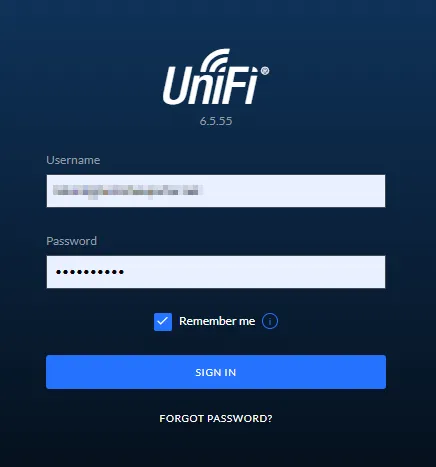
1.Access UniFi Controller: Open the UniFi Controller and log in to the relevant site.
UniFi Controller
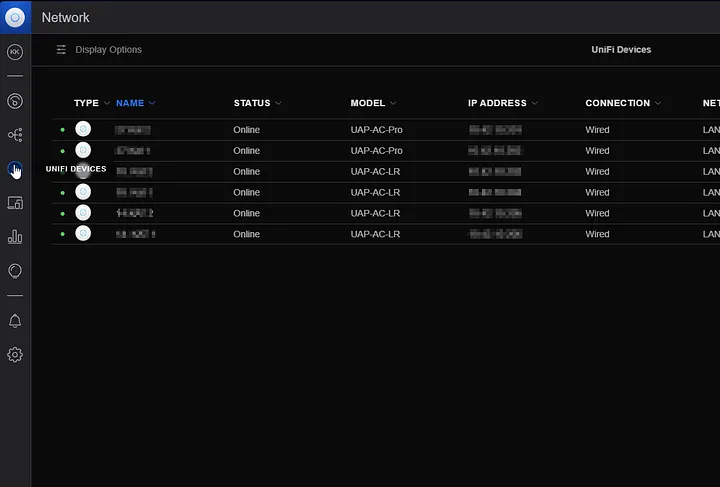
2.Navigate to Devices Section: Click on the “Devices” section in the left-hand menu.
Devices
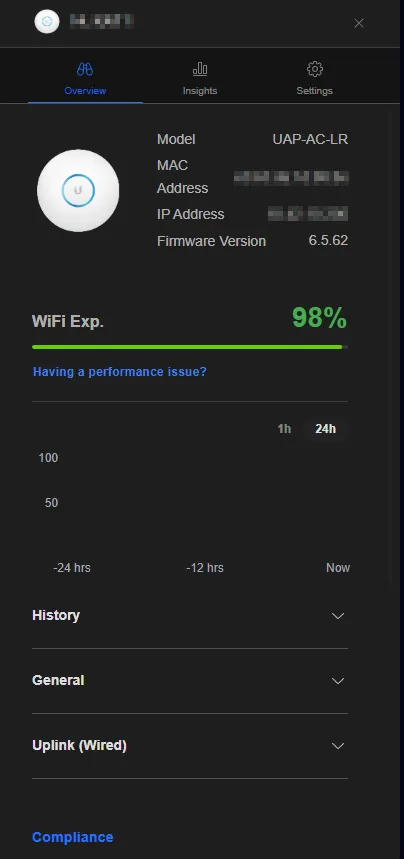
3.Select the Access Point (AP): Choose your UniFi Access Point from the list.
UniFi Access Point
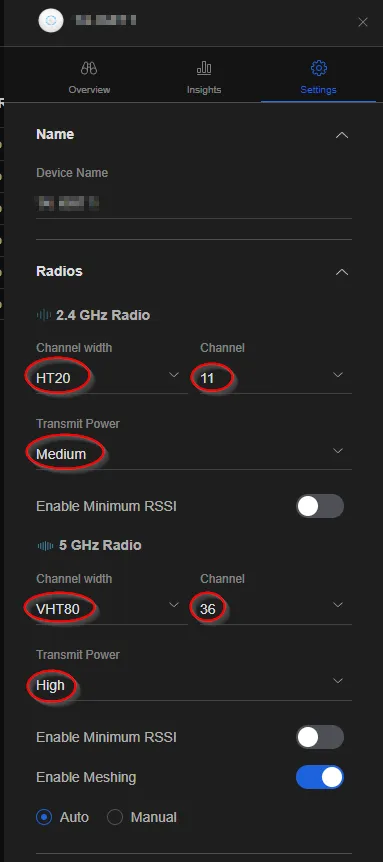
4.Go to Settings Section: On the detailed page of the selected Access Point, click on the “Settings” tab and configure the Radios sections under it as follows:
2.4 GHZ Radio
Channel width : HT20
Channel : 11
Transmit Power : Medium
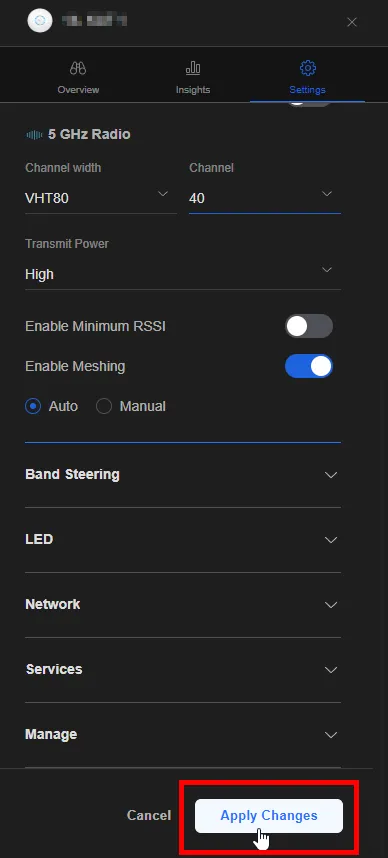
5 GHZ Radio
Channel width : VHT80
Channel : 36
Transmit Power :High
Setting (Radio)
5.Save the Changes Made: After configuring the settings, save the changes by clicking “Apply Changes” at the bottom of the page.
Apply Changessave
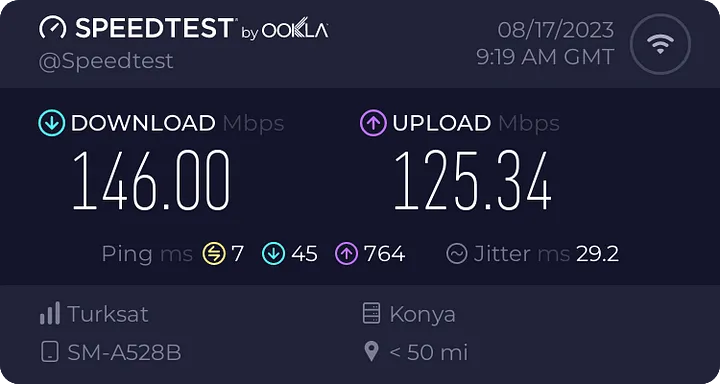
6.Perform Speed Test: You can now connect to the relevant SSID and perform a speed test.
speedtest
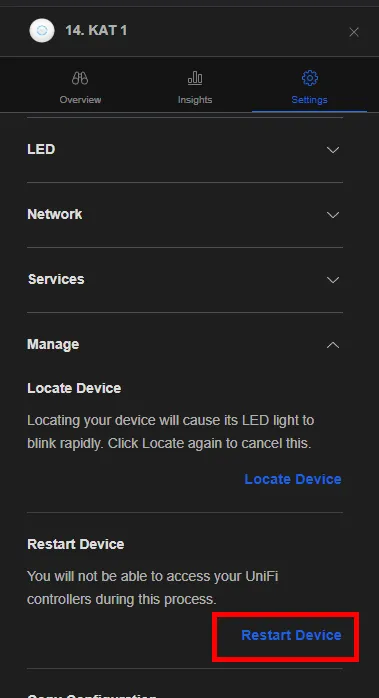
7.Restart the Access Point (If Needed): If the changes don’t take effect immediately, restart the Access Point. Under the “Setting” section, navigate to the “Management” tab and choose “Restart Device.”
Restart Device
By following these steps, you can elevate your UniFi AP’s bandwidth speed beyond 100 Mbps, optimizing performance and ensuring a better wireless network experience. Carefully configure the settings to achieve the desired speeds.
Please note that the provided translation may have some variations based on context and terminology preferences.
If you have any questions or details you would like to add, feel free to write me.
Microsoft Azure Storage Explorer: Microsoft Azure’s cloud platform integrates with a free tool known as Microsoft Azure Storage Explorer. This tool is developed to simplify the management and exploration of data stored in the Azure cloud environment. Azure Storage Explorer provides users with a user-friendly interface to perform a range of tasks such as accessing data sources, viewing, uploading, downloading, editing, and deleting data.
The primary use cases of Microsoft Azure Storage Explorer include:
Managing Azure Storage Resources: Azure Storage Explorer can be used to manage various Azure storage services, including Azure Blob Storage, Azure Table Storage, Azure Queue Storage, and Azure Cosmos DB. This allows users to view, modify, and edit the content of these services.
Data Transfer: Storage Explorer facilitates data transfer between your local computer and Azure or vice versa. It can be used to quickly upload or download large files or datasets to/from Azure Blob Storage.
Blob Storage Management: Specifically for Azure Blob Storage, you can use it to view blob containers and their contents, create new containers, upload, download, delete blobs, and perform sorting operations.
Installing Microsoft Azure Storage Explorer: Here are the steps to install Microsoft Azure Storage Explorer:
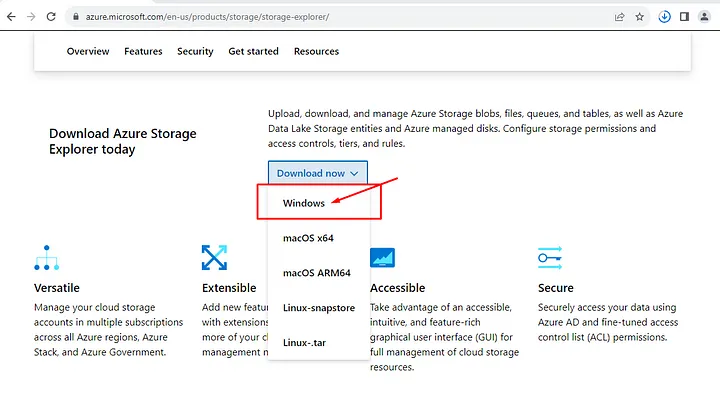
Download: You can download Microsoft Azure Storage Explorer from the official website. You can directly download it using the following link: Microsoft Azure Storage Explorer Download Page.
Microsoft Azure Storage Explorer İndirme Sayfası
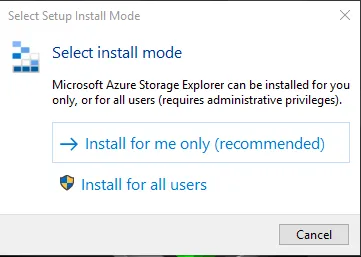
2.Run the Installer: After downloading, run the installer. The installer may check for prerequisites before starting the installation process.
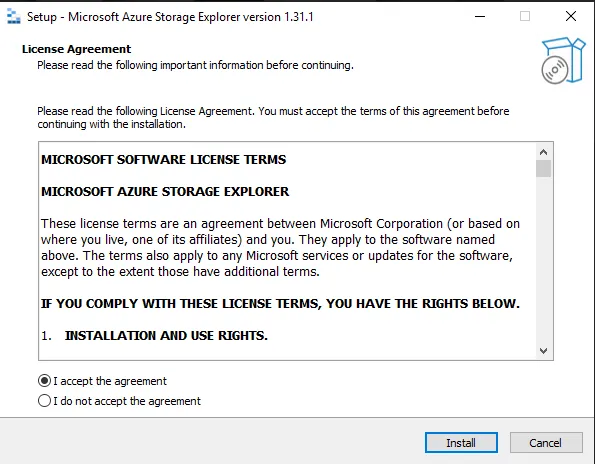
3.Installation Options: When the installer starts, you can configure installation options. Typically, you may want to proceed with the default options, but you can change installation paths and other settings as needed.
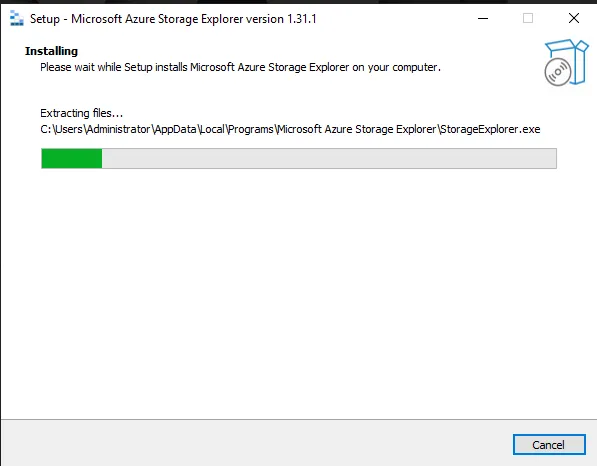
4.Installation Process: The installation process will begin. Azure Storage Explorer and its dependencies will be installed on your computer. This process may take a few minutes.
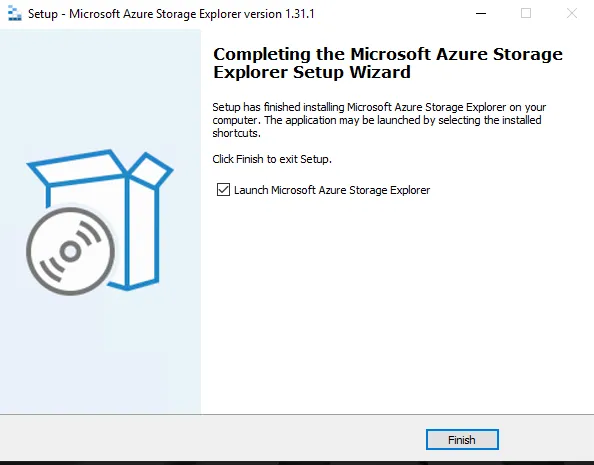
5.Wait for Installation to Finish: Once the installation is completed, the installer will show you a completion message. You can click “Finish” or “Open” to launch Azure Storage Explorer.
Connecting to Azure Blob Storage with Access Keys: You can connect to Azure Blob Storage using access keys via Azure Storage Explorer with the following steps:
1.Sign In to Azure Portal: To access your Azure Blob Storage account, sign in to the Azure Portal.
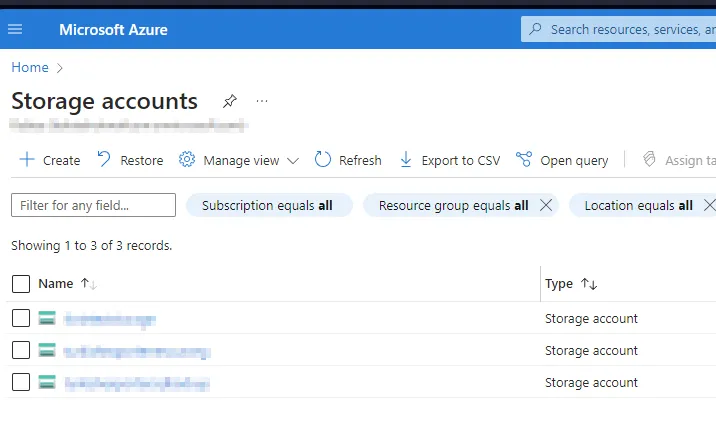
2.Select Your Blob Storage Account: After signing in, select your Blob Storage account or create a new one.
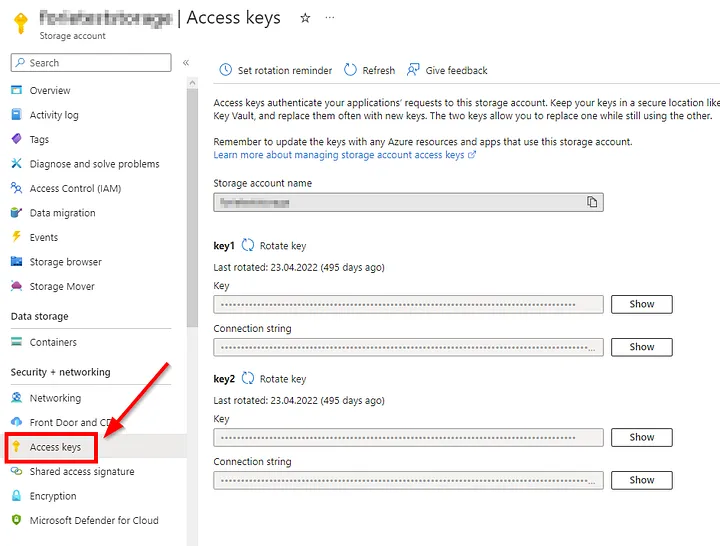
3.Find Your Access Keys: On your Blob Storage account page, there should be an option on the left for “Access keys” or something similar. Click on this option to find your access keys.
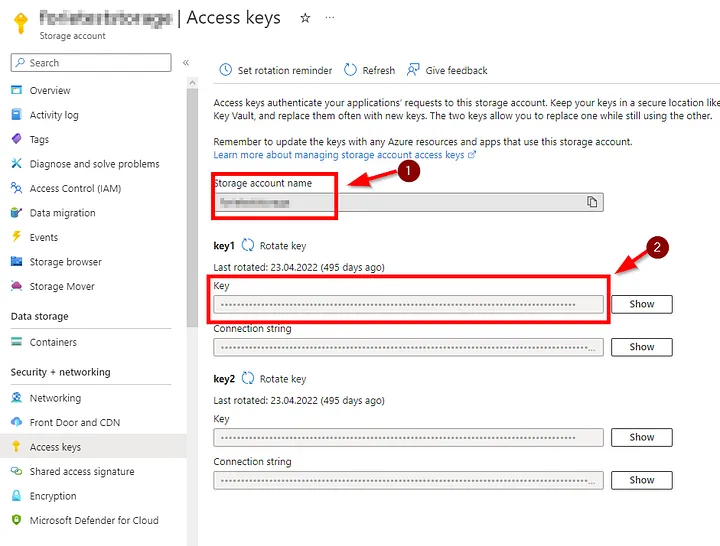
4.Copy the Access Keys: On the access keys page, you will see two keys under “Key1” or “Key2”. Choose one of these keys and click the “Copy” button to copy the key to your clipboard.
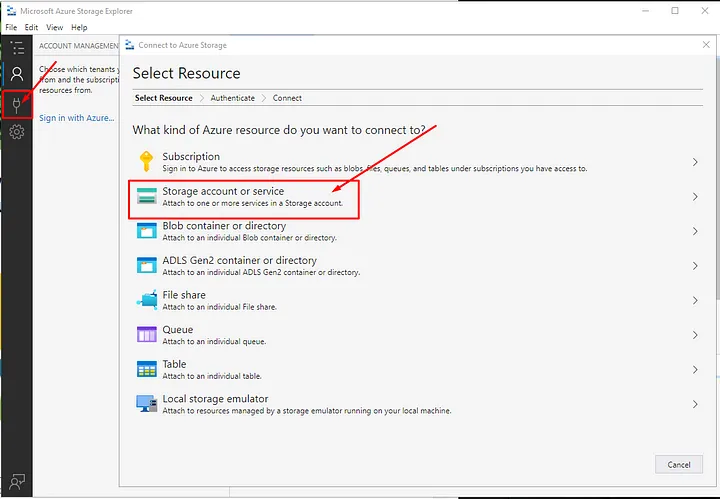
5.Launch Azure Storage Explorer: Start the Azure Storage Explorer application on your computer.
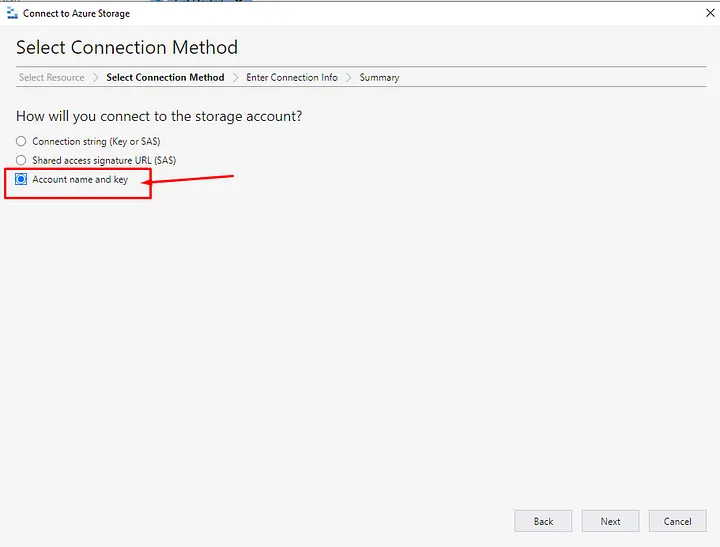
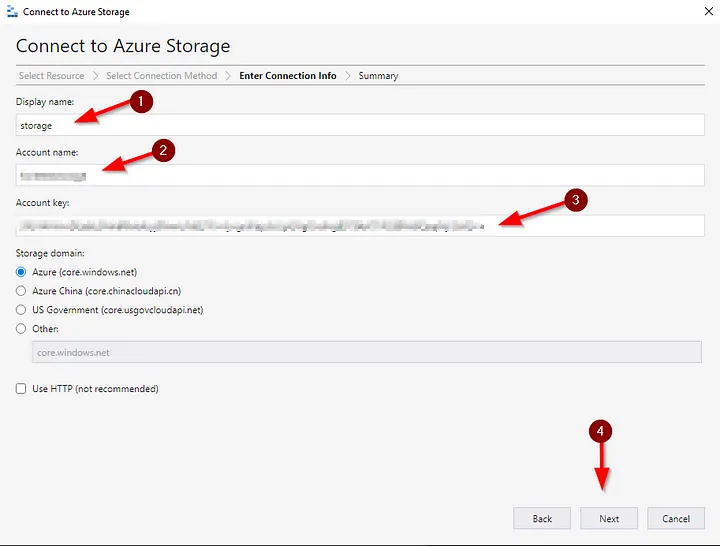
6.Add an Account with Access Keys: Select “Access key” as the “Account kind” and enter the following information:
Account name: The name of your Blob Storage account.
Access key: Paste the access key from your clipboard.
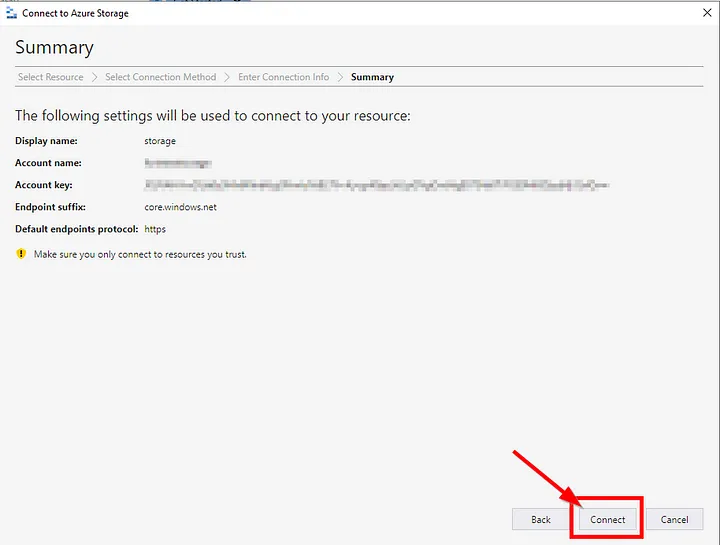
7.Connect: After entering the login information, click the “Connect” or similar button to connect to your Blob Storage account.
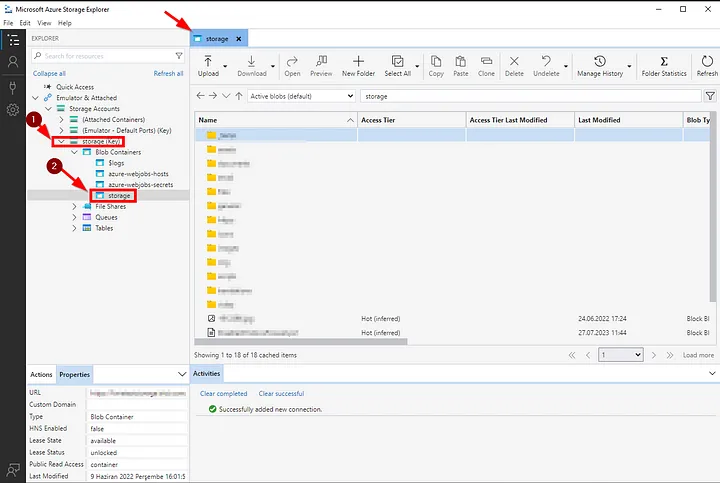
8.Manage Blobs: You can now view and manage blob containers and their contents within your Blob Storage account.
If you have any questions or details you would like to add, feel free to write me.
Azure Update Manager is a service offered by Microsoft on the Azure cloud platform and allows you to centrally manage updates for operating systems such as Windows Server. This service is very useful for keeping your servers and virtual machines up to date, closing security gaps and ensuring compliance. With Azure Update Manager, you can do the following:
Update Distribution: Azure Update Manager helps you automatically distribute updates to your servers and virtual machines. This ensures that your servers are current and secure.
Compliance Checks: Azure Update Manager checks your servers for specific compliance requirements and reports non-compliance. This way you can meet compliance requirements.
Scheduling and Planning: You can configure your update policies and schedules. You can set custom schedules to determine when and how updates will be applied.
We have some information about what Azure Update Manager does. Now let’s move on to the installation part.
Sign In to Azure Portal: Sign in to your Azure account or create one.
Enable Azure Update Manager: Find “Azure Update Manager” or “Update Management” from the left menu and enable the service.
Azure Update Manager panel recognition:
Azure Update Manager (Preview)
Total Machines: Shows the total number of virtual machines in Azure.
Update Status for Machine: Shows the update status (current, pending, failed, etc.) of each virtual machine.
Patch Orchestration Configuration of Azure Virtual Machines: Contains settings for determining how to configure update management of virtual machines in Azure.
Update Installation Status: Shows how updates are installed on virtual machines and their success status.
Check for Updates: Used to instantly check the update status.
One-time Update: Allows you to initiate a one-time update at a specific time.
Schedule Updates: Sets whether updates are automatically applied at a specific time or periodically.
Settings: Contains configuration settings related to update management. This is used to edit update policies and other preferences.
Now let’s look at the process of manually updating one of the VMs in our panel;
First of all, we select the “Machines” section from the left panel,
Machines
We select a server (VM) from the opened panel and click on the “Check for updates” option,
Azure Update Manager (Preview) | Machines
Checks the VM for updates and completes the process,
As a result of the check on the same panel, we see that there is a pending update process in the VM,
VM Status
There is one update visible in the given VM,
We continue by selecting the incoming update.
We continue by selecting the incoming update.
In the “Properties” section, there are options for after the update, here we choose the one suitable for us.
In the last stage, we start the one-time update process.
By going to the “History” section on the left, we see that our transaction has been completed successfully.
Now, let’s make the installation of the available updates at the time and time we want;
In the Azure Update Manager (Preview) interface, click on the “Machines” section from the left menu.
2. Click “Select all” in this section to select all virtual machines, and then click “Schedule updates”.
Schedule Updates
3. Create a “Resource Group” on the screen that opens and specify a name for the process in the “Configuare name” section.
4.There are three different options in the “Maintance Scope” section. These options determine how updates are applied. Make your choice here.
Maintance Scope
5.The “Reboot Setting” section is where you determine what action the virtual machine should take after the update.
6.The “Schedule” section is the screen where you configure when updates start, downtime, and other settings. Set the specified schedule.
7.Then, by clicking the “Next” button, we select the relevant virtual machines from the resources.
8. Then, in the “Updates” section, you select the “Include update classification” option, select the update classifications that are important to you, and complete the creation process.
9. Finally, when the updates are finished, we can see the operations performed on the main screen and in the “History” section.
Bu adımları takip ederek Azure Update Manager ile sanal makinelerinizi güncelleyebilir ve yönetebilirsiniz.
If you have any questions or details you would like to add, feel free to write me.
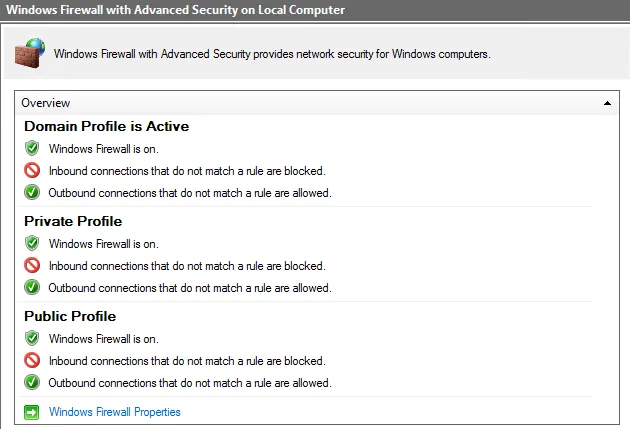
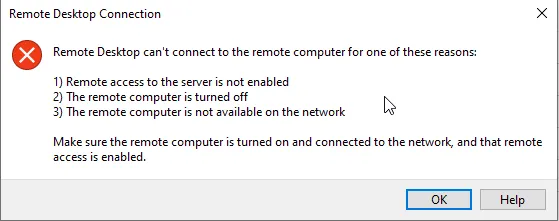
When you enable Windows Firewall, in some cases, you might lose Remote Desktop access to the virtual machine. In such situations, you can follow the steps outlined below in the Azure portal to make the Windows Firewall inactive and regain access:
Firstly;
Step 1: Let’s create a PowerShell script with the following codes and name it: DisableWindowsFirewall.ps1
Azure Repos is a version control system that is part of Microsoft’s Azure DevOps service family. This service is used to manage source code in software development projects. Azure Repos supports team-based software development processes, providing developers with a platform to collaborate, track code changes, and manage version history.
Key features of Azure Repos include:
1. Git and Team Foundation Version Control (TFVC): Azure Repos supports popular version control systems such as Git and Team Foundation Version Control (TFVC). Developers can choose the version control system that best suits their projects.
2. Collaboration and Teamwork: Azure Repos facilitates effective collaboration among multiple developer teams. It supports teamwork with features such as collaborative coding, code review processes, and feedback mechanisms.
3. Branching and Merging Operations: Developers can use branches to make parallel developments in their projects and later merge these branches into the main project. This ensures orderly code management.
4. Integration: Azure Repos can be integrated with other Azure DevOps services. This enables teams to plan, track, and deploy projects according to their requirements.
5. Web-Based Interface: Azure Repos provides a web-based user interface, allowing developers easy access to their code, historical changes, and feedback from team members.
Azure Repos is commonly used by developer teams aiming to enhance software development processes and improve collaboration within the team.
If you have any questions or details you would like to add, feel free to write me.