Categories
Articles Windows

The Secret to Swiftly Managing Windows Packages: Discover, Keep Up-to-Date, and Update All Programs with the WinGet Command!

Application management and update processes can become quite complex for users of the Windows operating system. But worry not, the solution is right here: Welcome to the magical world of Windows Package Manager (WinGet)! In this article, you will learn step by step how to use the WinGet command and discover how to streamline the application management process. You’ll find out how to accelerate the pace of managing your applications.

Microsoft Windows

What is WinGet and How to Use It?

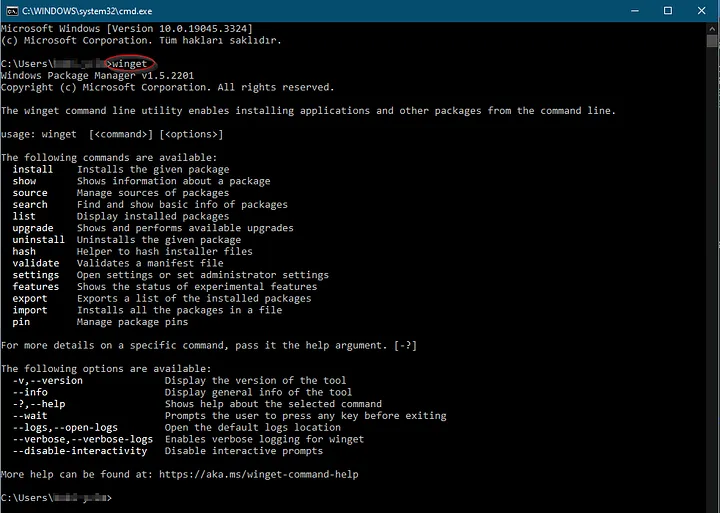
WinGet is a package manager designed specifically for the Windows operating system. Here are some fundamental commands and examples:

winget
winget

1.Discovering Applications: You can search for any application using WinGet. For instance, quickly find Firefox:

winget search Firefox

2.Swift Installation: Installing applications swiftly is now incredibly easy! Let’s consider Microsoft Edge browser as an example:

winget install MicrosoftEdge

3.Clean Uninstall: Uninstalling unnecessary applications is a breeze. For example:

winget uninstall MicrosoftEdge

4.Updating All Applications: Ensuring your applications are running the latest versions is now achievable with just a single command:

winget upgrade -all

winget upgrade -all
winget upgrade -all

By using the command above, just like in the Command Prompt, you can swiftly update all the programs on your Windows operating system.


The Next Generation of Application Management

WinGet elevates application management to a new level. Now you can control your operating system more effectively, instantly download the applications you desire, and keep them up-to-date. Thanks to this next-generation package manager, wasting time is a thing of the past! With WinGet, you can take your Windows application experience to the highest level.


For More Information


If you have any questions or details you would like to add, feel free to write me.

Categories
Articles Windows Server

Diskperf -Y and Diskperf -N Commands in Windows Server: Applications and Necessities

The Windows Server operating system provides various tools and commands for managing and monitoring servers’ administration and performance. Among these tools are the Diskperf -Y and Diskperf -N commands. In this article, we will explore the necessity and usage scenarios of the diskperf commands on Windows Server.

Diskperf -Y: Activation Command

The Diskperf -Y command is used to enable disk performance measurements. The applications and necessities of this command include:

1.Performance Monitoring and Analysis: Monitoring and analyzing server performance is crucial for maintaining efficient operations. The Diskperf -Y command activates performance measurements used to monitor disk usage levels, data transfer rates, and processing delays. System administrators can continually track server disk performance and promptly identify issues when needed.

2.Troubleshooting and Problem Resolution: Issues related to disks, such as performance degradation or excessive load, can adversely impact server efficiency. The Diskperf -Y command serves as an essential tool for detecting and swiftly resolving problems. System administrators can determine when disks are being excessively used or are insufficient in various situations.

Diskperf -N: Disable Command

The Diskperf -N command is used to disable disk performance measurements. The applications and necessities of this command include:

1.Data Privacy and Security: In certain situations, preventing the monitoring of disk performance data on servers becomes necessary. This is especially important when dealing with sensitive data or ensuring server security. The Diskperf -N command can be used to limit the monitoring of such sensitive data and safeguard data privacy.

2.Performance Optimization: The Diskperf -N command enables the temporary disabling of performance measurements based on measurement requirements. This can help optimize overall server performance by freeing up unnecessary system resources.

The Diskperf -Y and Diskperf -N commands provide the means to enable and disable disk performance measurements in the Windows Server operating system. Monitoring disk performance is vital for performance monitoring, troubleshooting, and ensuring data security on servers. When used correctly and purposefully, these commands empower system administrators and users with increased control over server management.

Enabling Diskperf -Y: How to Activate It

Disk performance measurements are crucial indicators for the health and efficiency of computer systems. Windows Server operating systems offer various tools and commands for managing and monitoring servers, and among these tools are the Diskperf -Y and Diskperf -N commands. In this article, we will explore the necessity and applications of the Diskperf -Y and Diskperf -N commands on Windows Server.

Diskperf -Y Command: Activation Process

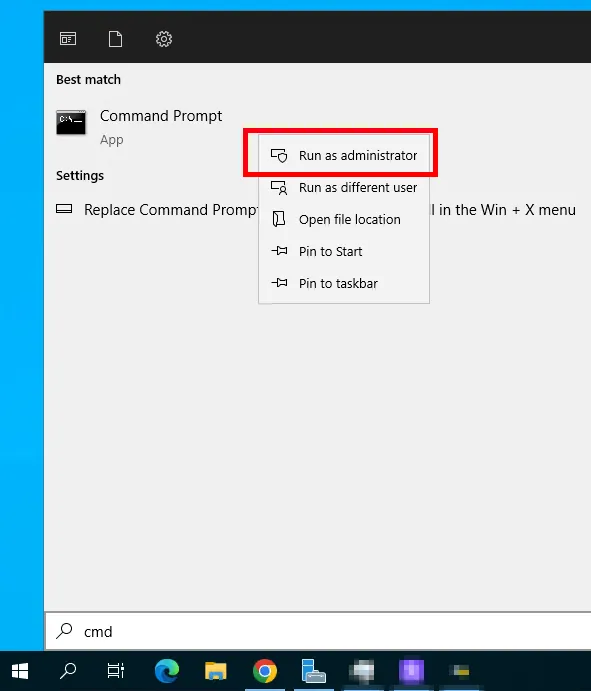
  1. Search for “Command Prompt” in the Start Menu: Navigate to the Start Menu and search for “Command Prompt.” Right-click on the “Command Prompt” application from the search results, and select “Run as administrator” to open it with administrative privileges.
Başlat Menüsü
Başlat Menüsü

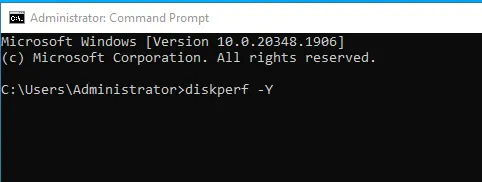
2.Enter the Diskperf -Y Command: In the opened Command Prompt window, type the following command and press the Enter key:

diskperf -Y

Komut İstemi
Command Prompt

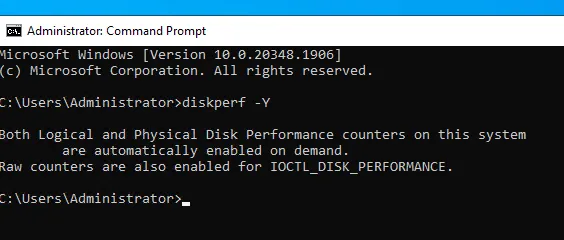
3.Check the Confirmation Message: After executing the command, the system should display a confirmation message such as “Disk performance counters were successfully enabled.” This indicates that disk performance measurements have been successfully activated.

By now, you have successfully used the diskperf -Y command to enable disk performance measurements. This will allow you to monitor performance metrics such as disk activity, data transfer speed, and disk usage.

disk performans
disk performance

emember that performance measurements can be disabled using the “diskperf -N” command when necessary.

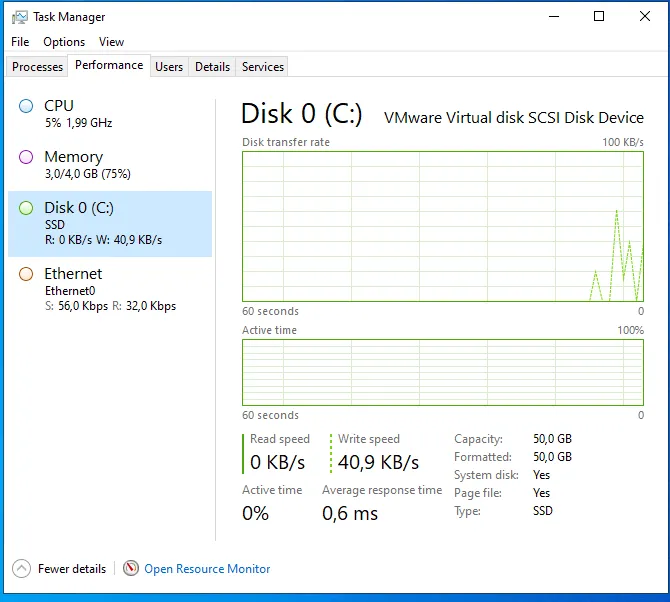
Monitoring disk performance using tools like Task Manager or Performance Monitoring is essential for optimizing the health and efficiency of servers or computers. Keeping track of disk activity and performance ensures a stable and responsive system.


Herhangi bir sorunuz veya eklemek istediğiniz detaylar varsa bana yazmaktan çekinmeyin.

Categories
Articles Windows Server

Creating and Managing an SSL Certificate on Windows Server

Web security holds significant importance for the security of online activities nowadays. SSL (Secure Sockets Layer) certificates play a critical role in the security of websites and applications. This article outlines the steps to create and manage an SSL certificate on a Windows Server.

Step 1: Generating a .CSR File:
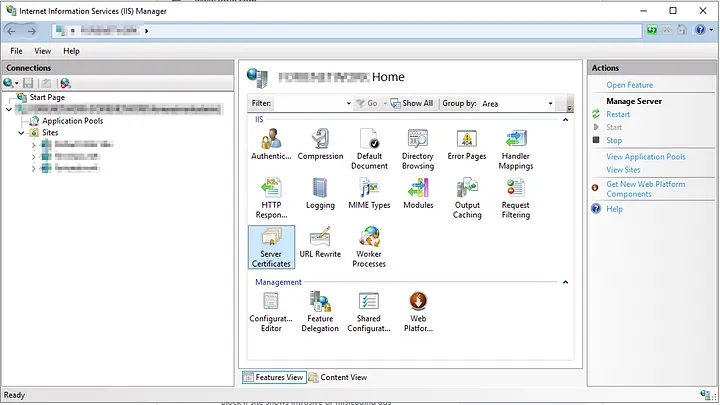
  • Open the IIS (Internet Information Services) management tool on your Windows Server.
IIS (Internet Information Services)
  • Go to “Server Certificates.”
“Sunucu Sertifikaları” (Server Certificates)
(Server Certificates)
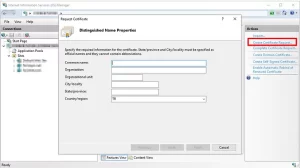
  • Click on “Create Certificate Request.”
“Sertifika İsteği Oluştur” (Create Certificate Request)
Create Certificate Request
  • Fill in the required details: domain name, organization name, country, etc.
domain name, organization name, country, etc.
  • Save the .CSR (Certificate Signing Request) file.
.CSR (Certificate Signing Request)

Step 2: Mail Confirmation and Obtaining .CRT File from SSL Provider:
  1. Visit your chosen SSL provider and initiate the certificate purchase process.
  2. Complete the necessary verification steps during the certificate purchase. Typically, you’ll need to verify ownership of the domain you own.
  3. Once the verification is completed, your SSL provider will send you a .CRT (Certificate) file.
Step 3: Importing the .CRT File using MMC:
  • On the Windows Server, open the “Run” dialog and type “mmc,” then press Enter.
mmc
mmc

mmc

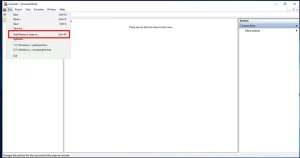
  • From the “File” menu, select “Add/Remove Snap-in.”
Add/Remove Snap-in.
Add/Remove Snap-in.
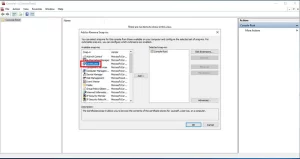
  • Add the “Certificates” snap-in.
Certificates
Certificates
  • Choose the “Computer account” option and select your local computer.
“Bilgisayar hesabı” (Computer Account)
Computer Account
  • Navigate to “Certificates” > “Personal” > “Certificates.”
Personal
Personal
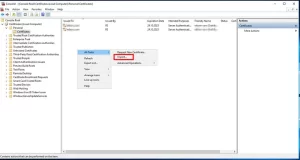
  • Right-click on the imported .CRT file and choose “All Tasks” > “Import…,” then add the .CRT file.
“mport…
Import…
Step 4: Converting .CRT File to .PFX Format:
  • In MMC, right-click on the certificate you imported the .CRT file to.

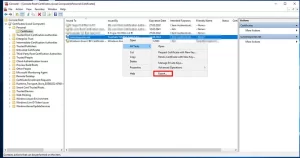
  • Choose “All Tasks” > “Export…”
Export
Export
  • In the Certificate Export Wizard, select the .PFX format and proceed.
.PFX formatı
.PFX format
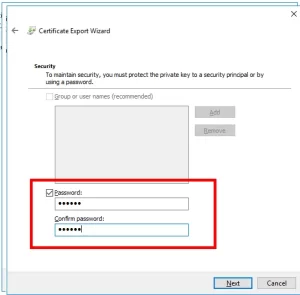
  • Set a password, save the .PFX file, and complete the process.
Bir şifre belirleyin
Set a password


Conclusion: This article has provided a detailed explanation of the steps to create and manage an SSL certificate on a Windows Server. Proper creation and management of SSL certificates are crucial for ensuring web security and safeguarding sensitive user data. Following the correct steps can enhance the security of websites and applications.


If you have any questions or details you would like to add, feel free to write me.

Categories
Articles Windows Windows Server

Running Prometheus as a Service Using NSSM on Windows Server

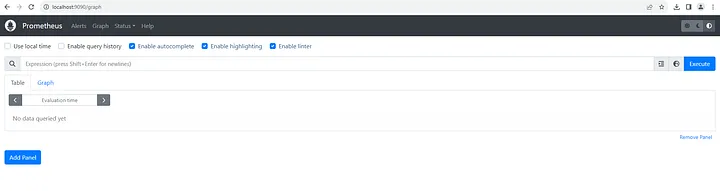
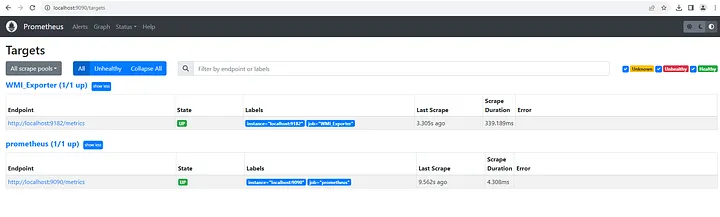
In this guide, we will walk you through the process of running Prometheus as a service on Windows Server using NSSM (Non-Sucking Service Manager). Running Prometheus as a service allows you to automatically start and run it in the background smoothly. Here are the details on how to do it:

1.Preparing Prometheus

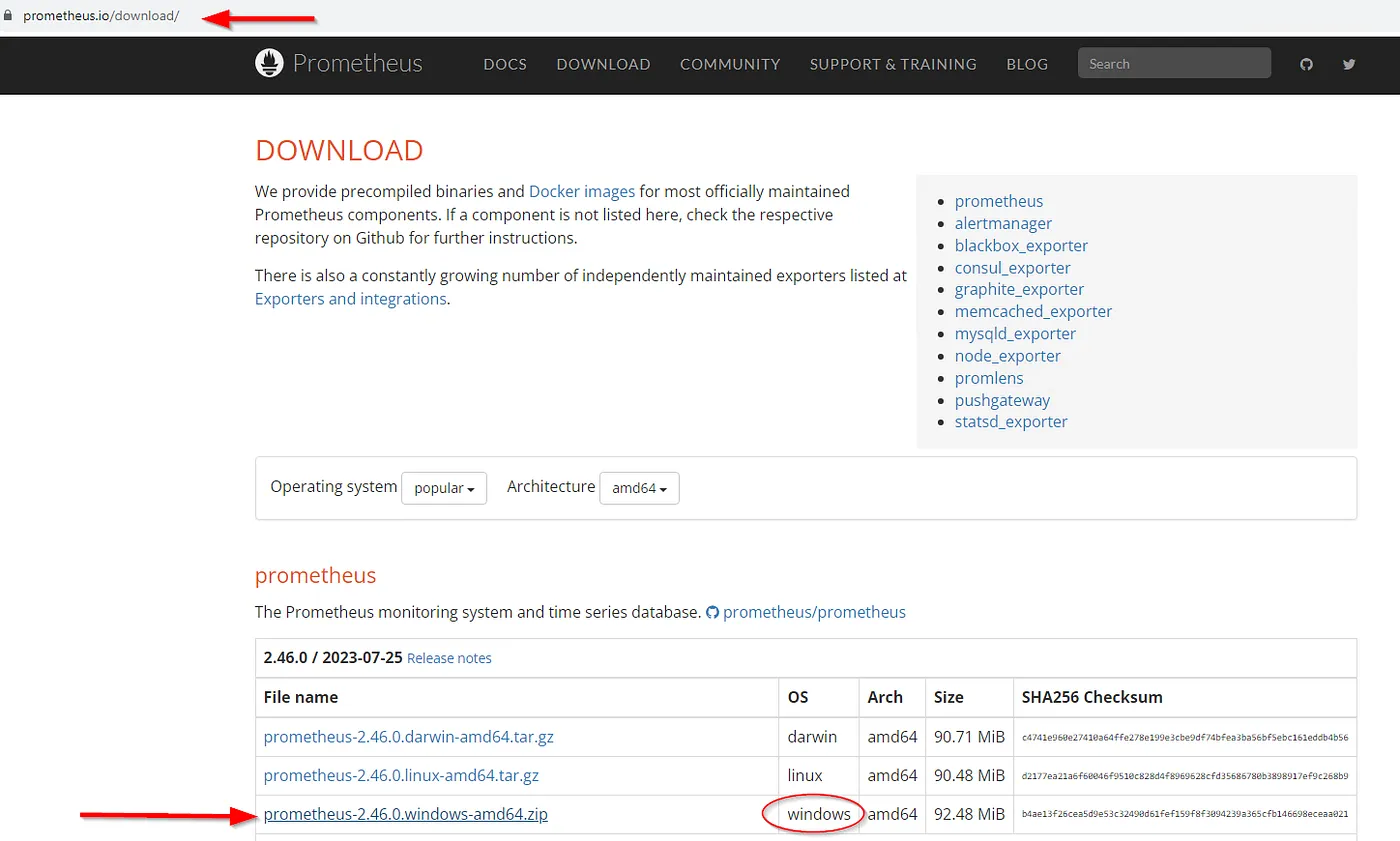
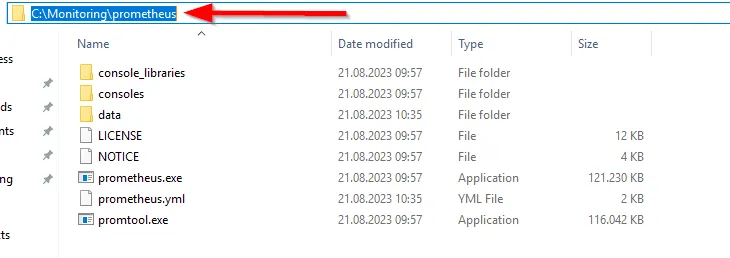
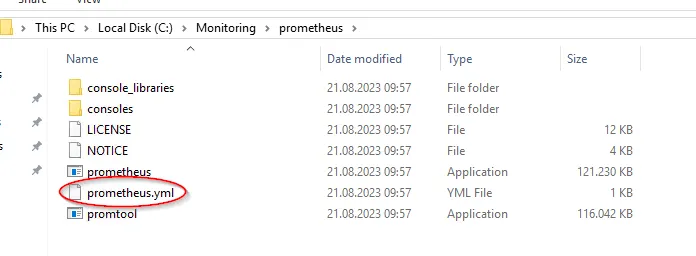
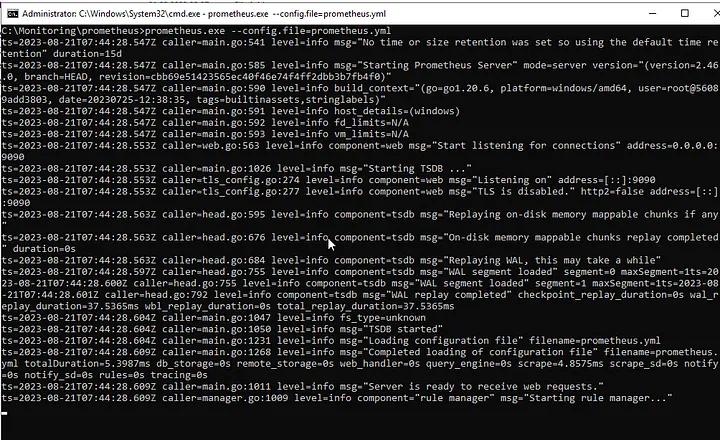
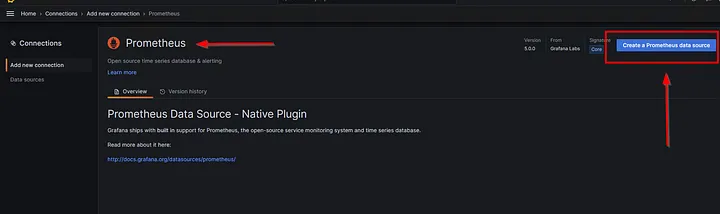
First and foremost, you need to configure Prometheus to work appropriately on Windows Server. Download the latest version of Prometheus from the official website and complete the configuration steps as instructed.

2.Downloading and Preparing NSSM

Download NSSM (Non-Sucking Service Manager) from the official website and extract it to a directory. NSSM is a tool that helps you turn your applications into Windows services.

NSSM download

3.Creating and Configuring a Service with NSSM

  • Open a command prompt as an administrator.

  • Navigate to the directory where NSSM is located.
  • Use the following command to create a new service:

4.Configure the following settings in the opened window:

  • Application: Path to the Prometheus executable file.
  • AppParameters: Path to the Prometheus configuration file.
  • Startup directory: Directory where the Prometheus executable is located.
  • Shutdown action: Select the action to be taken when the service is stopped (e.g., “Ignore”).
  • You can configure other settings as needed.

5.Starting and Monitoring the Service

  • Use the following command to start the service created by NSSM:

1.Installing Other Programs Using NSSM

NSSM is a versatile tool that allows you to convert various applications, not just services like Prometheus, into Windows services. Here are some tips on how to install other programs as services using NSSM:

2.Preparing the Program

Firstly, ensure that the program you intend to install is ready to function in the Windows environment. Make sure you’ve fulfilled the program’s requirements and configurations properly.

3.Creating a Service with NSSM

To create a new service using NSSM, open a command prompt as an administrator. Navigate to the directory where NSSM is located, and use the following command to create a new service:

Configuring the Service

In the opened window, configure the following settings:

  • Application: Path to the program’s executable file.
  • AppParameters: Add any additional parameters required by the program.
  • Startup directory: Directory where the program’s executable is located.
  • Shutdown action: Select the action to be taken when the service is stopped (e.g., “Ignore”).

You can explore other customization options and adjust them according to your needs.

4.Starting and Monitoring the Service

Use the following command to start the service:

Your new program should now be running as a service. Make sure the program functions as expected.

This method allows you to easily manage various applications as Windows services using NSSM. NSSM provides effective and straightforward service management capabilities.


If you have any questions or details you would like to add, feel free to write me.

Categories
Articles Windows

Automated File Cleanup in Windows: Boost Efficiency with Task Scheduler

Automated File Cleaning in Windows

In today’s digital age, our computer storage can quickly become filled with unnecessary files over time. These files not only occupy space but can also impact system performance. Fortunately, Windows operating system provides a solution through the Task Scheduler, allowing you to automatically clean up such files, ensuring a faster and more organized computer experience.

In this guide, you’ll learn how to use the Windows Task Scheduler to automatically delete files in a specific folder at regular intervals. By minimizing the need for manual file cleaning, you can save time and utilize your computer more effectively. By following step-by-step instructions, you’ll discover how to set up this automated file cleaning process.

Understanding Task Scheduler

Let’s first take a look at the command we’ll be using: I can provide information about using the forfiles command to delete files older than a specified date. The “forfiles command is used on the Windows operating system to select files within a specific directory and perform actions on them. It’s commonly used to delete files older than a certain date.

forfiles /p "C:\dosya" /s /m *.* /D -6 /C "cmd /c del @path"

Here’s the breakdown of this command:

  • /p "D:\folder": Specifies the directory to operate on.
  • /s: Searches through subdirectories as well.
  • /m *.*: Selects all file types.
  • /D -6: Filters files based on their modification date. -6 selects files that are 6 days old or older.
  • /C "cmd /c del @path": Executes the specified command for each selected file. In this case, del @path deletes the file.

lease exercise caution when using this command! Accidentally deleting important files is possible. If you’re unsure, consider testing the command to observe how it works.


Creating a .bat File

Now, let’s create an example content for a .bat file:

@echo off
forfiles /p "D:\dosya" /s /m *.* /D -6 /C "cmd /c del @path"

You can open a text editor, paste the code above, and save it with a desired name and .bat extension, such as file_cleanup.bat. Running this file will delete files older than the specified date in the designated folder. Caution is advised, as this operation irreversibly deletes files.


Using Task Scheduler

Using Task Scheduler to regularly execute the .bat file is straightforward. Here’s how:
  1. Open the Start menu and search for “Task Scheduler,” then select it from the results.

2.In the Task Scheduler window, click “Create Basic Task” on the right.

3.Follow these steps in the window that appears:

  • Name and Description: Provide a name and optional description for the task.

  • Trigger: Choose when you want the task to start. For instance, select “When the task starts” and set the date and time.

  • Action: Choose “Start a program,” then browse to select the .bat file you created.
  • Finish: Review your settings and click “Finish” to create the task.
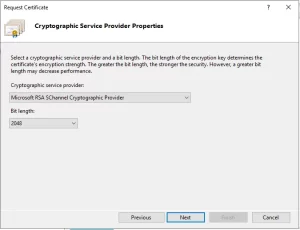
The task will now run the .bat file automatically at the specified times. The flexibility of Task Scheduler allows you to easily customize when and how the file runs.


Remember, the information here is meant to guide you through the process of setting up automated file cleaning using the Windows Task Scheduler. Always exercise caution when deleting files, especially with automated processes.


If you have any questions or details you would like to add, feel free to write me.